




Six-Stage Service Process Workflow Template for PowerPoint & Google Slides
Six Steps Process Template for PowerPoint
Breaking down a process into steps sounds simple until you actually try to put it on a slide. Too many steps crammed into a single layout and the whole thing becomes unreadable. Too few visual cues and the audience loses track of where they are in the sequence. Getting the balance right takes more effort than most people expect, especially when you are working against a deadline and do not have hours to spend tweaking alignment and colors.
A good six steps process template for PowerPoint takes that problem off your plate entirely. The structure is already there. You just need to plug in your content.
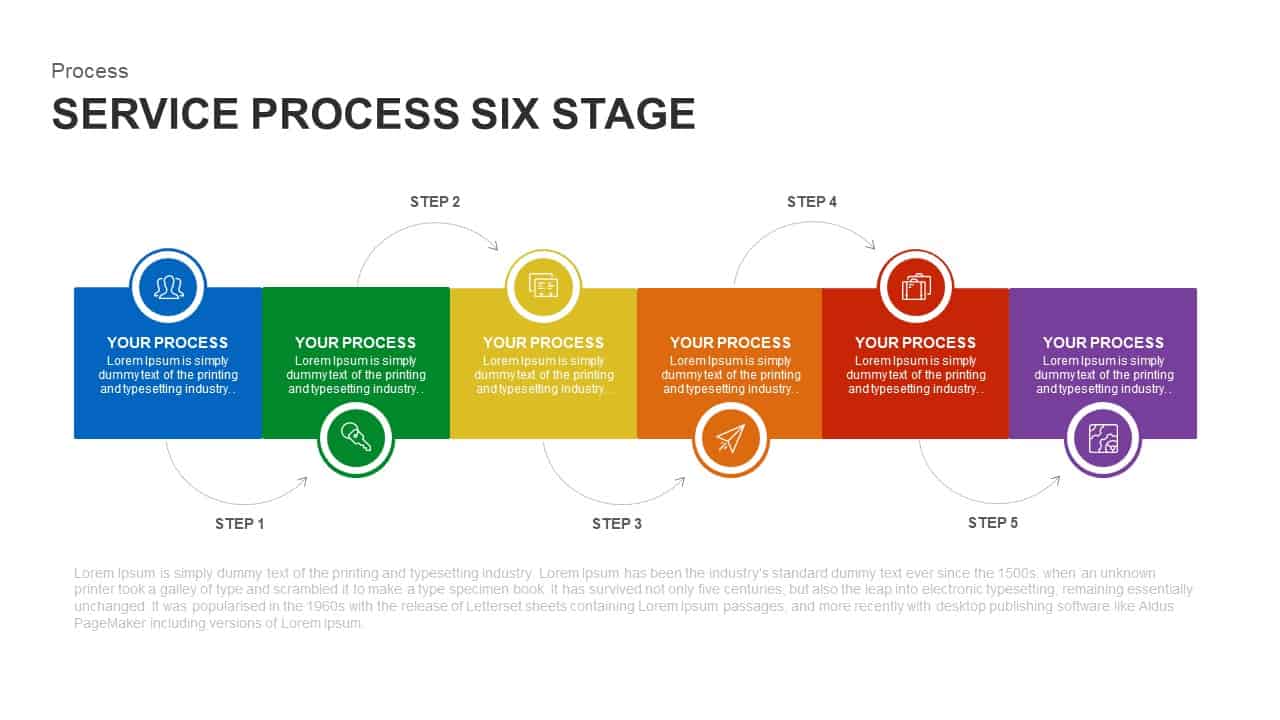
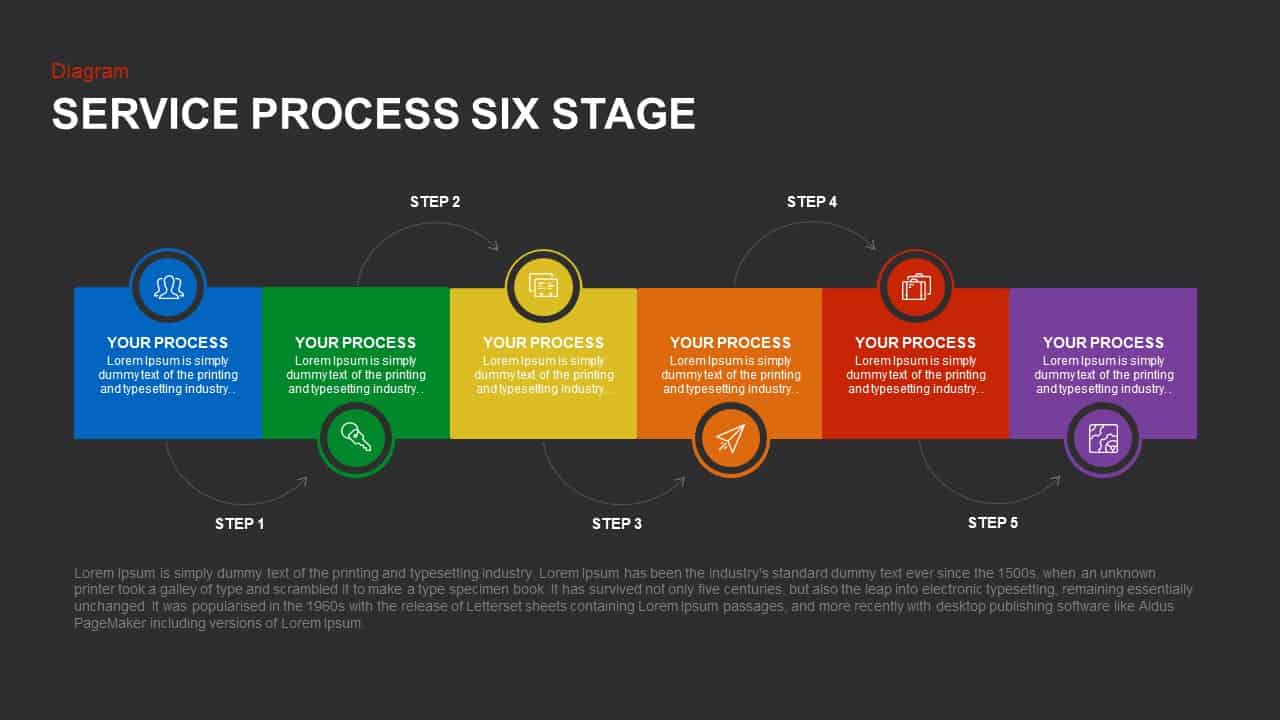
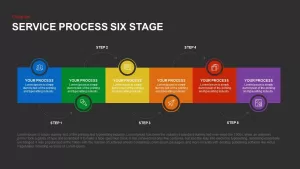
This slide gives you six color-coded rectangles spanning the full canvas, each one representing a distinct stage in your workflow. The colors run from blue through green, yellow, orange, red, and purple, which does more than just make the slide look nice. Each color acts as a visual anchor that helps your audience mentally track where one phase ends and the next begins. Sequential arrows labeled Step 1 through Step 5 arc between the blocks, keeping the eye moving naturally across the layout from left to right. The progression feels intuitive rather than forced, which is exactly what you want when you are walking an audience through something step by step.
Each rectangle comes with a bold heading placeholder and a circular icon frame for representing the core activity at that stage. The white background and dark gray typography keep everything clean and readable, while the color blocks and generous white space make sure the slide never feels cluttered even when all six stages are fully populated with content.
A Fully Editable Six Steps Process Slide for PowerPoint and Google Slides
Everything on this slide is built with vector shapes, which means you can resize blocks, reposition elements, swap icons, change fill colors, and update text without anything breaking or going blurry. If your brand uses a specific color palette, you can replace the default rainbow progression with your own colors in a few clicks through the slide master. The same goes for fonts, icon styles, and label text. The layout holds together regardless of how much you change inside it.
The template works in both PowerPoint and Google Slides, so whether you are building a deck solo or collaborating with a team in real time, the formatting stays consistent across both platforms. Built-in animations and transitions can also be applied to each individual block if you want to reveal the stages one at a time during your presentation. That kind of sequential reveal tends to work really well for process slides because it keeps the audience focused on the stage you are actually talking about rather than reading ahead.
Pixel-perfect alignment guides are built into the layout, so even if you add content, resize shapes, or rearrange elements, everything snaps back into place cleanly without you having to manually fix the spacing.
Who Is It For
Service managers, operations leaders, and customer success teams will get a lot of use out of this slide when they need to walk stakeholders through a service lifecycle, onboarding sequence, or quality assurance process. Consultants, trainers, and project leads can also use it for process documentation, bottleneck identification, and cross-functional alignment sessions where having a clear visual of the stages is more effective than any amount of verbal explanation.
If you regularly present workflows to people who are not deeply familiar with the underlying process, this kind of structured visual makes a real difference in how quickly they get it.
Other Uses
The six-block layout is more flexible than it looks at first glance. Swap the labels and icons and you have a product development roadmap, a marketing campaign workflow, a recruitment pipeline, or a training module structure. It works just as well for mapping customer journeys, outlining KPI reporting cycles, or presenting project phases to a leadership team. The underlying logic of the layout, which is a clear left-to-right progression through defined stages, applies to almost any process you need to present clearly and professionally.
Login to download this file

Item ID
SB01118


Related Templates

7 Stage Process Diagram Workflow PowerPoint Template & Google Slides Presentation
Process
Project Workflow Template for PPT & Google Slides
Project
Eight Stage Hourglass Workflow Diagram Template for PowerPoint & Google Slides
Process
Free Six Stage Bubble Process Diagram PPT Template
Process
Free
Free Six-Stage Arrow Diagram Template
Process
Free
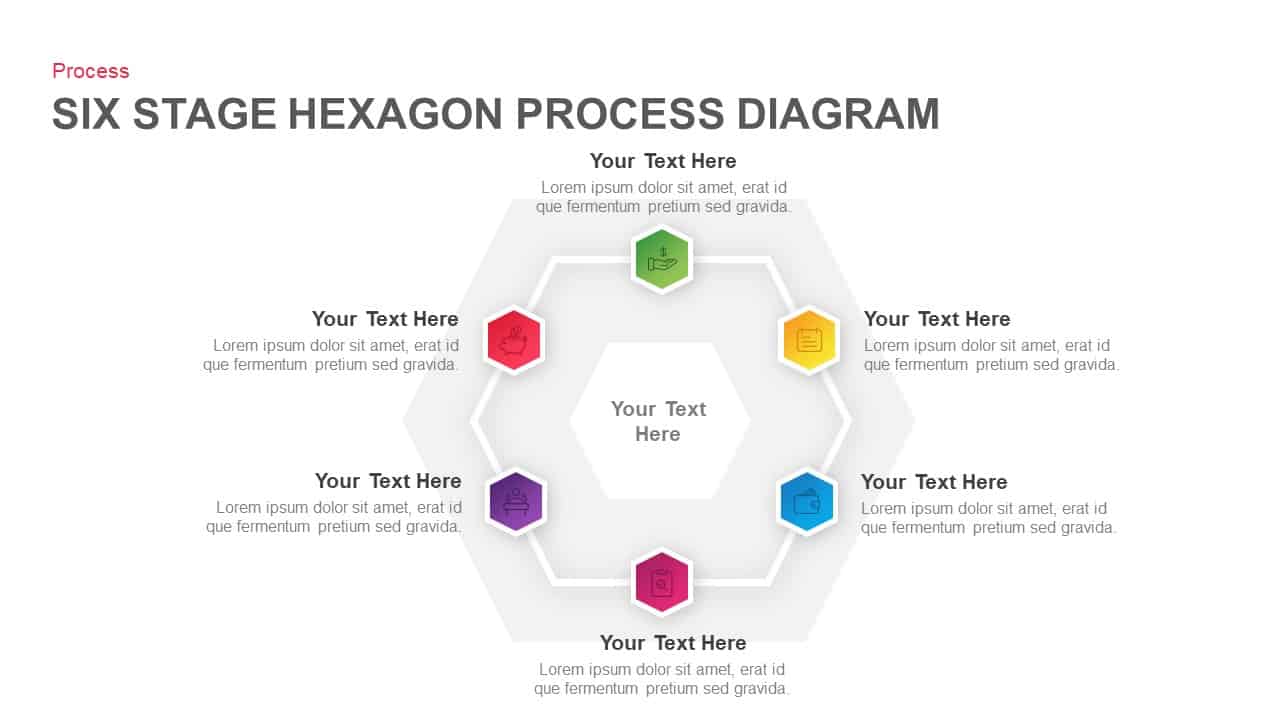
Six Stage Hexagon Process Diagram Template for PowerPoint & Google Slides
Process
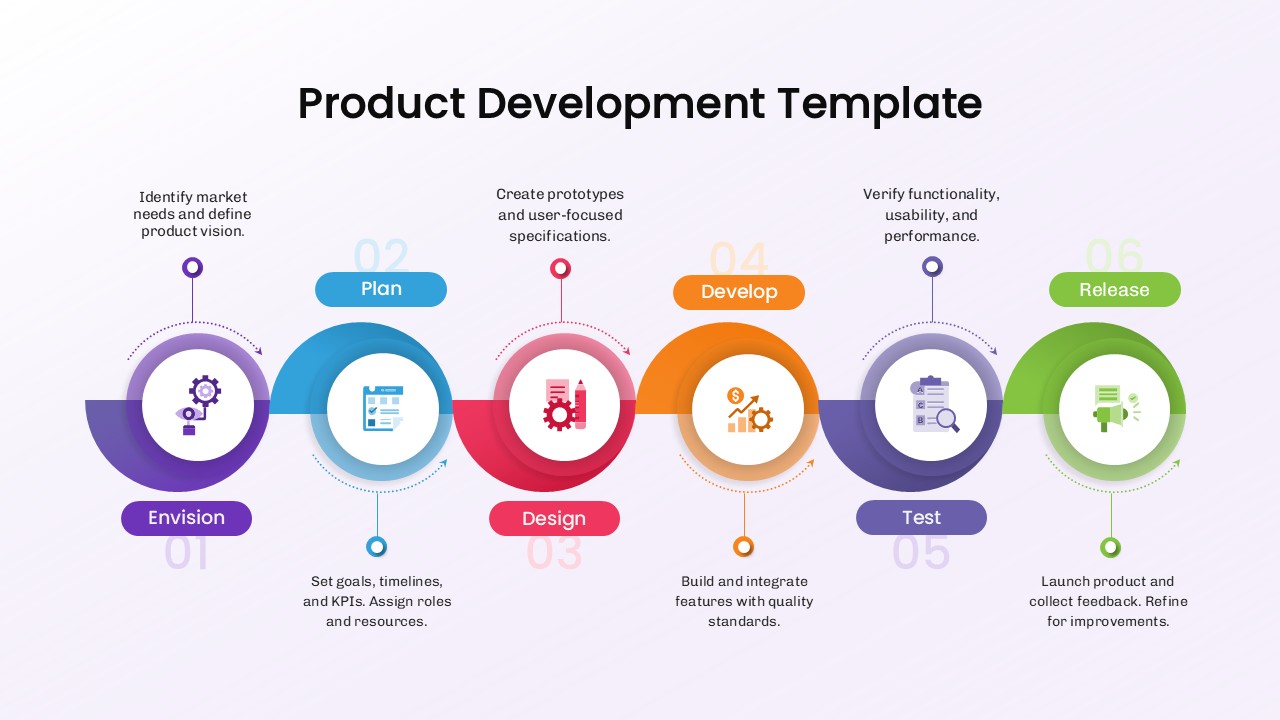
6 Step Product Development Process Template for PPT
Software Development
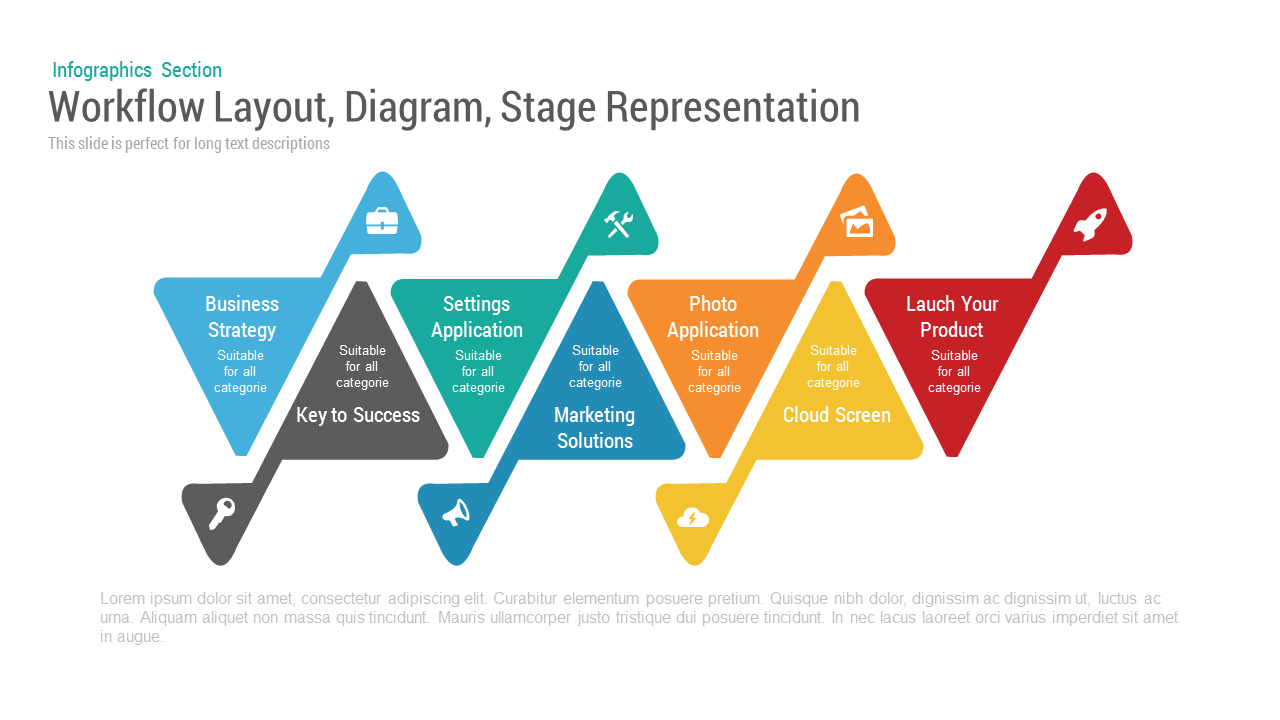
Workflow Layout Diagram Stage PowerPoint Template
Process
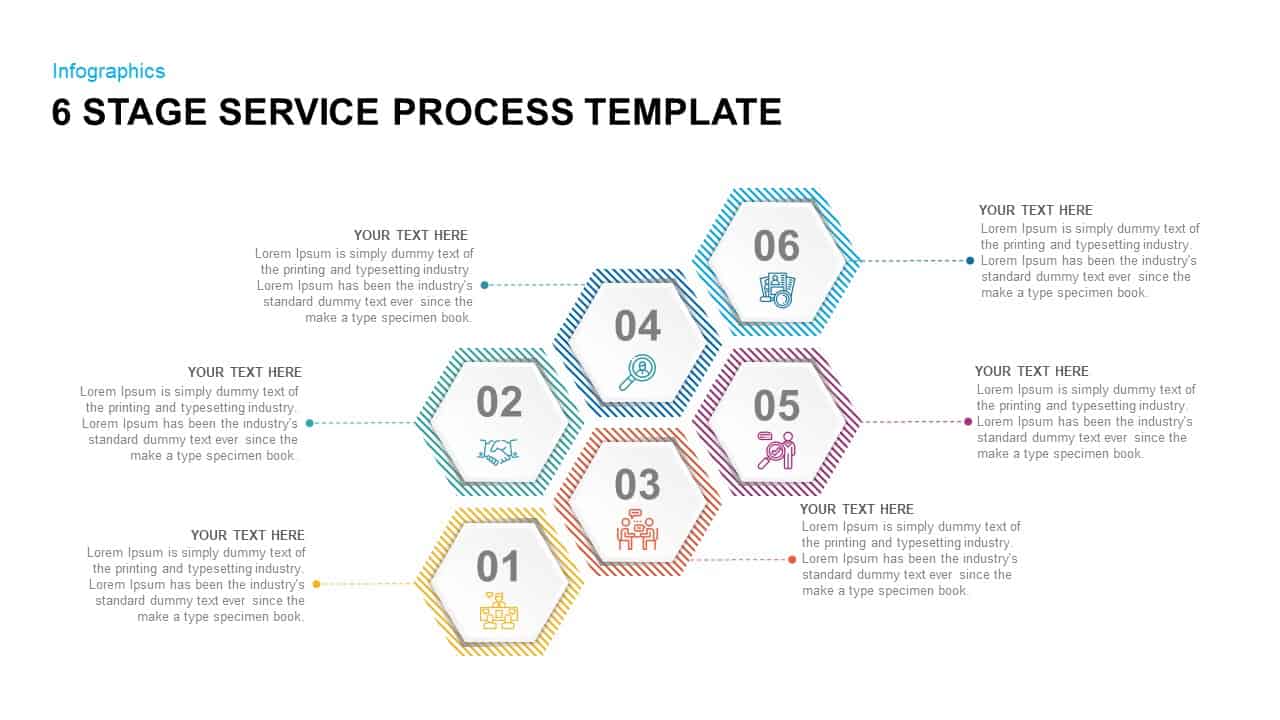
6 Stage Service Process Template
Process
Six Stage Connected Process Infographics Template
Process
Process Workflow Template for PowerPoint & Google Slides
Infographics

Process Workflow Management Template for PowerPoint and Google Slides
Process

HR Workflow Process Management Template for PowerPoint & Google Slides
HR
Process Documentation Template for PPT
Process

Six Service Analysis Report PowerPoint Template
Infographics
7 Step Process Workflow PowerPoint Template and Google Slide
Process
Six-Stage Hexagon template for PowerPoint & Google Slides
Process
Six-Stage Gear Wheel Diagram Template for PowerPoint & Google Slides
Circular
Six-Stage Circular Flow Diagram Template for PowerPoint & Google Slides
Circular

Six-Stage Infinity Loop Diagram Template for PowerPoint & Google Slides
Process