














Presentation Backgrounds for PowerPoint & Google Slides
Explore our collection of professionally designed presentation backgrounds for PowerPoint and Google Slides. Whether you need a clean corporate backdrop, a bold creative design, or a subtle minimalist theme — find the perfect background to set the tone for your next slide deck. Every template is fully editable, easy to customize, and available in both free and premium options.
 Filter
Filter


-

Dentistry PowerPoint Keynote Background template
Background
-

Construction PowerPoint Templates, Backgrounds, and Themes
Background
-

Corporate PowerPoint Keynote Background Template
Background
-

Christmas Keynote Template Background and Theme
Background
-

Business Concept PowerPoint Keynote Background template
Background
-

Agriculture PowerPoint Keynote Background template
Background
-

Architecture PowerPoint Keynote Background template
Background
-

Business Growth and Partnership Background for PowerPoint & Google Slides
Business
-
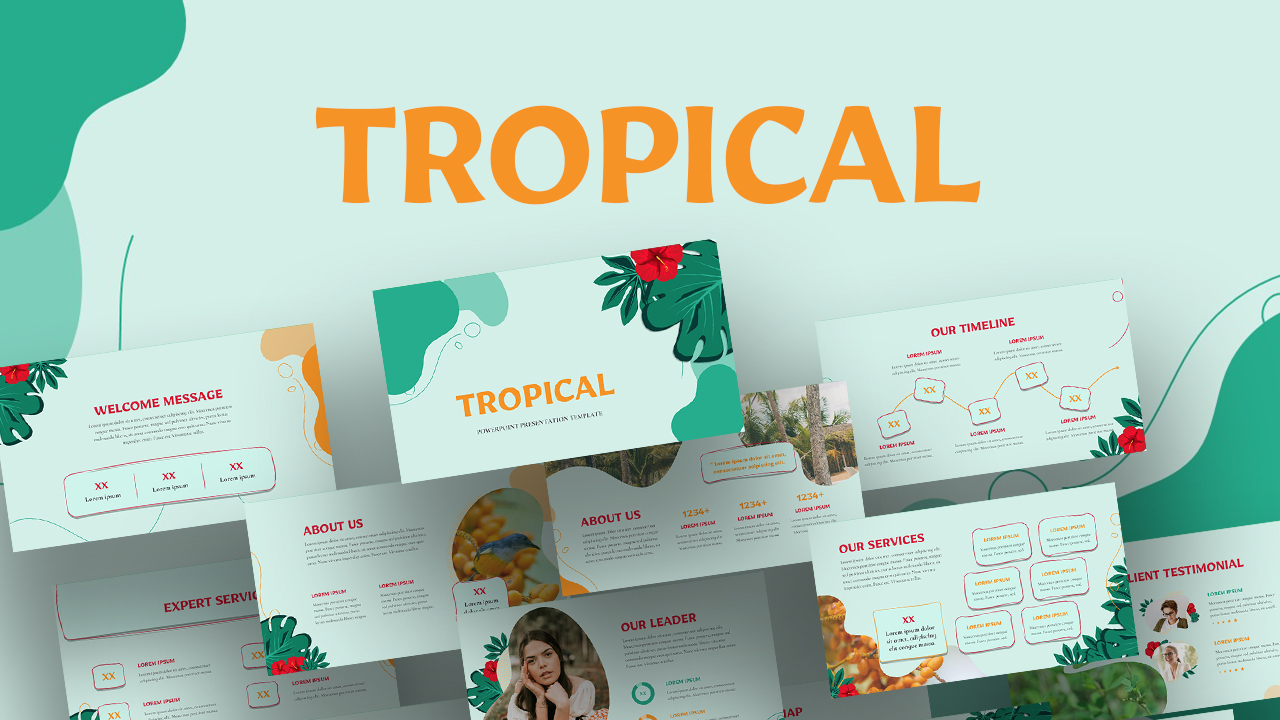
Vibrant Tropical Leaf Background Slide Template for PowerPoint & Google Slides
Pitch Deck
-

Professional Green Geometric Background Template for PowerPoint & Google Slides
Background
-

Green Organic Gradient Background Template for PowerPoint & Google Slides
Company Profile
-
Pink Floral Gradient Background Template for PowerPoint & Google Slides
Graphics
-

Free Professional Background PowerPoint Template
Decks
Free
-
Vintage Old Paper Background Design Template for PowerPoint & Google Slides
Free
Free
-
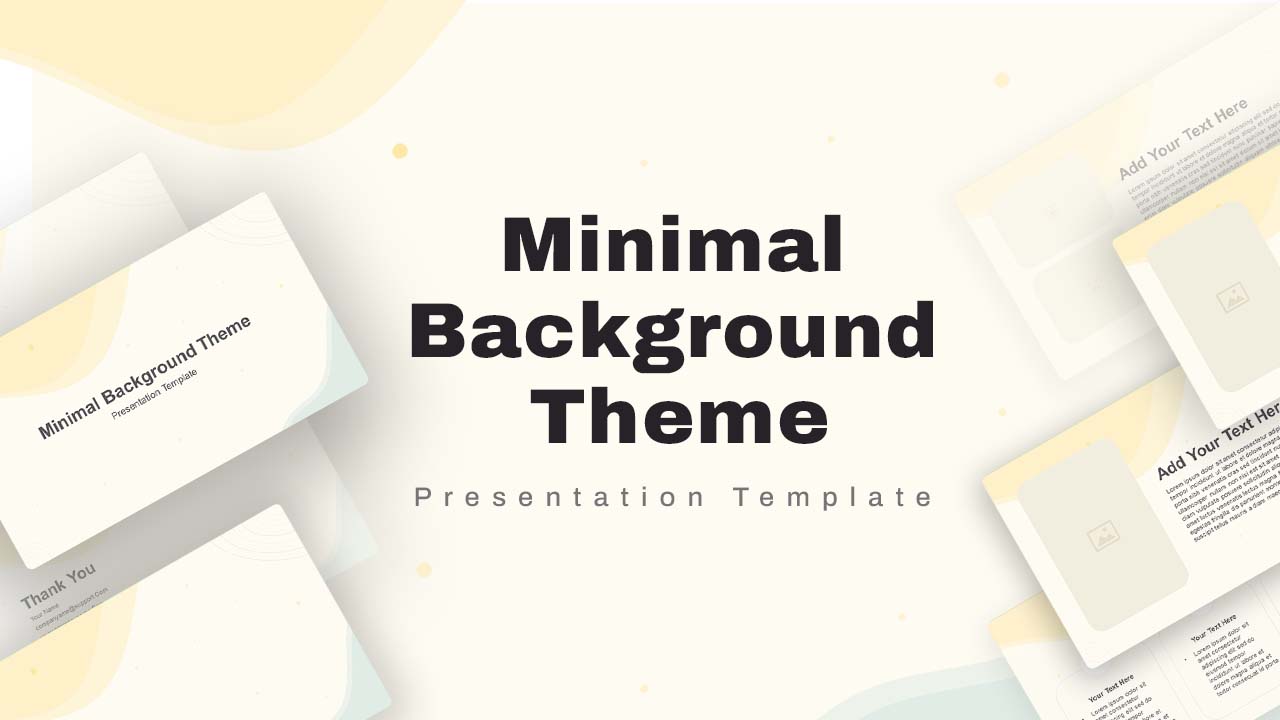
Soft Abstract Minimal Background Theme for PowerPoint & Google Slides
Company Profile
-
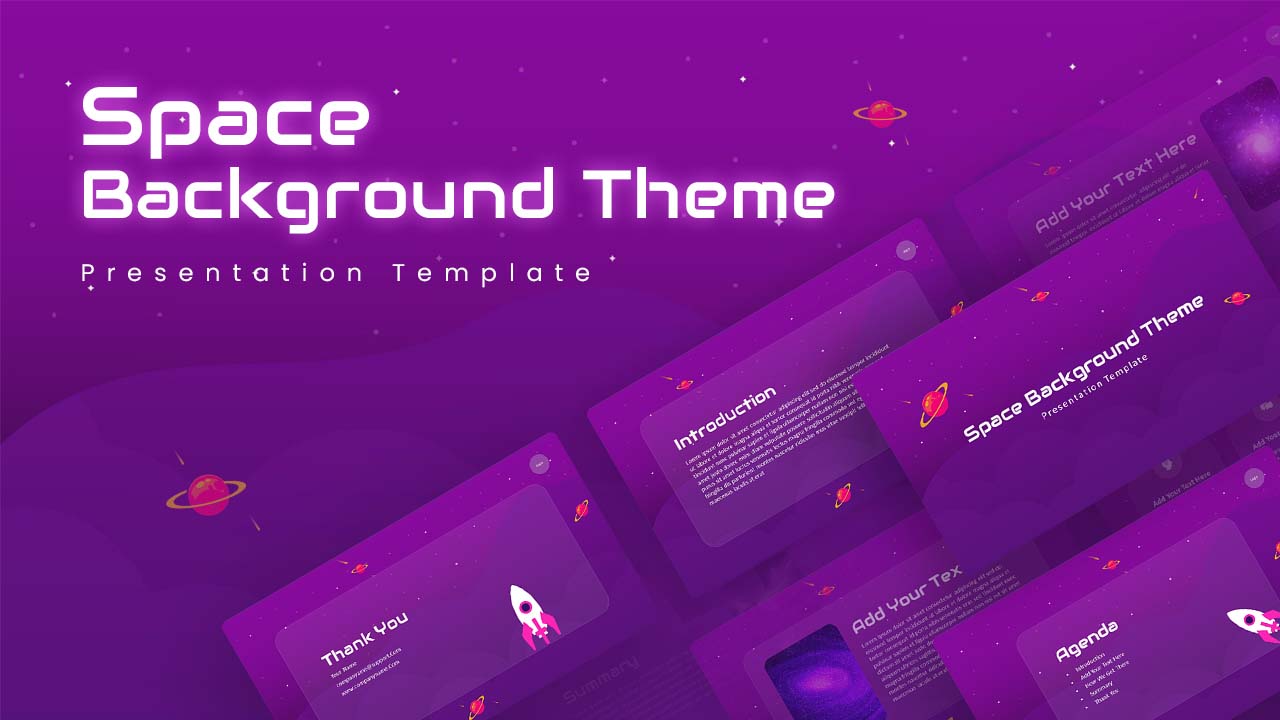
Stellar Space Background Theme Template for PowerPoint & Google Slides
Pitch Deck
-

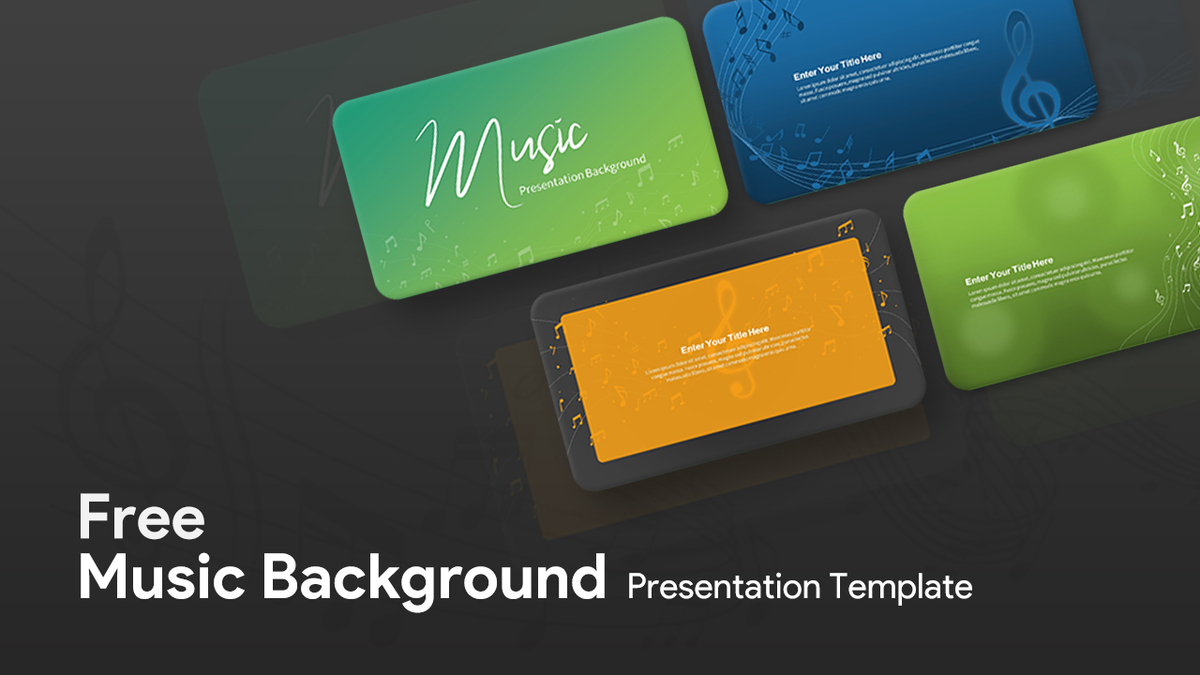
Free Music Background Presentation Template for PowerPoint & Google Slides
Pitch Deck
Free
-
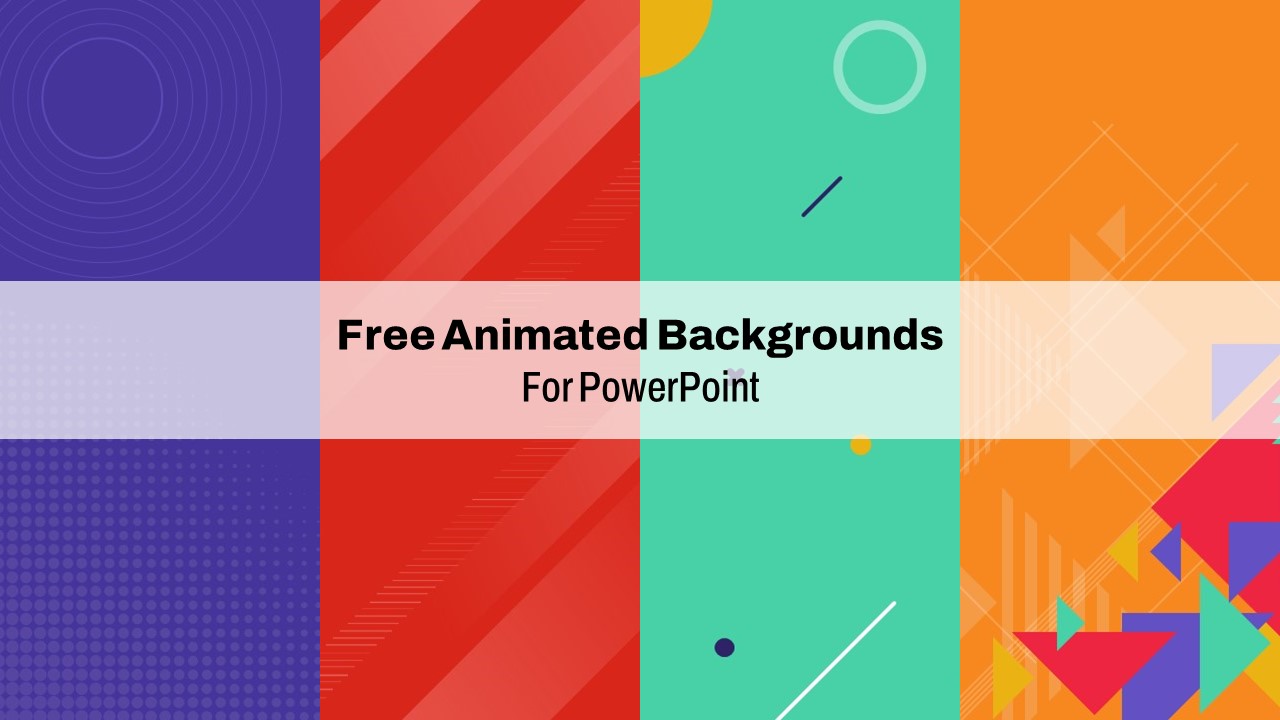
Free Animated Backgrounds for PowerPoint & Google Slides
Graphics
Free
-
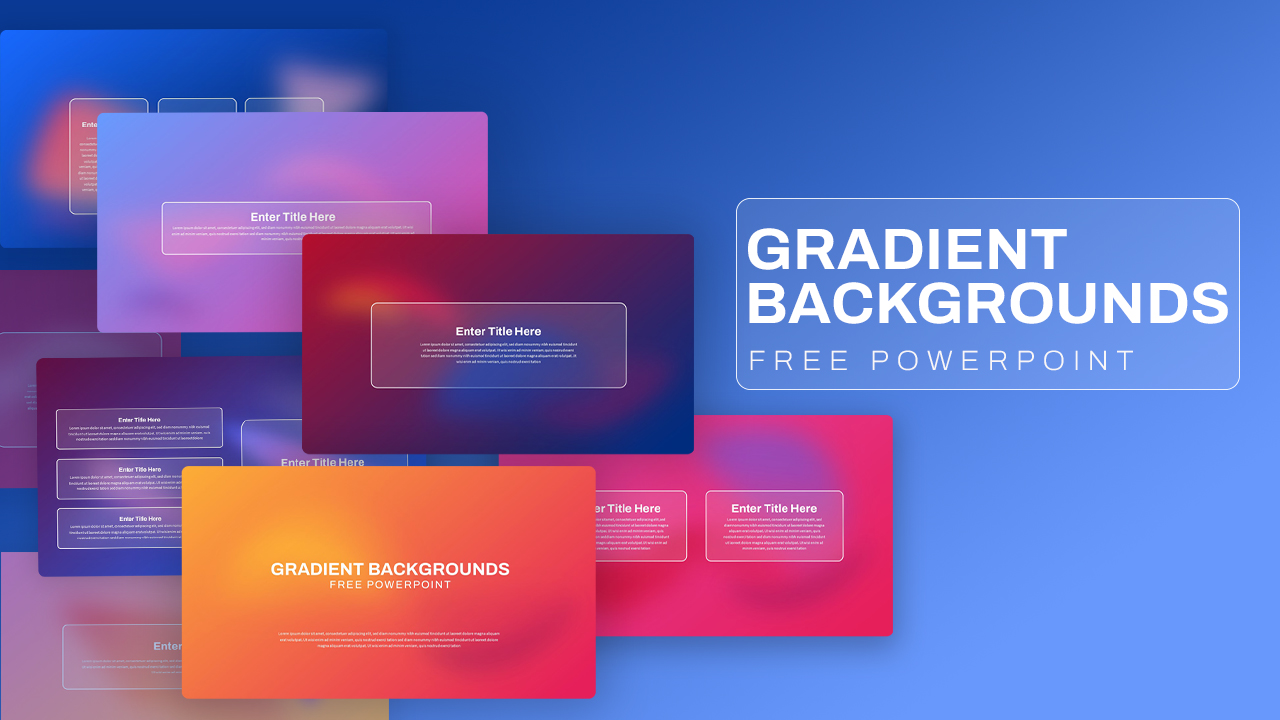
Free Gradient Backgrounds Presentation for PowerPoint & Google Slides
Graphics
Free
-
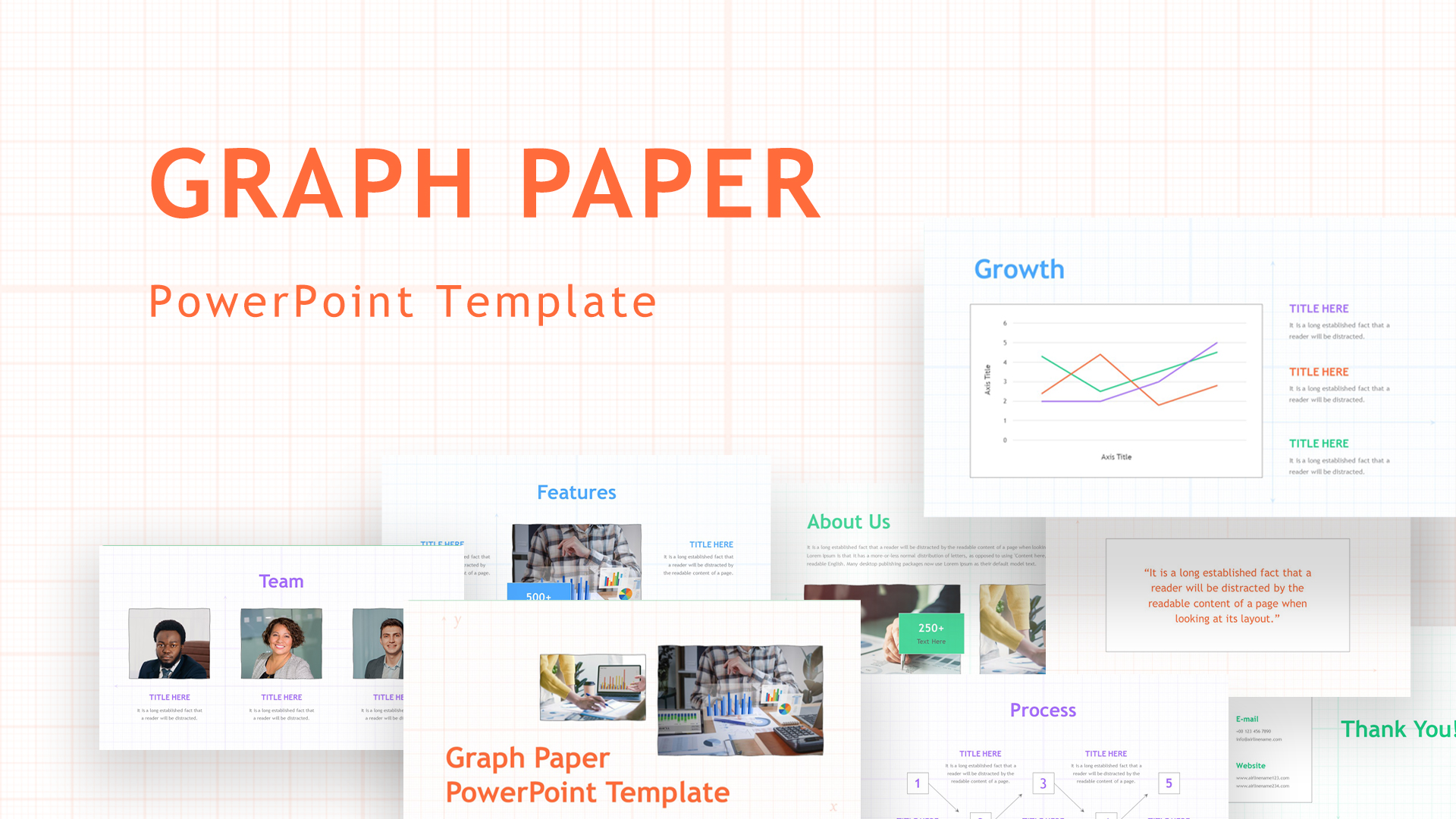
Graph Paper Background Presentation Template for PowerPoint & Google Slides
Company Profile
-
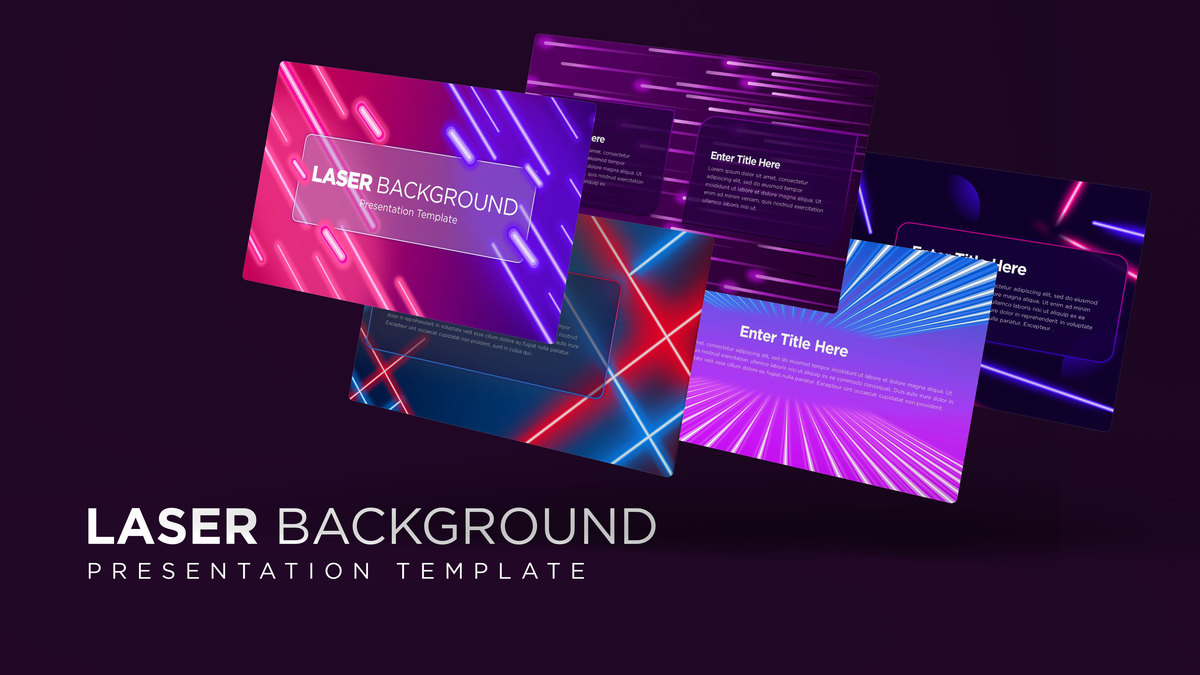
Laser Background Graphics Presentation Template for PowerPoint & Google Slides
Graphics
-
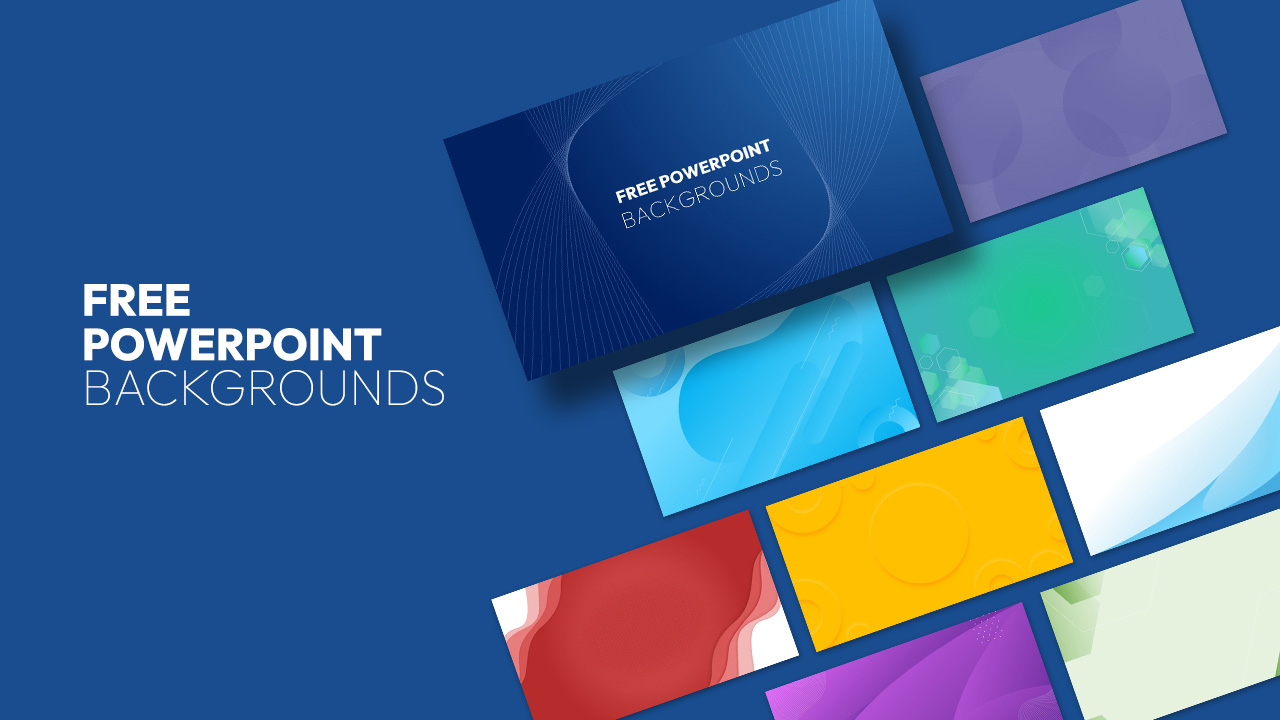
PowerPoint Backgrounds Template
Graphics
Free
-
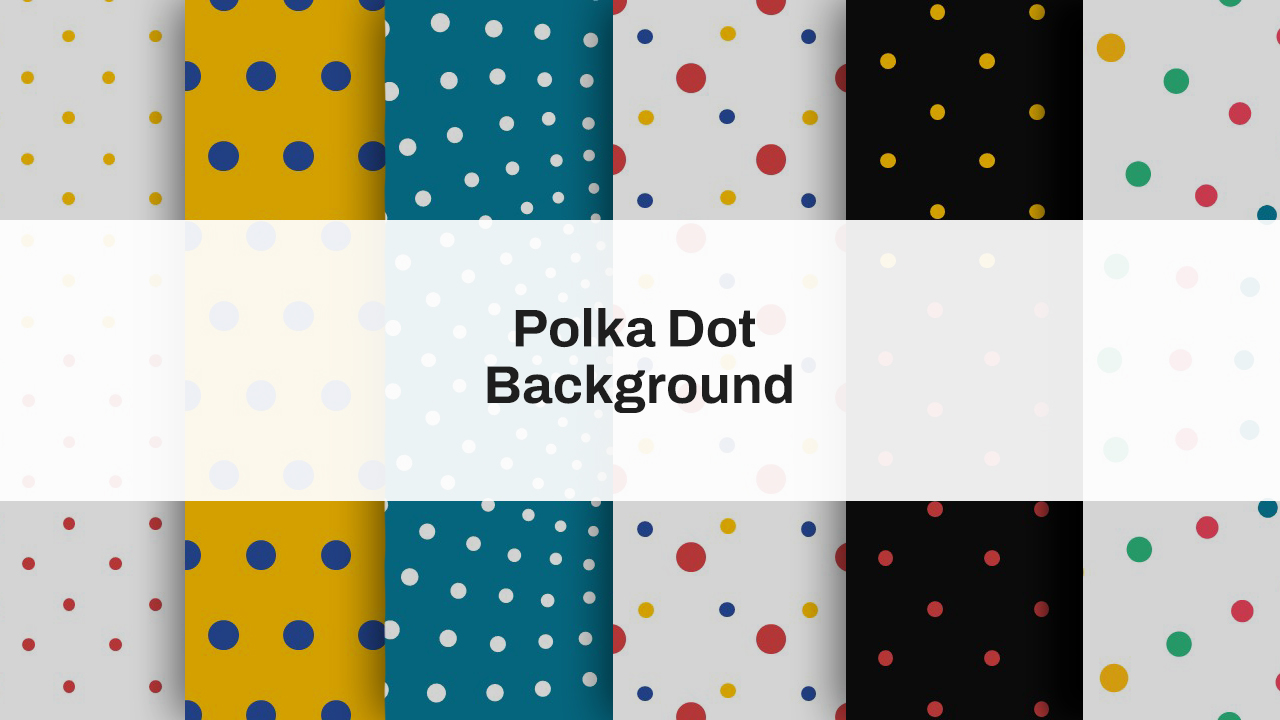
Colorful Polka Dot Background Theme Template for PowerPoint & Google Slides
Decks
-
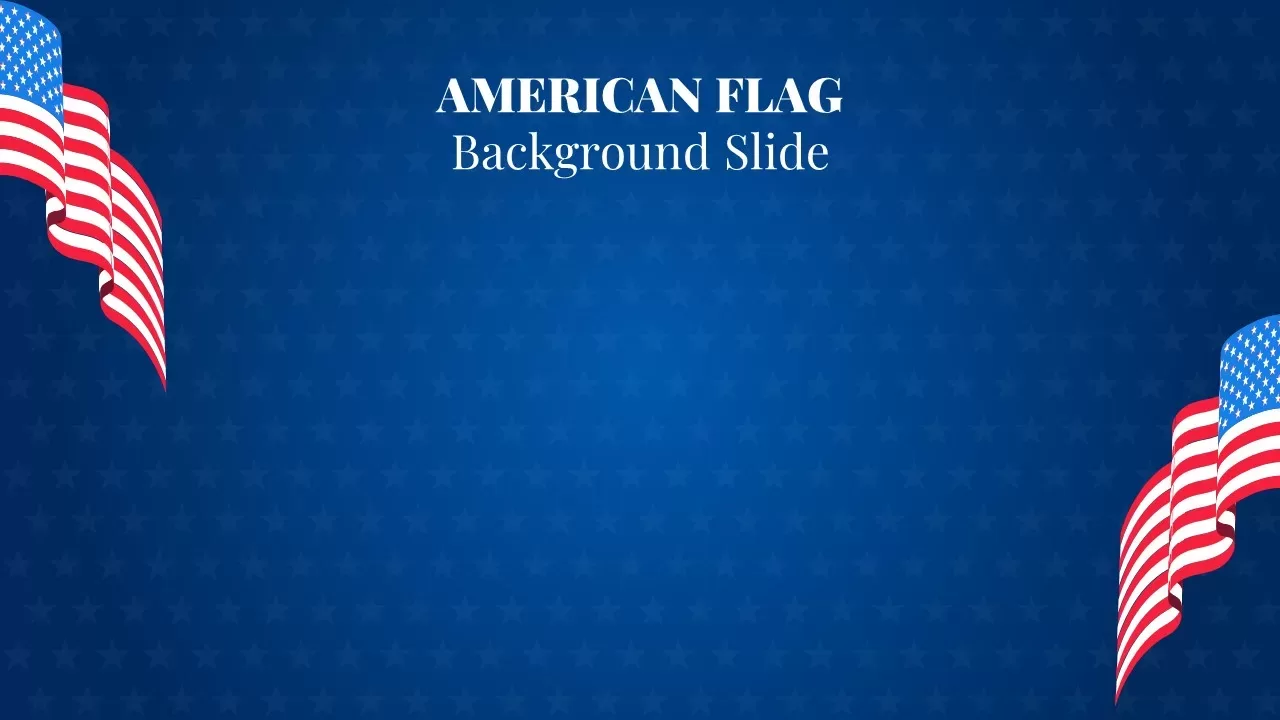
American Flag Background Slide for PowerPoint & Google Slides
Graphics
-
American Flag Background Slide for PowerPoint & Google Slides
Graphics
-
American Flag Themed Background Slide for PowerPoint & Google Slides
Graphics
-
American Flag Background Slide for PowerPoint & Google Slides
Graphics
-
American Flag Patriotic Background Slide for PowerPoint & Google Slides
Graphics
-
American Flag Watercolor Background Slide for PowerPoint & Google Slides
Graphics
-
Christmas Celebration Background template for PowerPoint & Google Slides
Decks
-
Animated Backgrounds template for PowerPoint & Google Slides
Graphics
-
Free Black & White Abstract Backgrounds Template for PowerPoint & Google Slides
Pitch Deck
Free