













Email Journey Mapping Template
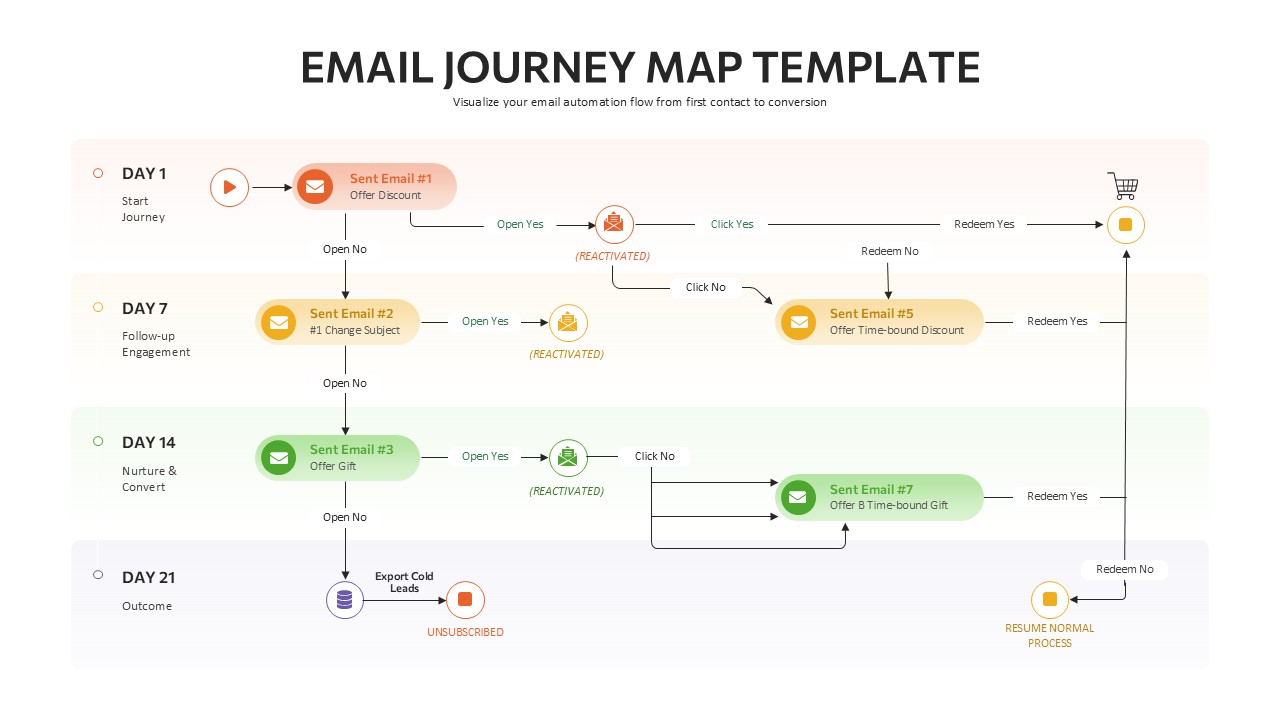
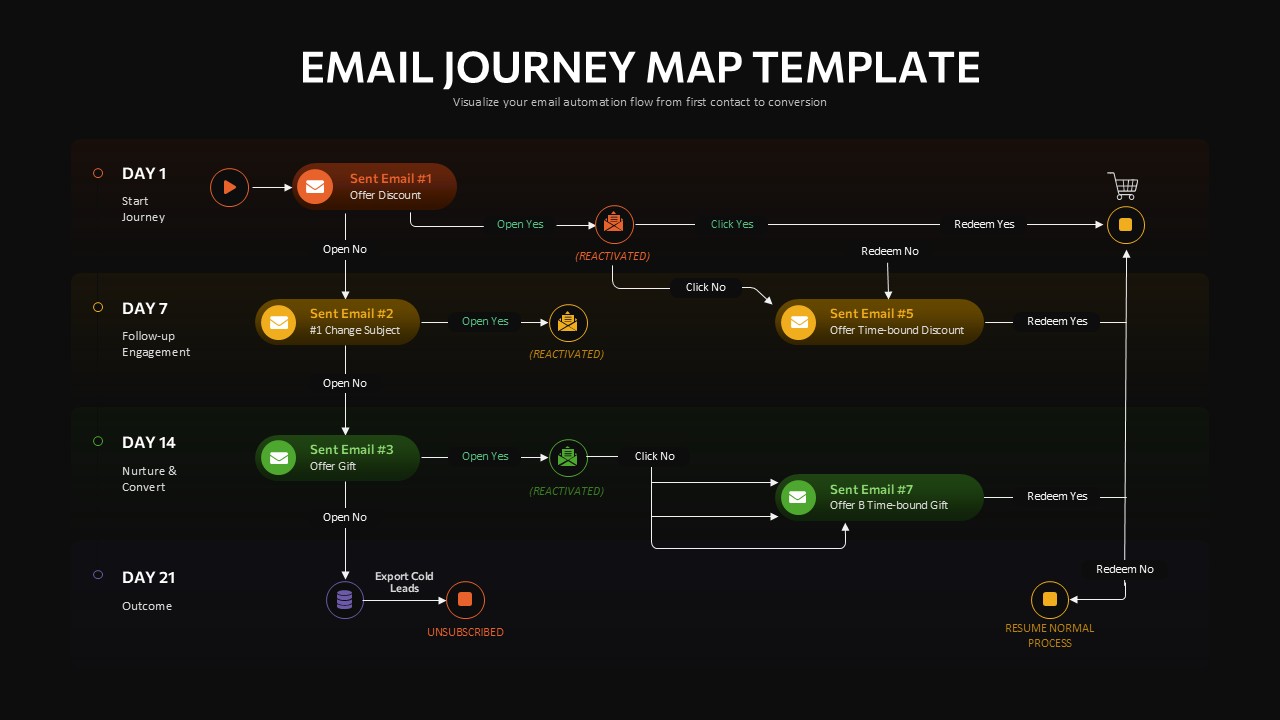
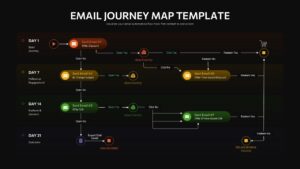
An email journey map tracks how a subscriber moves through an automated email sequence, showing every send, open, click, and outcome branch from first contact through conversion or unsubscribe. This Email Journey Map PowerPoint Template lays that flow out as a four-row swimlane diagram on a soft gradient background, shifting from coral to amber to green to gray as the timeline progresses from Day 1 through Day 21, with circular icon nodes and labeled arrows tracing every decision point along the way.
Email Journey Map PPT Template
- Day 1 – Start Journey – Sends Email #1 offering a discount, branching into Open Yes/No paths
- Day 7 – Follow-up Engagement – Sends Email #2 with a changed subject line for non-openers, plus a reactivation node
- Day 14 – Nurture & Convert – Sends Email #3 with a gift offer, continuing the open/click branching logic
- Day 21 – Outcome – Routes cold leads to export and unsubscribe, or resumes the normal sequence for engaged subscribers
- Click and Redeem branches – Separate Email #5 and Email #7 nodes trigger on click activity, each leading to a Redeem Yes/No decision
- Reactivation nodes – Small envelope icons marked “(Reactivated)” show where a disengaged subscriber re-enters the flow
- Cart and outcome icons – A shopping cart node marks successful redemption, closing the loop back into the main sequence
Email marketers can use this PowerPoint presentation to document an existing automation flow for a team handoff, or to plan a new nurture sequence before building it in an ESP like Klaviyo or Mailchimp. Marketing agencies presenting a client’s email strategy can point to the color-coded day bands to explain pacing at a glance, since each row visually separates the campaign into weekly phases without extra labeling. Every icon, arrow, and text label in this PPT template is an individual, editable object, so the day intervals, email counts, and branching logic can all be adjusted to match a different automation flow.
This email journey map PPT slide drops into a marketing operations deck or a client strategy presentation without needing a separate flowchart tool, since the swimlane layout is already built natively in PowerPoint. Update the day counts, email copy, and branch labels to match a real automation build, then present the PowerPoint template as-is or export it as a standalone reference sheet for the marketing team. Explore more layouts in the customer journey templates library and the marketing funnel PowerPoint collection for related planning slides.
Frequently Asked Questions
Can I edit the email nodes and decision labels in this template?
Can I use this PowerPoint template to plan a real email automation flow?
Login to download this file

Item ID
SB06115Designed By
Athira


Related Templates

Buyer Journey Mapping Template for PPT & Google Slides
Process
Email Marketing PowerPoint Presentation Template
Circular
Email Marketing Strategy Circular Template
Process
Email Marketing Template for PowerPoint & Google Slides
Digital Marketing
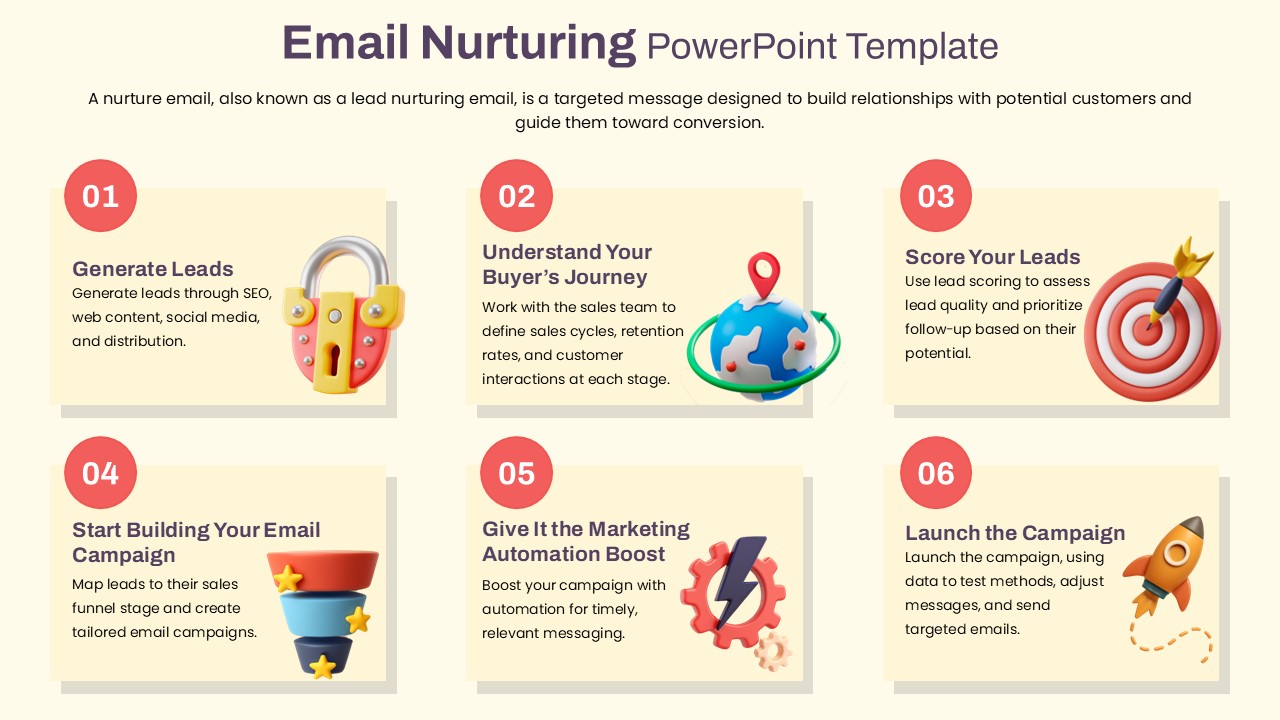
Email Nurturing Template for PPT & Google Slides Themes
Digital Marketing
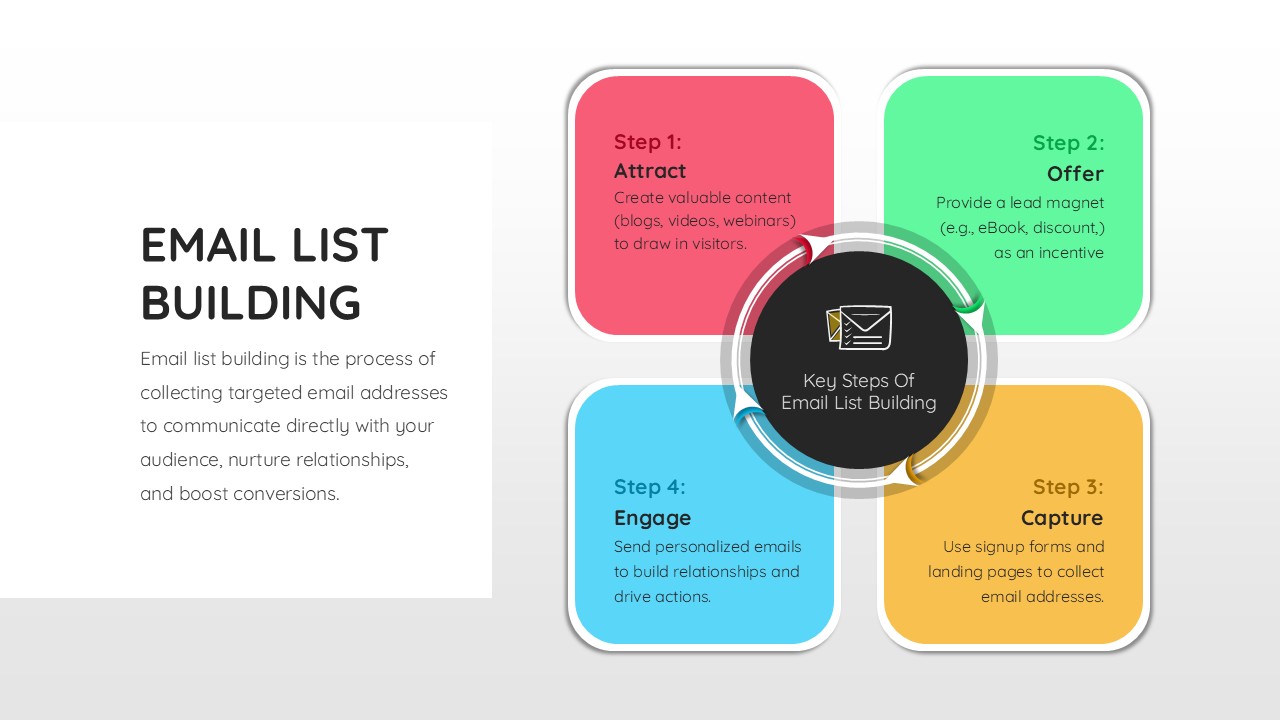
Email List Building Process Template
Business
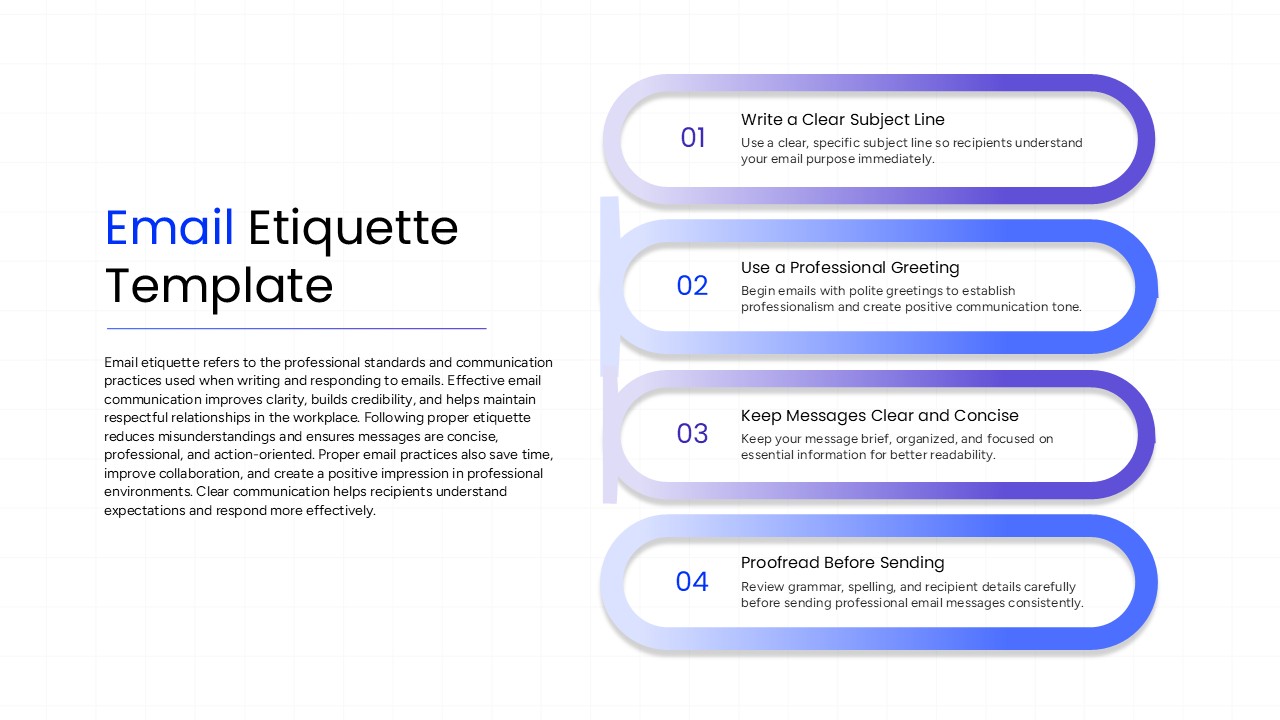
Email Etiquette Template for PowerPoint
Human Resources
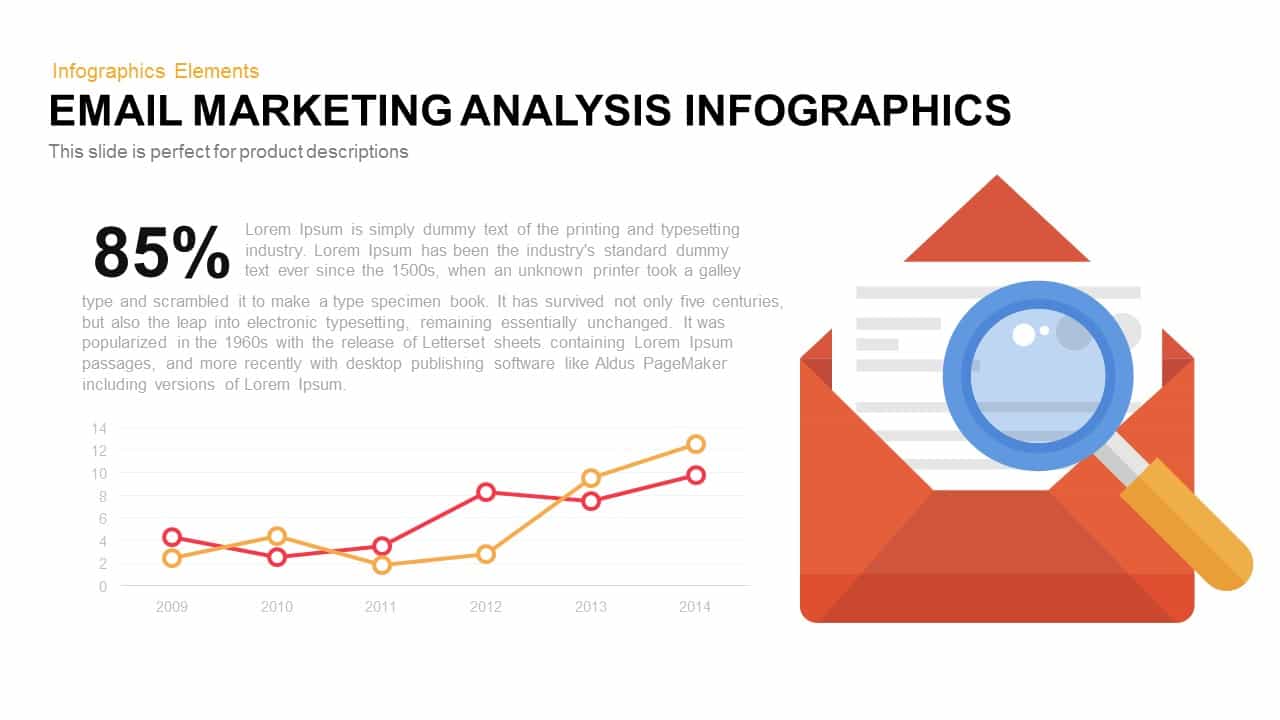
Email Marketing Analysis Infographics PowerPoint Templat
Marketing
Mind Mapping PowerPoint Template and Google Slides
Mind Maps
Mind Mapping Template for PowerPoint
Mind Maps
Process Mapping PowerPoint Template
Business Plan
Mind Mapping Template for PowerPoint & Google Slides
Mind Maps
Mind Mapping Template for PowerPoint & Google Slides
Mind Maps
Creative Mind Mapping Template for PowerPoint & Google Slides
Mind Maps
Value Stream Mapping Template for PPT & Google Slides
Charts
Free
Talent Mapping 9-Box Grid Template for PowerPoint
Employee Performance
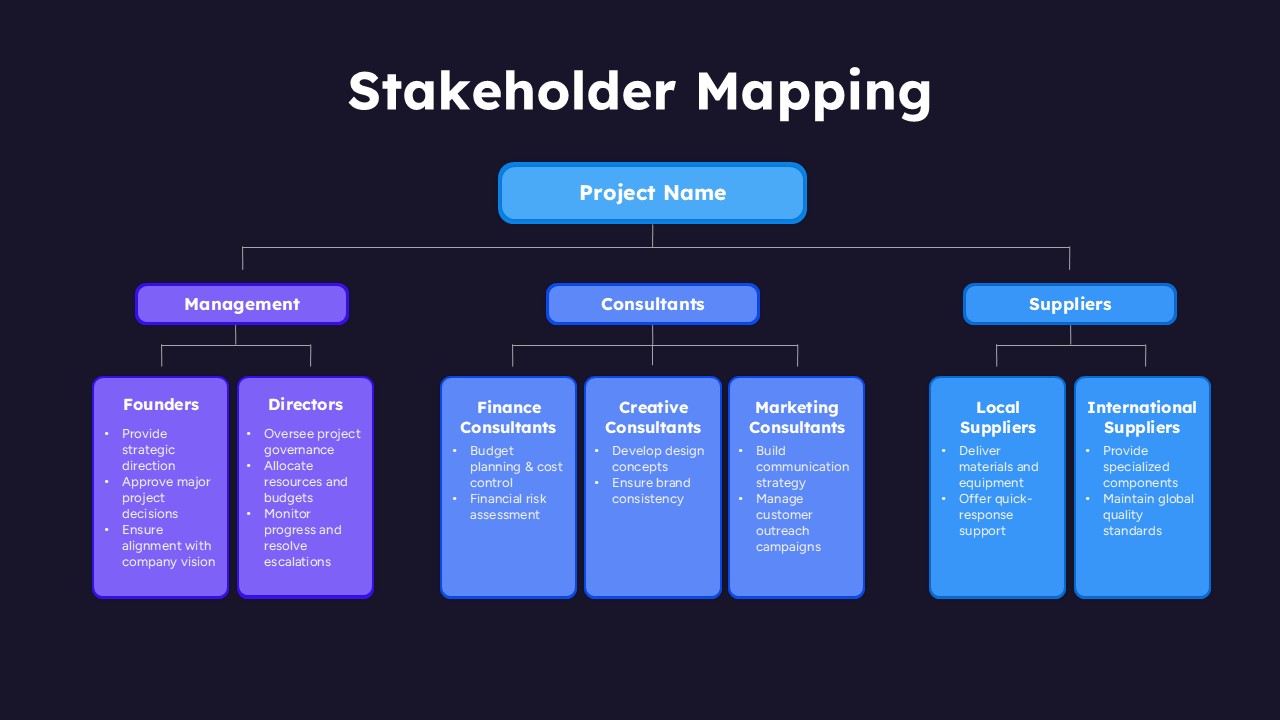
Stakeholder Mapping Chart Template for PPT & Google Slides
Org Chart
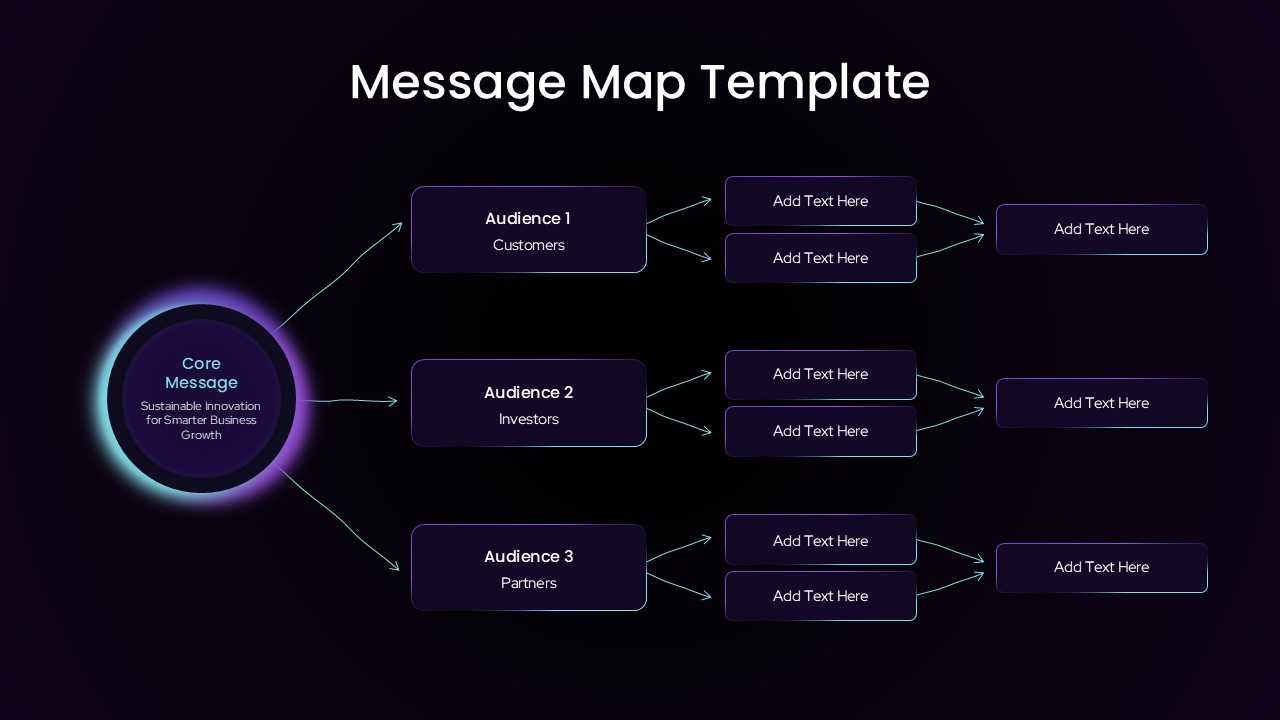
Audience Message Mapping Strategy Presentation Template
Business Strategy
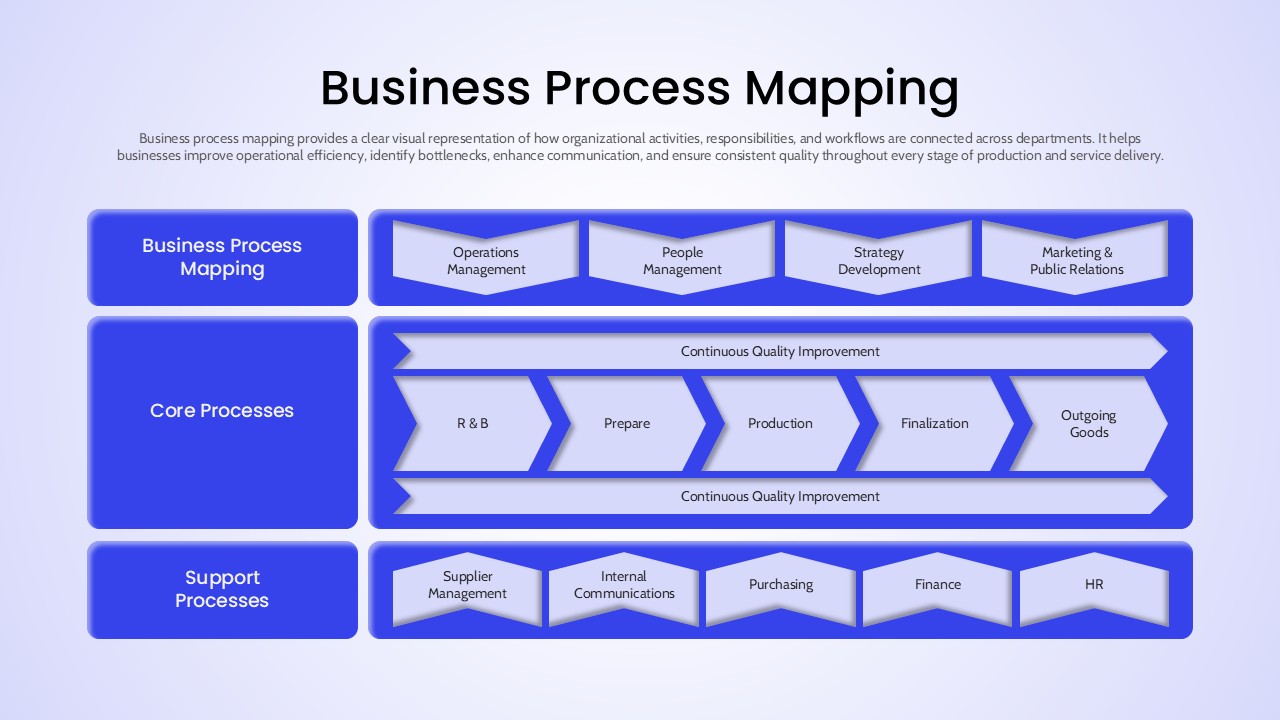
Business Process Mapping Template for Workflow Analysis and Operational Planning
Process
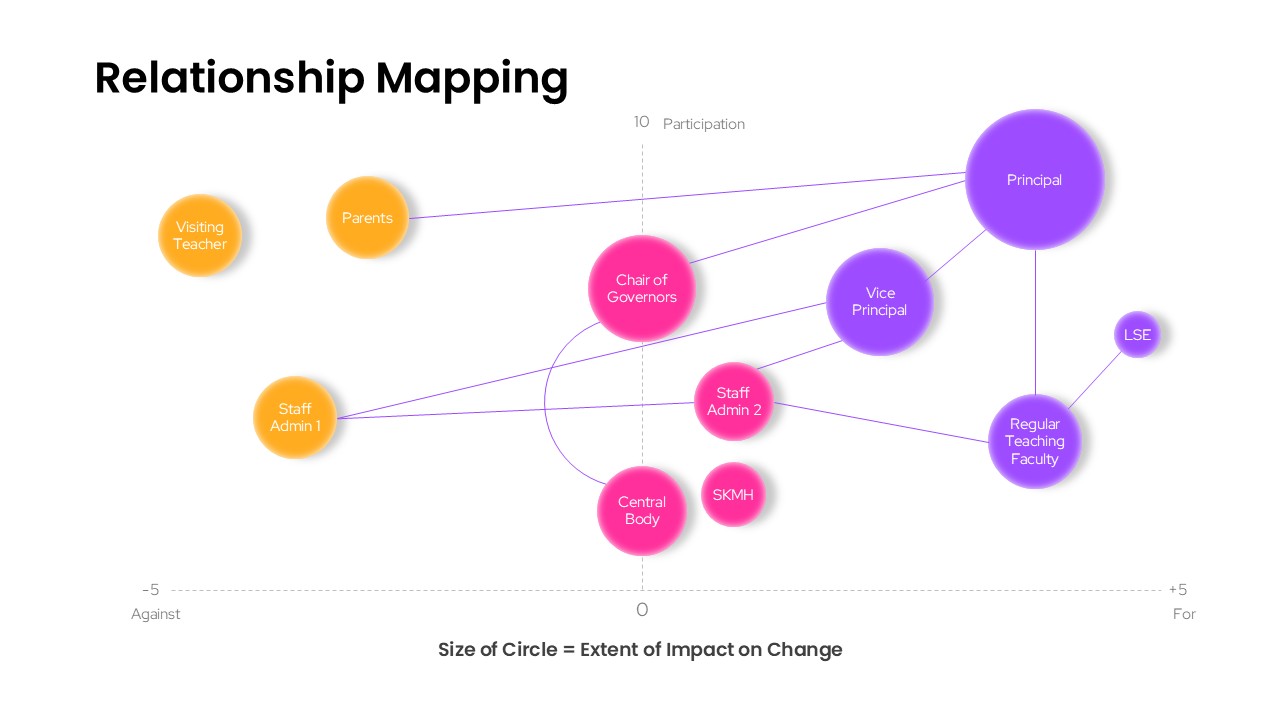
Business Relationship Mapping Template
Mind Maps