














Butterfly Chart Template for PowerPoint & Google Slides Presentations
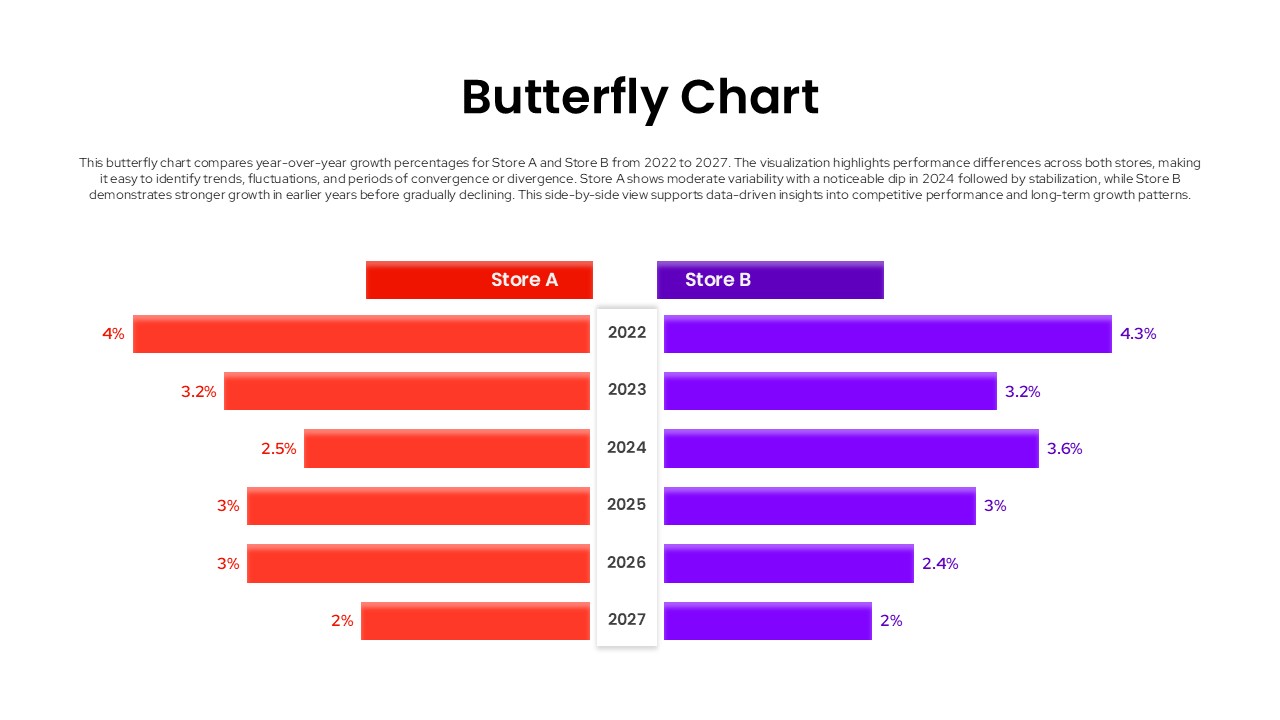
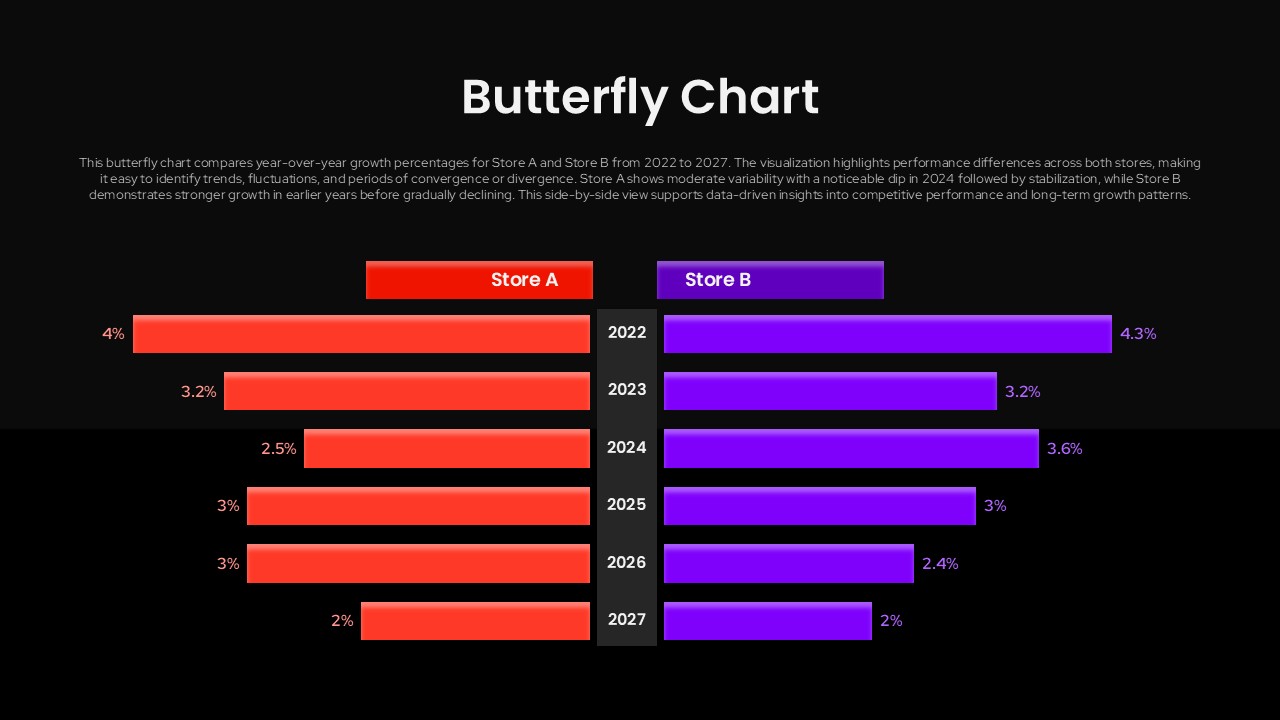
This is a butterfly chart (also known as a tornado chart or divergent bar chart) template for PowerPoint and Google Slides presentations. It places two sets of data side by side, having a shared central axis. This looks like a butterfly wing, and that’s how it got its name. This type of chart makes it easy to see which side is “winning” in any given year.
The template is available in 2 themes, but can be customized easily using your presentation tool. It’s perfect for presentations related to comparative analysis, sales performance monitoring, or business intelligence.
For more slides like this, check out our collection of comparison chart templates.
Frequently Asked Questions
How do I customize the data values in the butterfly chart?
Can I change the colors of the Store A and Store B bars?
Login to download this file

Item ID
SB05817Designed By
Naseeba Sithara


Related Templates

Butterfly SWOT Analysis Diagram PowerPoint Template
SWOT
Caterpillar to Butterfly Transformation Template
Process
Flow Chart Template For PowerPoint Presentations
Flow Charts
Laptop Service Free PowerPoint Template
Business
Free
Value Innovation Model PowerPoint & Google Slides Template for Presentations
Business Proposal
Business Competition PowerPoint Template
Business Strategy
Grow Model Coaching PowerPoint Template
Business Strategy
Vision Board Template for PowerPoint Presentations (and Google Slides)
Vision and Mission

Duotone Gradient PowerPoint Template
Technology
KPI Tree OEE Breakdown Template for PowerPoint & Google Slides Presentations
Infographics
Data Funnel Template for Marketing Presentations (PowerPoint/Google Slides)
Funnel
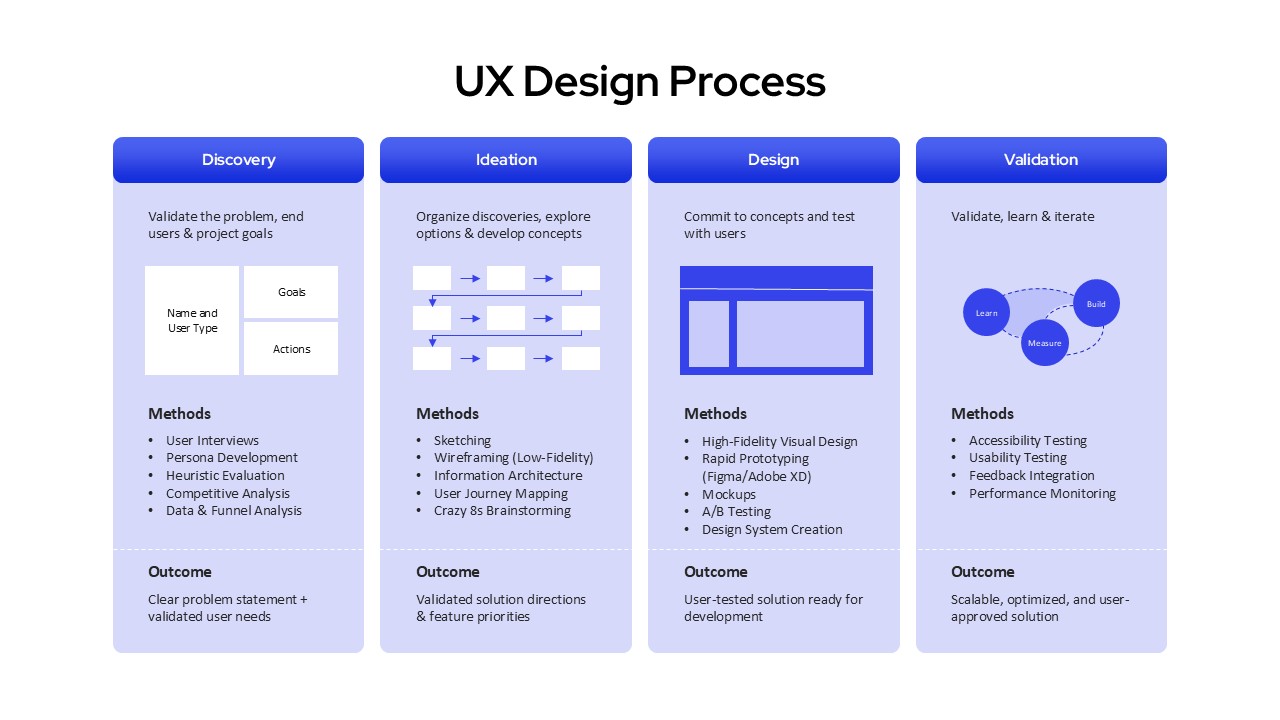
UX Design Process Template for PowerPoint and Google Slides Presentations
Process
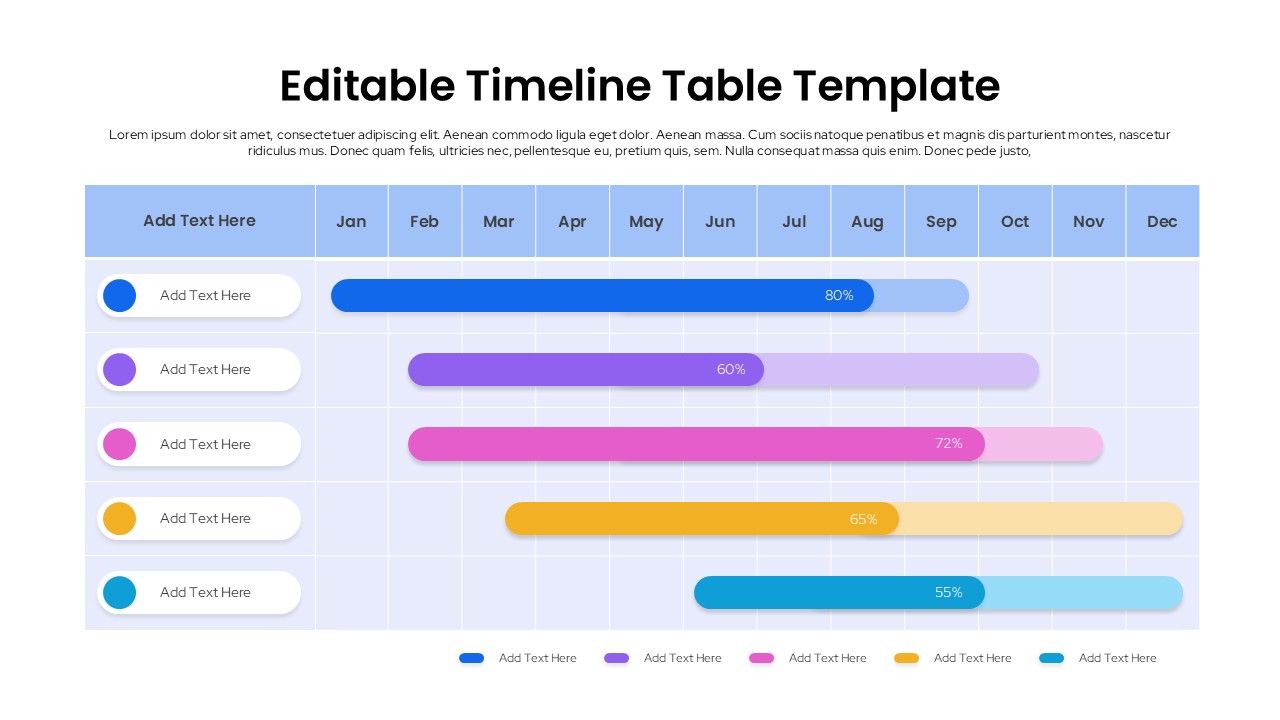
Editable Timeline Table Template for PowerPoint Presentations & Google Slides
Timeline
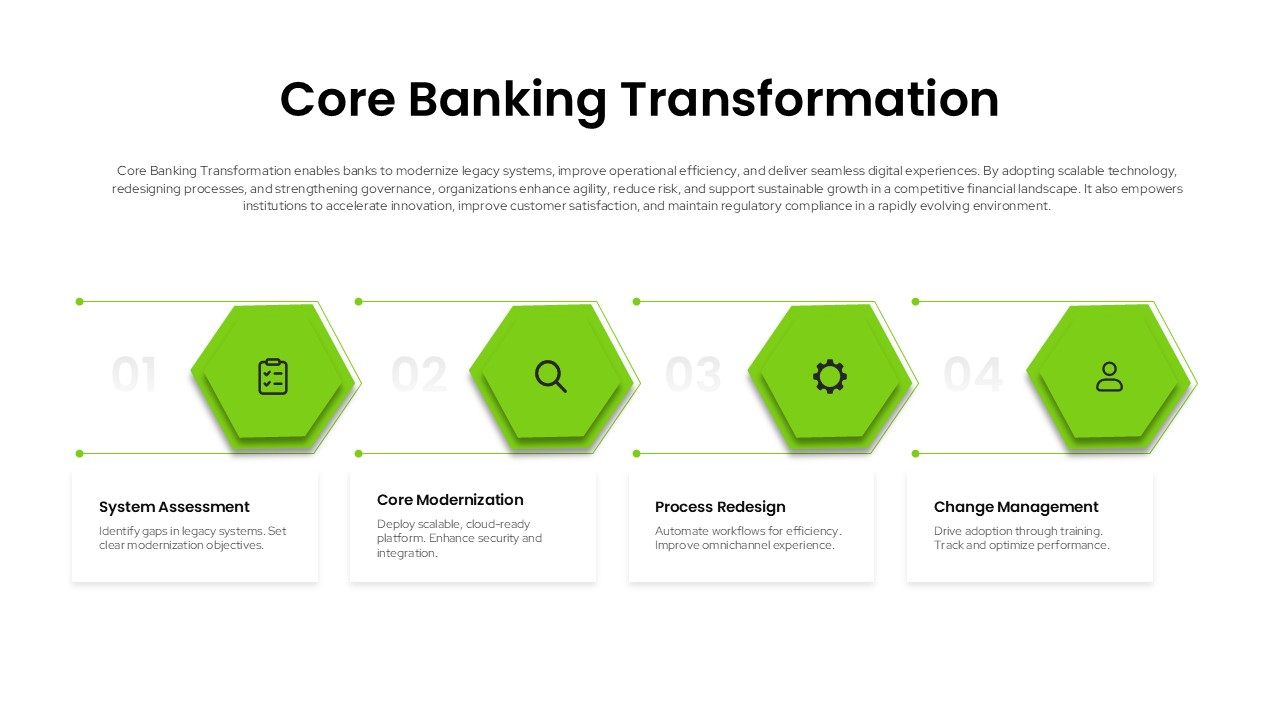
Core Banking Transformation Template for PowerPoint & Google Slides Presentations
Information Technology
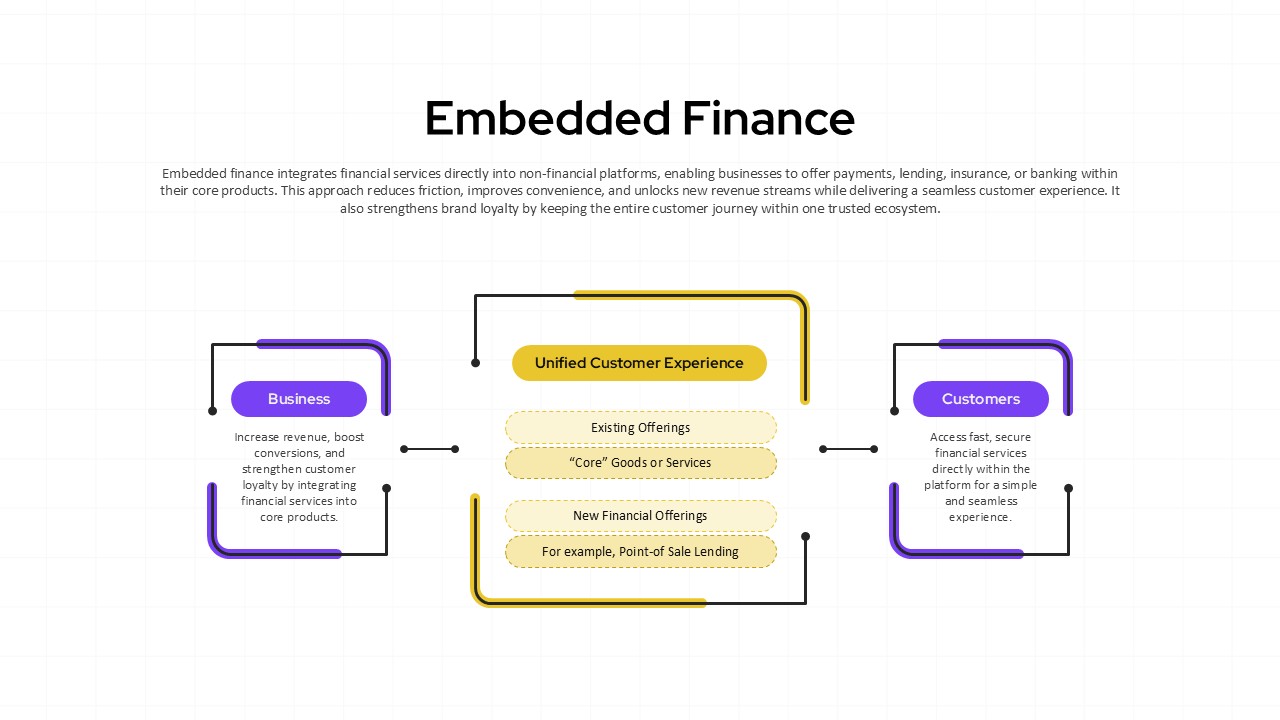
Embedded Finance Template for Presentations (PowerPoint/Google Slides)
Finance
Web Analytics Dashboard Template for PowerPoint & Google Slides Presentations
Business
Business Icons for PowerPoint & Google Slides Presentations
Graphics
Employee Training Deck PowerPoint Template for Presentations
Recruitment
Persona PowerPoint Template for Presentations
Customer Journey

Free Company Profile PowerPoint Template for Business Presentations
Company Profile
Free