






Free Check Mark Icon Slide for PowerPoint & Google Slides
Description
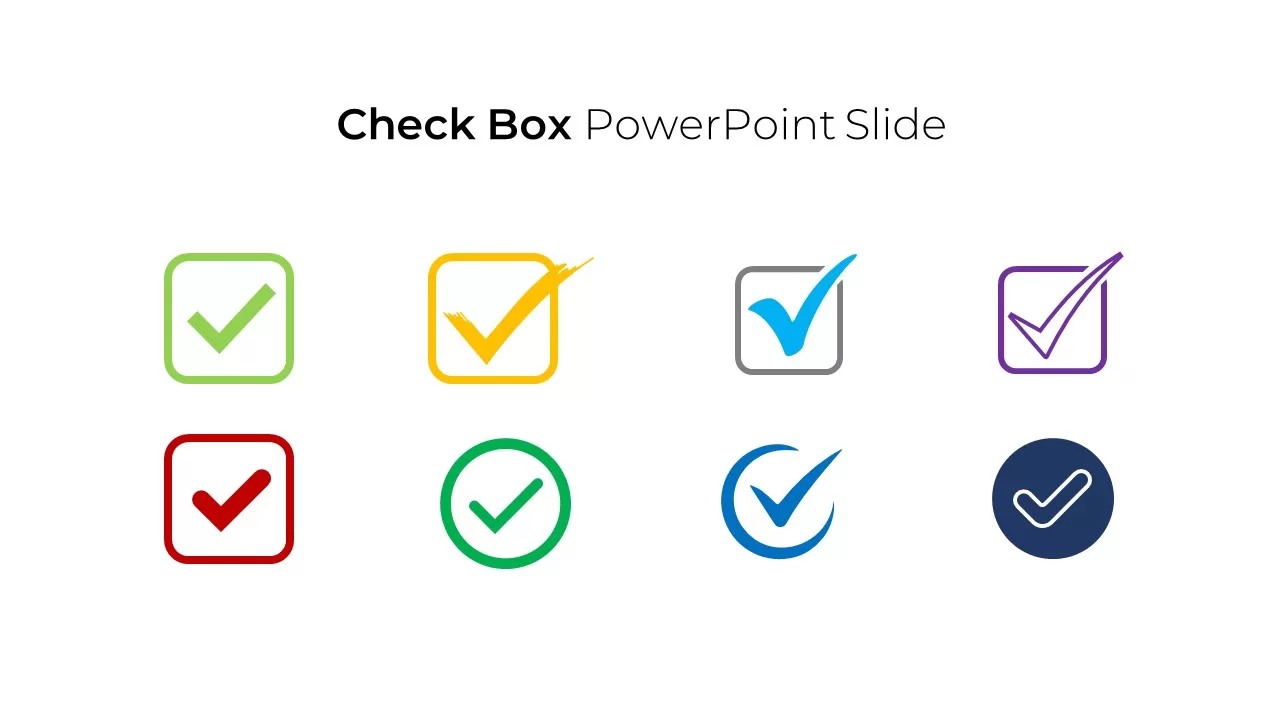
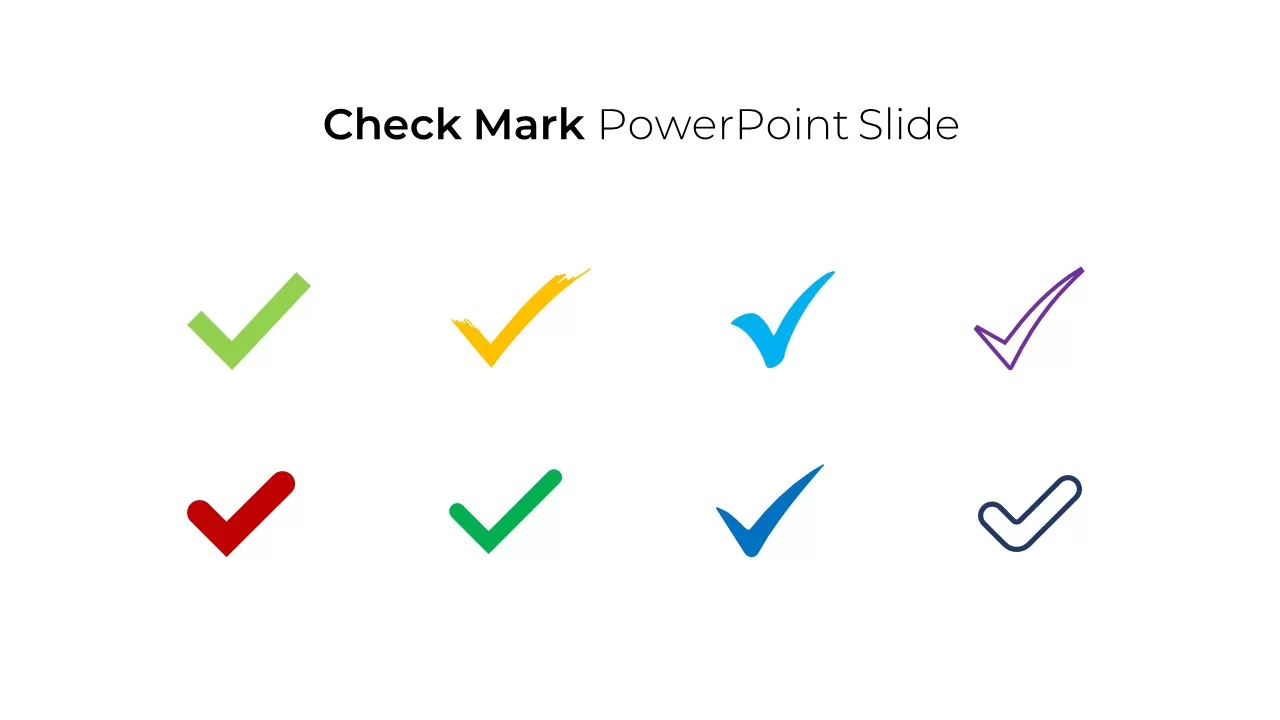
Eight check mark icons, eight different styles, one slide. That’s what you’re getting here.
The slide has two rows of tick marks on a clean white background. You’ve got a chunky green 3D check, a yellow brush stroke one, a flat light blue tick, a hand-drawn purple outline, a bold red check, a clean teal flat mark, a blue gradient version, and a rounded navy outline. Each one looks different enough that you can use them to mean different things in your deck – green for done, red for urgent, blue for in review, whatever system makes sense for your content.
They’re all vector icons, so you can scale them up or down, change the colors, or pull individual ones out and drop them into other slides. Works in PowerPoint and Google Slides, and available in both 16:9 and 4:3 aspect ratios.
It’s a free template. One slide, no extra fluff around it.
Where to Use It
Check marks are one of those things you end up needing in almost every presentation at some point. Here’s where these actually come in handy:
Progress reports and status updates – Drop a green tick next to finished tasks and leave incomplete ones without it. Your team gets the picture in two seconds. Way faster than reading through a paragraph about what’s done and what’s not.
Checklists and to-do slides – Building a slide that walks through action items, requirements, or deliverables? Stick a check mark next to each point. It’s a small thing, but it makes the slide look intentional instead of just being a wall of bullet points.
Comparison slides – You know those “us vs them” or feature comparison tables where you need a tick and a cross? These check marks handle the tick side. Color-code them if you want – green for included, red for missing, yellow for partial.
Project milestone tracking – When you need to show what’s been delivered so far in a project timeline or roadmap, a check mark next to completed milestones is the simplest way to communicate it.
Approval and sign-off slides – Showing which departments have approved something, which stakeholders have signed off, or which stages of a review process are done.
Training and educational slides – Teachers and trainers use tick marks to highlight correct answers, completed learning objectives, or skills that have been covered.
Survey results and feedback – When presenting poll data or customer feedback, check marks can indicate which items scored highest or which features were most requested.
Who is it For
Project managers putting together status decks. Team leads running weekly standups. Teachers building course material. Anyone doing a business presentation who needs a good-looking check mark icon without spending 20 minutes hunting through PowerPoint’s built-in symbol library or searching for free tick mark clipart online.
Login to download this file

Item ID
SB02330


Related Templates

Free Editable Check Box Icon Set Presentation Template for PowerPoint & Google Slides
Infographics
Free
Question Mark Infographics template for PowerPoint & Google Slides
Infographics
Dynamic Animated Question Mark Template for PowerPoint & Google Slides
Graphics
Free Stick Figure Icon Pack Slide Template for PowerPoint & Google Slides
Graphics
Free
Check Mate Strategy Chess Slide Template for PowerPoint & Google Slides
Comparison

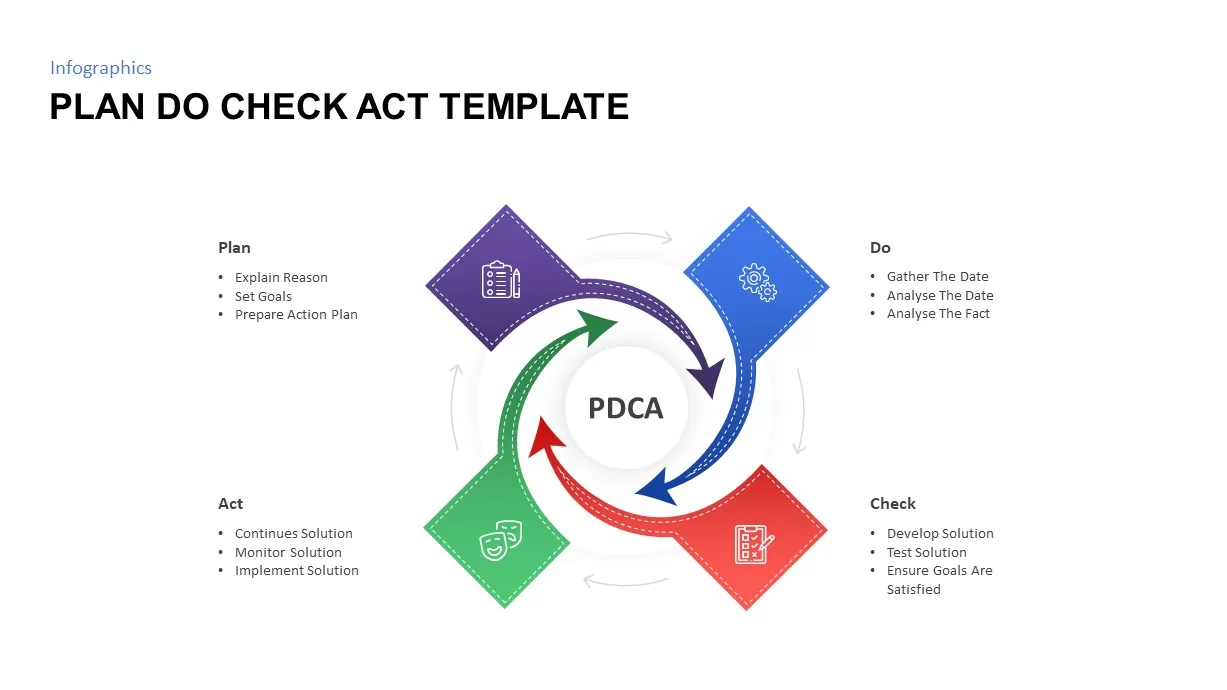
Plan Do Check Act PDCA Cycle Infographic Template for PowerPoint & Google Slides
Process
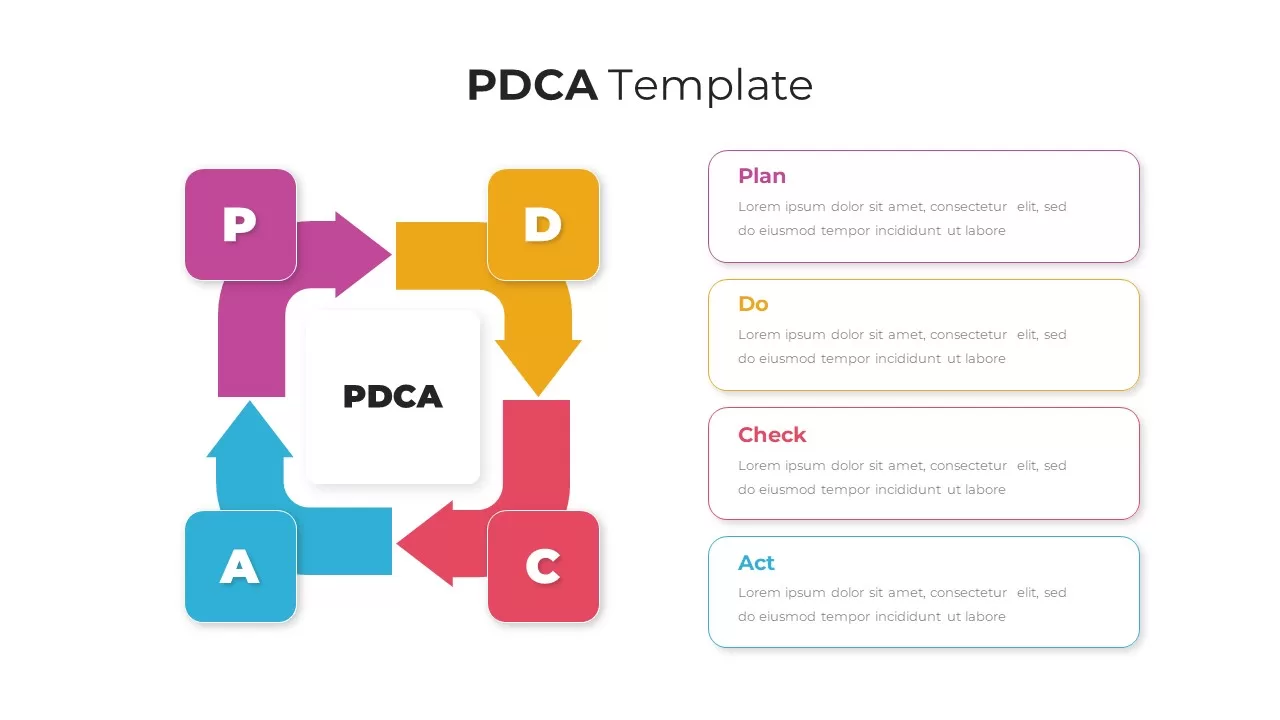
PDCA Plan Do Check Act Cycle Infographic Template for PowerPoint & Google Slides
Process
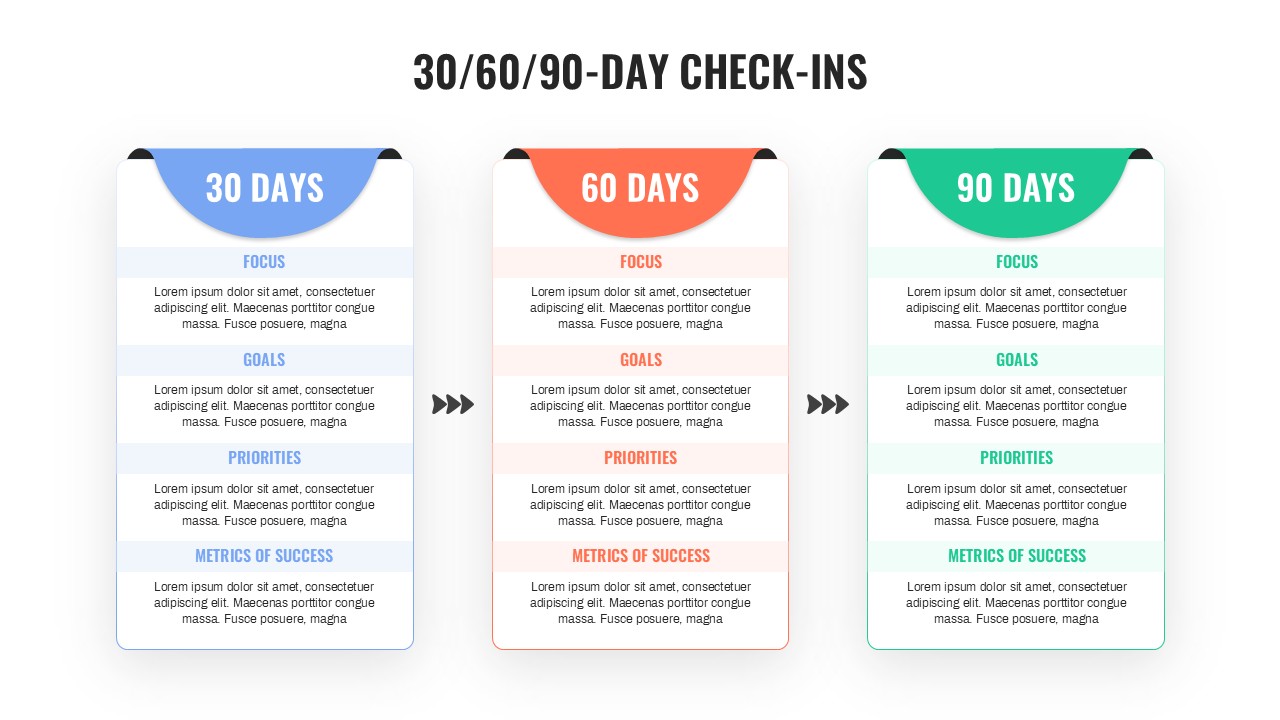
30/60/90-Day Check-ins template for PowerPoint & Google Slides
Employee Performance
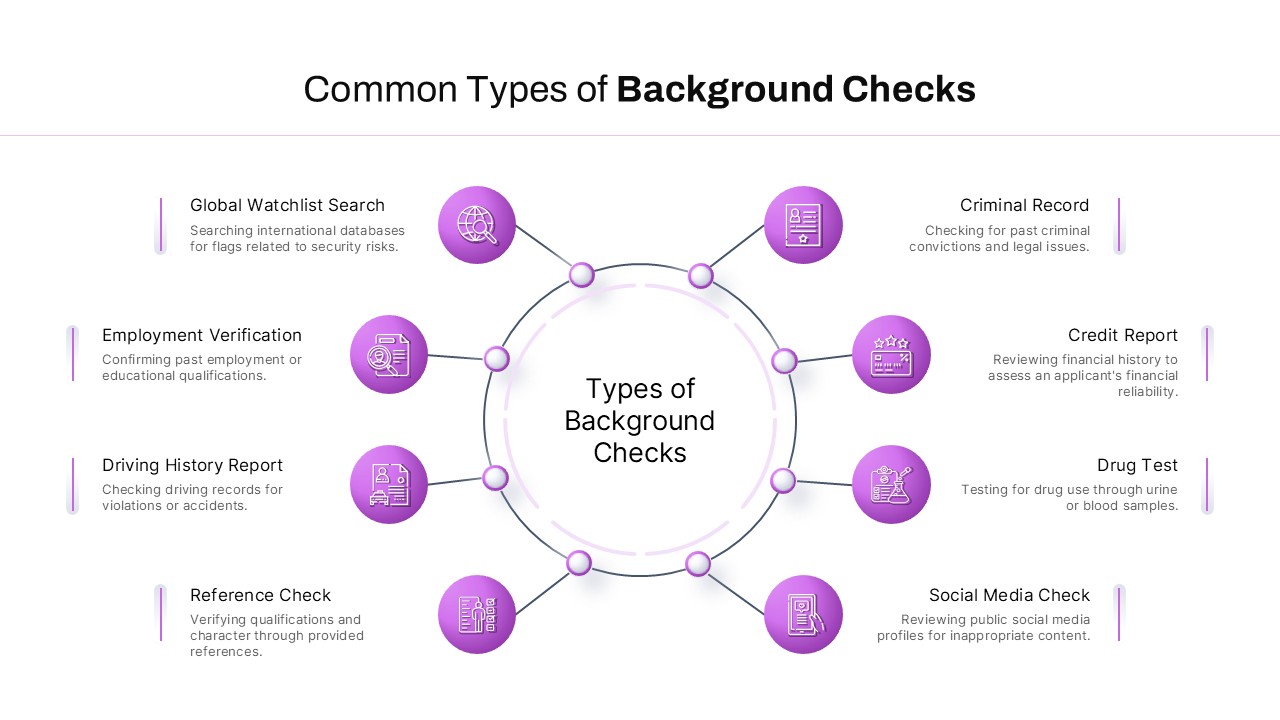
Background Check Types Diagram Template for PowerPoint & Google Slides
Circular
Signature Icon Slide template for PowerPoint & Google Slides
Infographics
American Flag Icon Set Slide for PowerPoint & Google Slides
Graphics
About Us Slide with Icon Highlights Template for PowerPoint & Google Slides
Business
5 Sections Agenda with Icon Cards Template for PowerPoint & Google Slides
Agenda
Icon Section Flow template for PowerPoint & Google Slides
Process

8-Section Split Diagram with Hub Icon template for PowerPoint & Google Slides
Circular

Productivity Metaphor Clock Icon Template for PowerPoint & Google Slides
Graphics
Four Arrows Layout Infographic with Icon Template for PowerPoint & Google Slides
Arrow
Cryptocurrency Icon Collection Template for PowerPoint & Google Slides
Finance
Man Holding Gun with Icon List Template for PowerPoint & Google Slides
Infographics
Business Icon Pack Template for PowerPoint & Google Slides
Graphics
Corporate Pamphlet with Icon Features Template for PowerPoint & Google Slides
Graphics
Dynamic Carousel Icon Hub Diagram Template for PowerPoint & Google Slides
Circular
Free Laptop Service Slide Template for PowerPoint & Google Slides Presentations
Business
Free
Free Thank You Slide Template for PowerPoint & Google Slides
Graphics
Free
Free Animated Halloween Themed Slide Deck for PowerPoint & Google Slides
Pitch Deck
Free
Free Career Path Multipurpose Slide Pack Template for PowerPoint & Google Slides
Roadmap
Free
Free 30-60-90 Day Plan Slide Pack Template for PowerPoint & Google Slides
Project Status
Free
Free Veterans Day Patriotic Slide Pack Template for PowerPoint & Google Slides
Graphics
Free
Free Flowchart Elements Tutorial Slide Template for PowerPoint & Google Slides
Flow Charts
Free
Free Elegant Festive Holiday Greeting Slide Template for PowerPoint & Google Slides
Graphics
Free
Free Elegant Happy New Year Greeting Slide Template for PowerPoint & Google Slides
Graphics
Free
Free Animated Countdown Timer Slide Template for PowerPoint & Google Slides
Free
Free

Free Chocolate Company Profile Slide Template for PowerPoint & Google Slides
Company Profile
Free
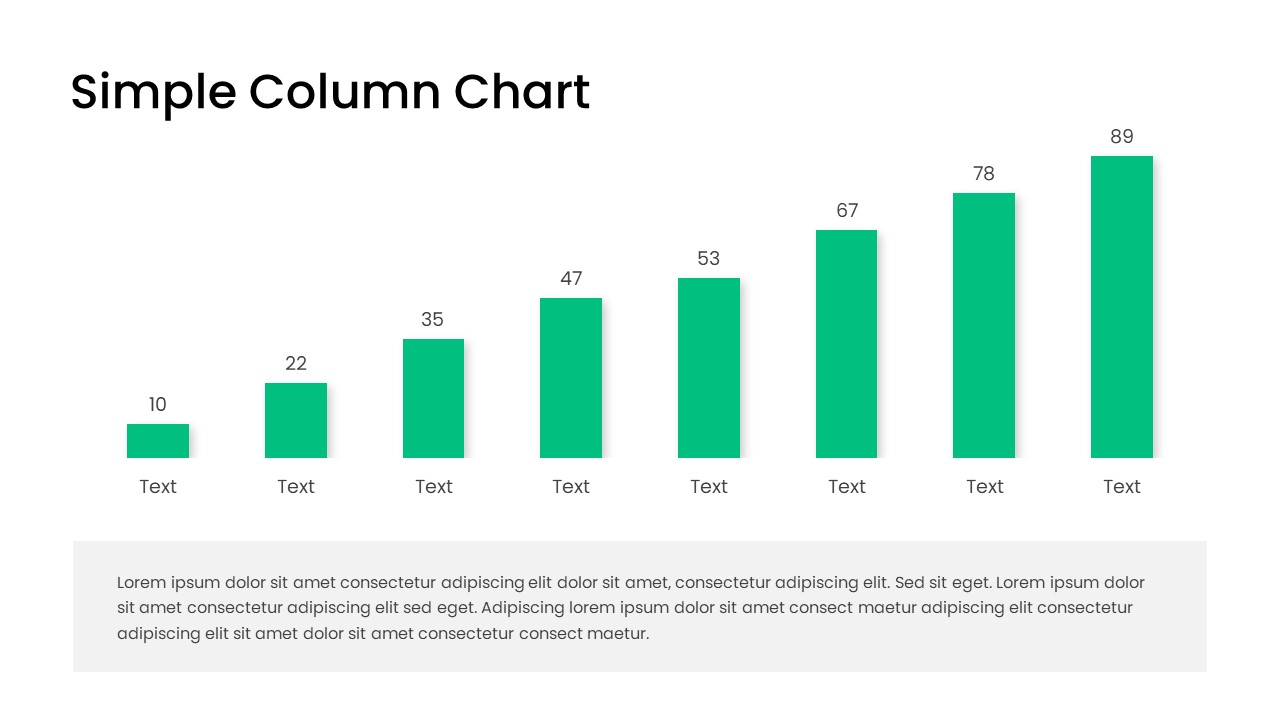
Free Editable Simple Column Chart Slide Template for PowerPoint & Google Slides
Bar/Column
Free
Free World UFO Day Slide Template for PowerPoint & Google Slides
Business
Free
Free Animated Congratulations Slide Template for PowerPoint & Google Slides
Graphics
Free
Free Journey Slide with Four Icons Diagram Template for PowerPoint & Google Slides
Process
Free
Free Lesson Plan Table Slide Template for PowerPoint & Google Slides
Agenda
Free
Free Colorful Career Timeline Resume Slide Template for PowerPoint & Google Slides
Timeline
Free
Free Editable Multi-Step Ribbon Agenda Slide Template for PowerPoint & Google Slides
Agenda
Free
Free Modern Corporate Green Presentation Slide Deck for PowerPoint & Google Slides
Company Profile
Free
Free Blue Gradient Marketing Plan Slide Deck Template for PowerPoint & Google Slides
Marketing
Free
Free Colorful Animal 2024 Calendar Slide Pack Template for PowerPoint & Google Slides
Infographics
Free

Free Colorful Infographic Slide Pack Template for PowerPoint & Google Slides
Roadmap
Free

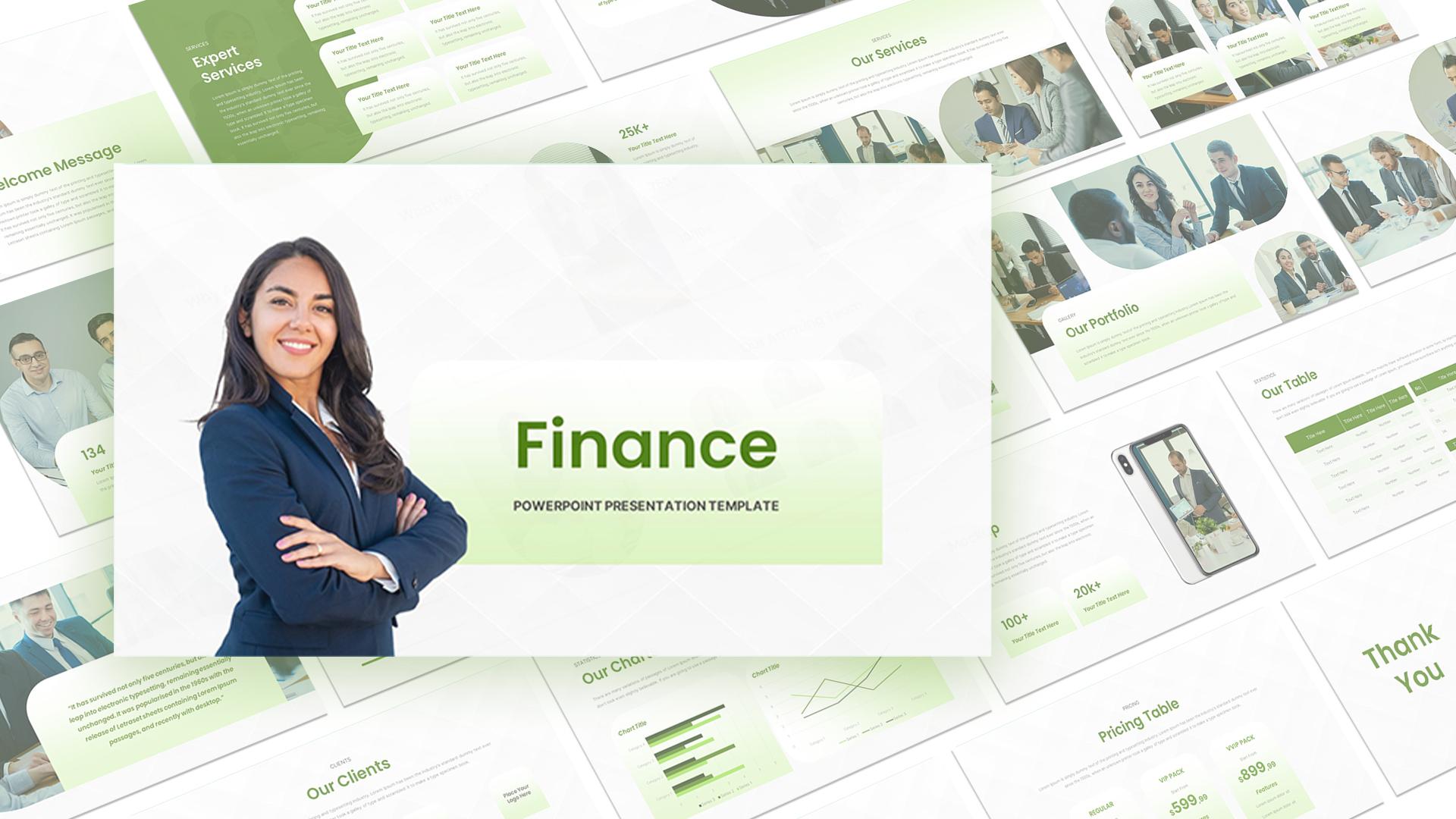
Free Modern Green Finance Slide Deck Template for PowerPoint & Google Slides
Finance
Free
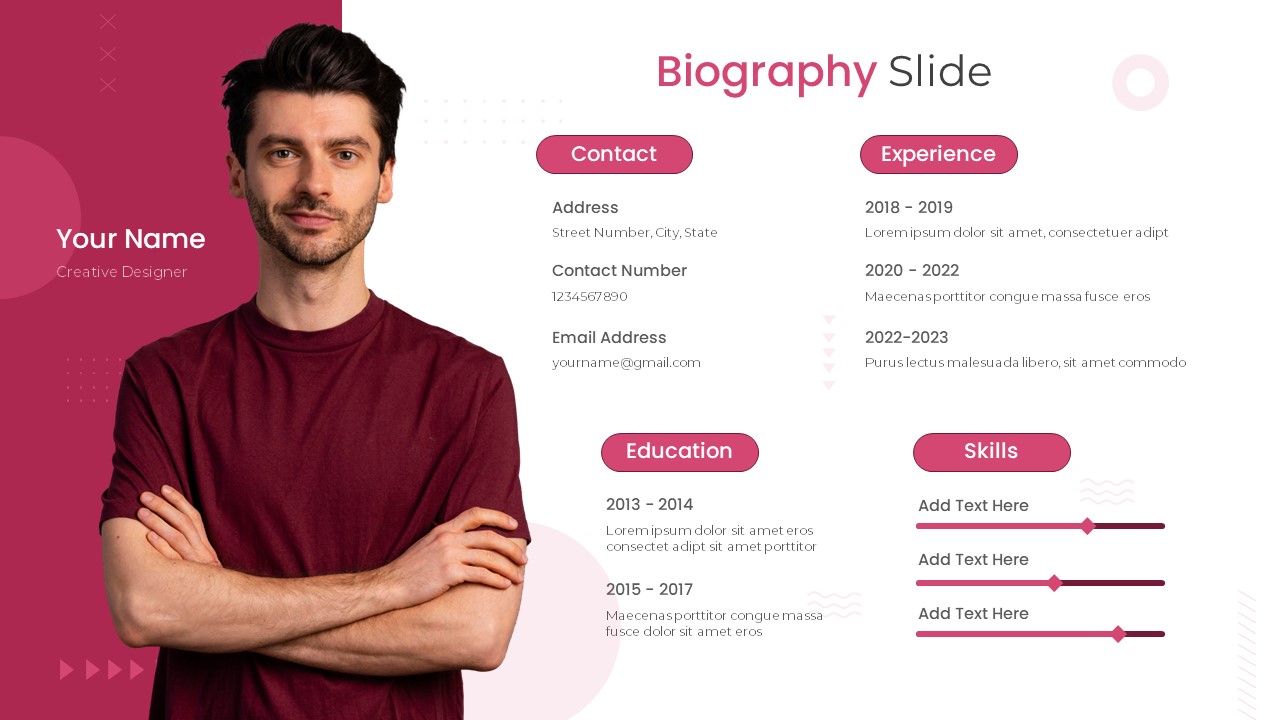
Free Clean Personal Biography Profile Slide Template for PowerPoint & Google Slides
Our Team
Free
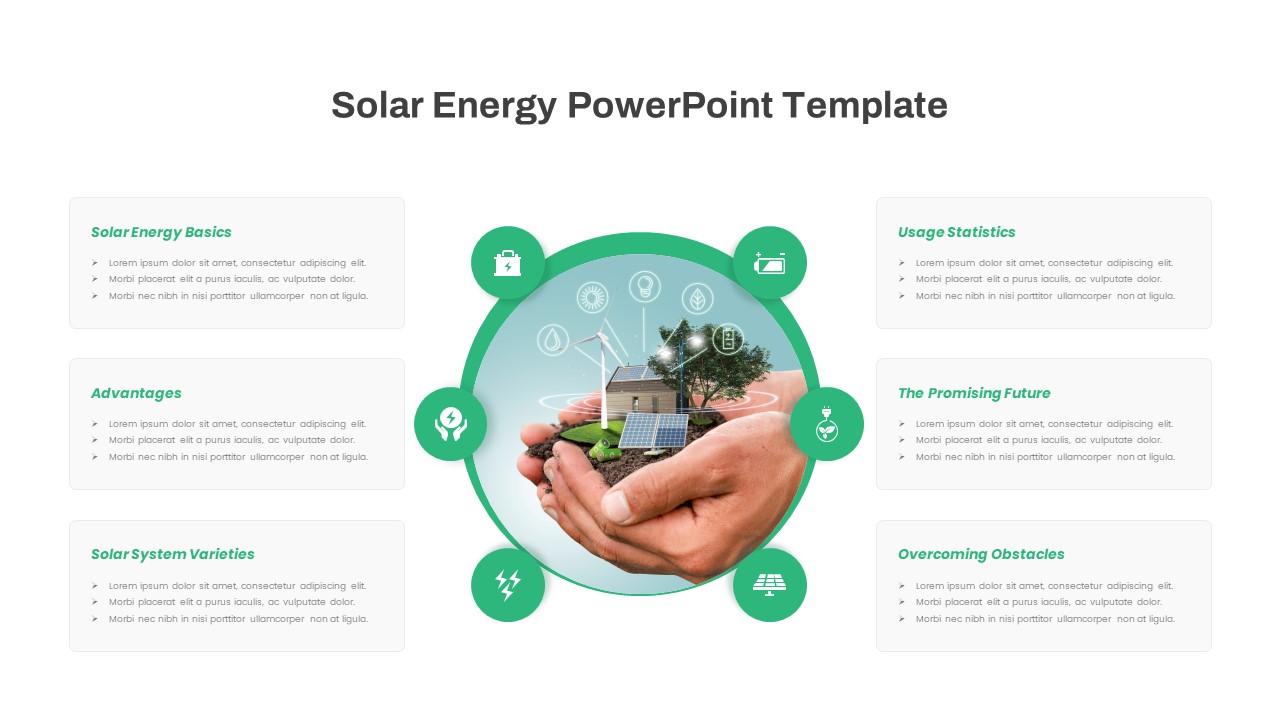
Free Solar Energy Infographic Slide Template for PowerPoint & Google Slides
Circular
Free
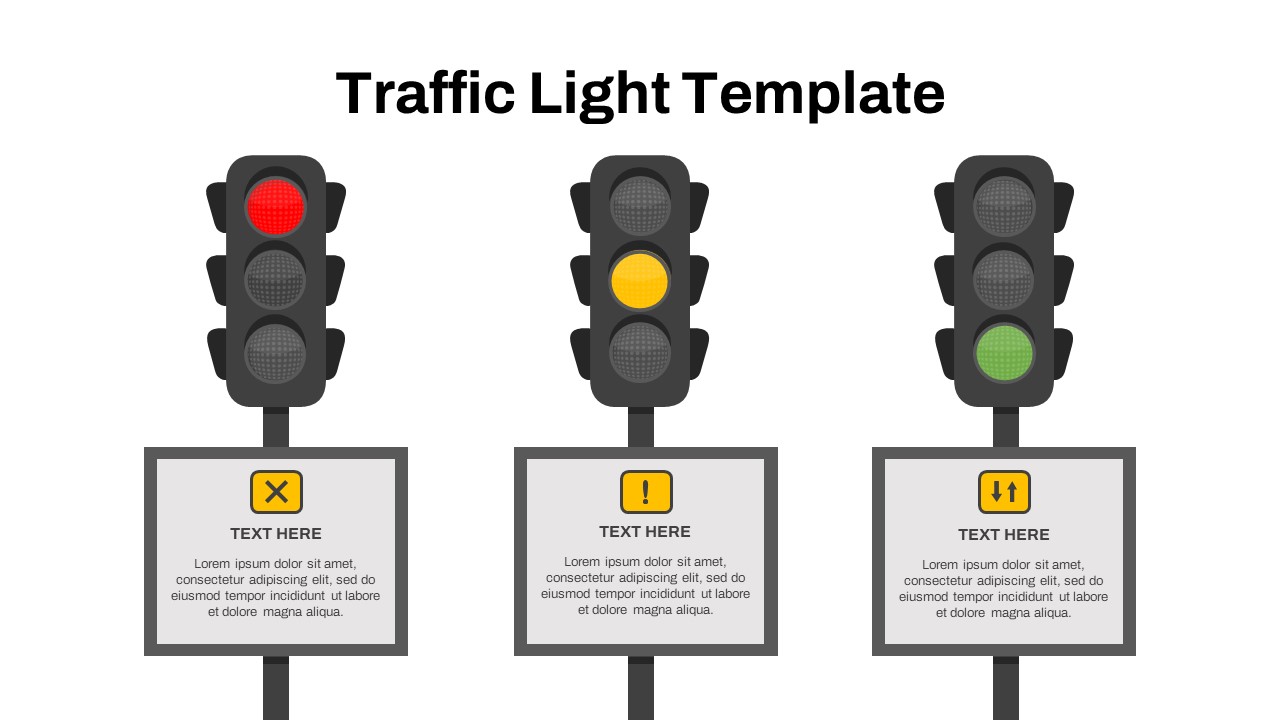
Free Traffic Light Status Indicator Slide Template for PowerPoint & Google Slides
Project Status
Free
Free Law Infographics Slide Pack Collection Template for PowerPoint & Google Slides
Infographics
Free
Free Multi-Step Funnel Infographic Slide Pack Template for PowerPoint & Google Slides
Funnel
Free
Free Modern Company Profile About Us Slide Template for PowerPoint & Google Slides
Company Profile
Free
Free Festive Birthday Celebration Slide Template for PowerPoint & Google Slides
Graphics
Free
Free Elegant Executive Quote Slide Layout Template for PowerPoint & Google Slides
Our Team
Free
Free Modern About Me Profile Slide Template for PowerPoint & Google Slides
Company Profile
Free
Free Infographic Statistics Dashboard Slide for PowerPoint & Google Slides
Bar/Column
Free
Free Gradient User Persona Profile Slide for PowerPoint & Google Slides
Recruitment
Free
Free Target Milestone Achievements Slide for PowerPoint & Google Slides
Accomplishment
Free
Free Minimal Smartphone Feature Overview Slide for PowerPoint & Google Slides
Information Technology
Free
Free Modern Contact Us Slide Layout for PowerPoint & Google Slides
Business
Free
Free Psychology Puzzle Diagram Slide for PowerPoint & Google Slides
Comparison
Free
Free Customer Service Breakdown Slide for PowerPoint & Google Slides
Infographics
Free

Free Coffee Break Slide with Circular Text for PowerPoint & Google Slides
Graphics
Free
Free Drug and Medication Overview Slide for PowerPoint & Google Slides
Health
Free
Free Diabetes Monitoring Awareness Slide for PowerPoint & Google Slides
Health
Free
Free Survey Results Analysis Slide for PowerPoint & Google Slides
Business Report
Free
Free Annual Business Report Slide for PowerPoint & Google Slides
Finance
Free
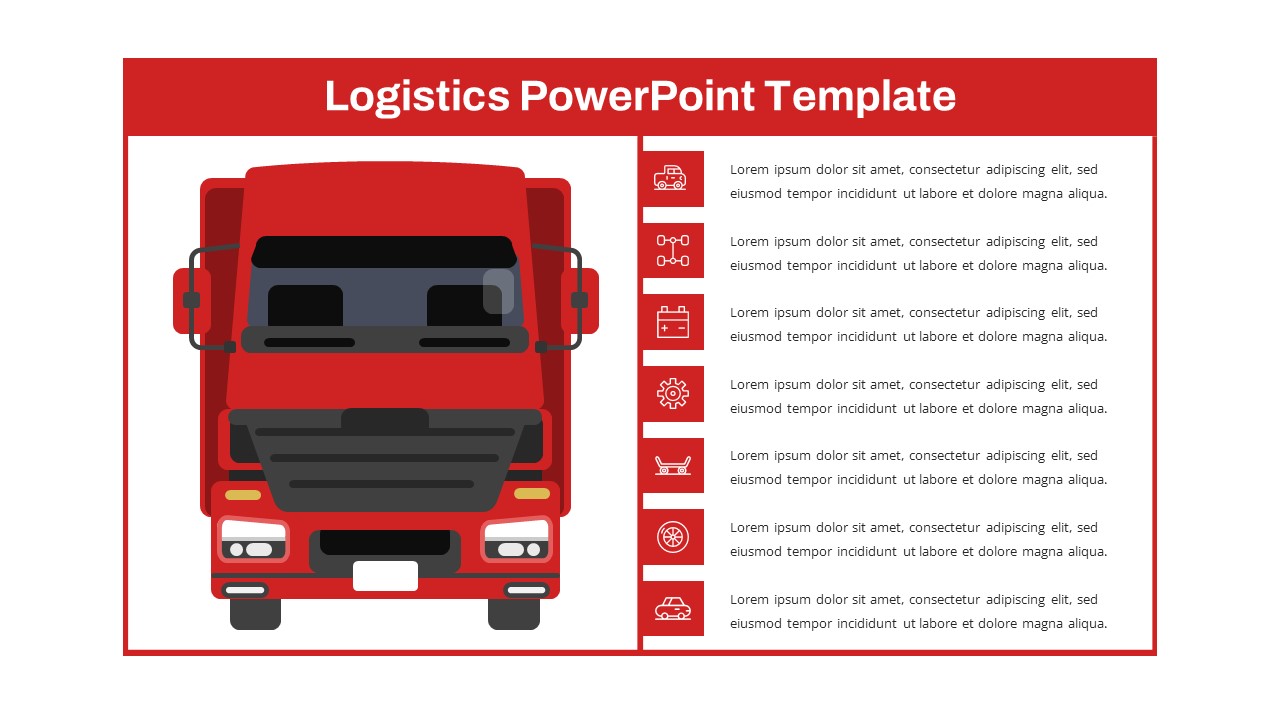
Free Red Truck Logistics Overview Slide for PowerPoint & Google Slides
Infographics
Free
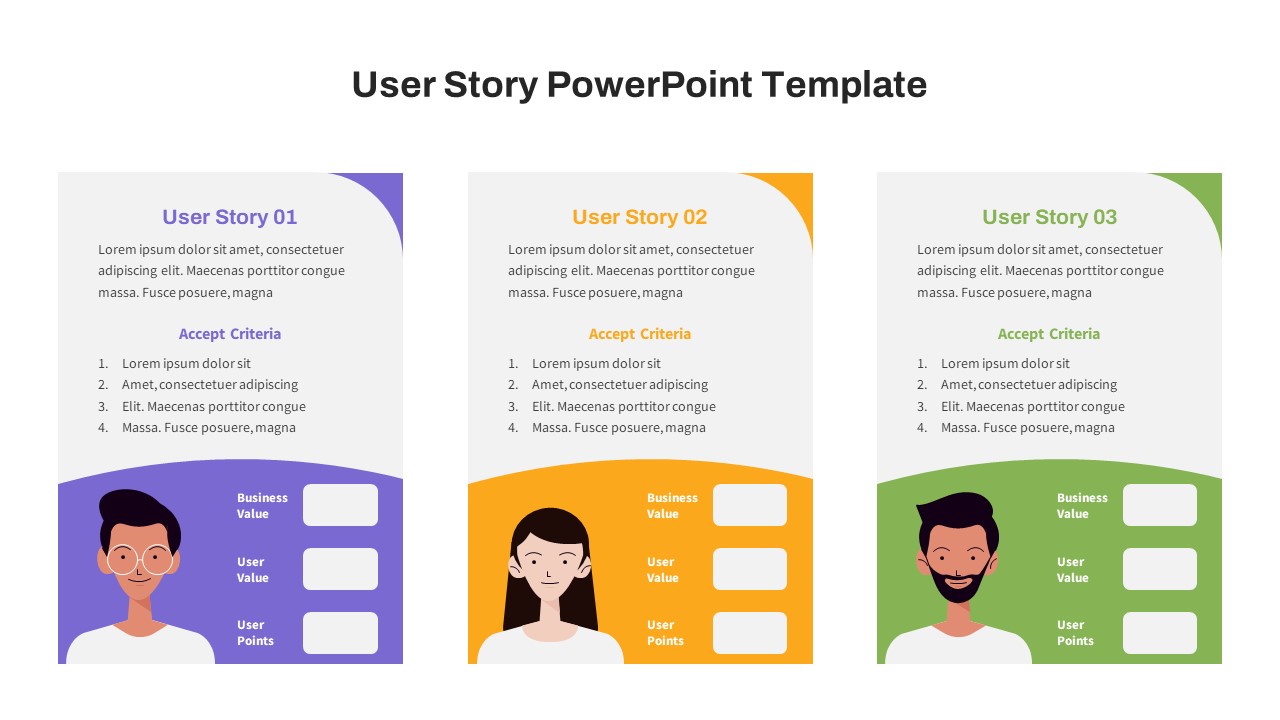
Free Agile User Story Card Slide for PowerPoint & Google Slides
Infographics
Free
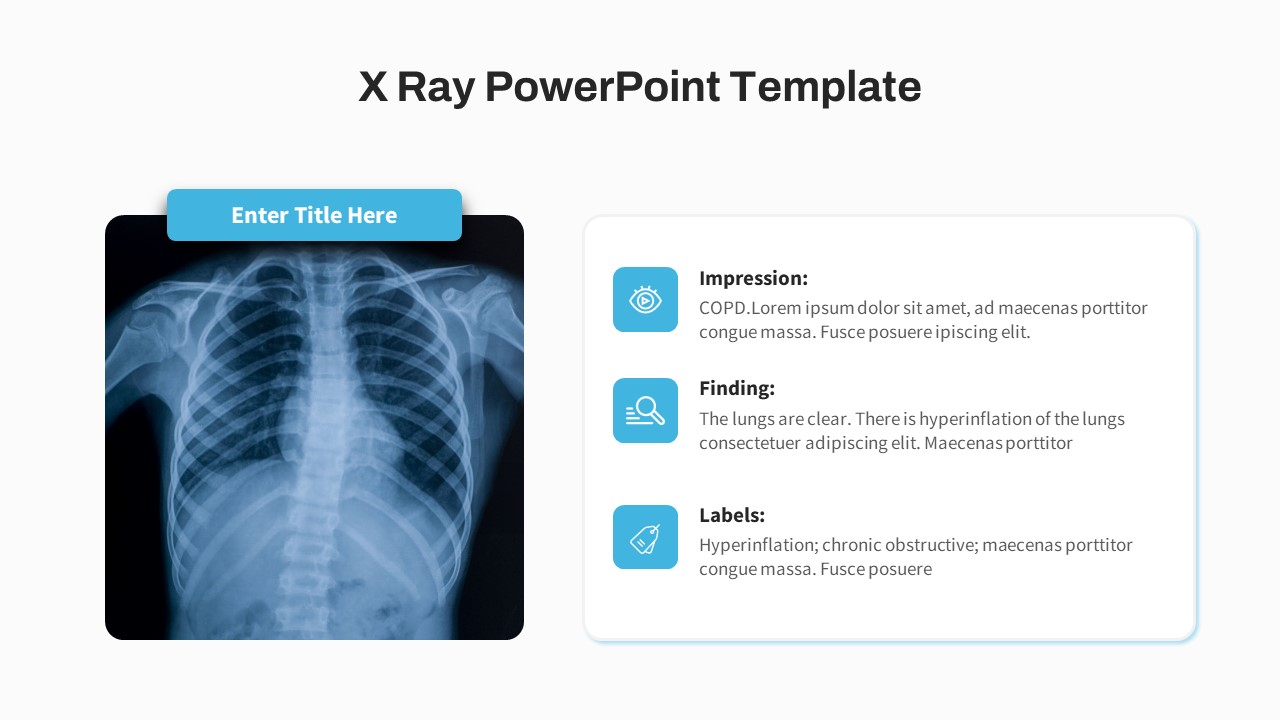
Free Medical X-Ray Analysis Slide for PowerPoint & Google Slides
Health
Free
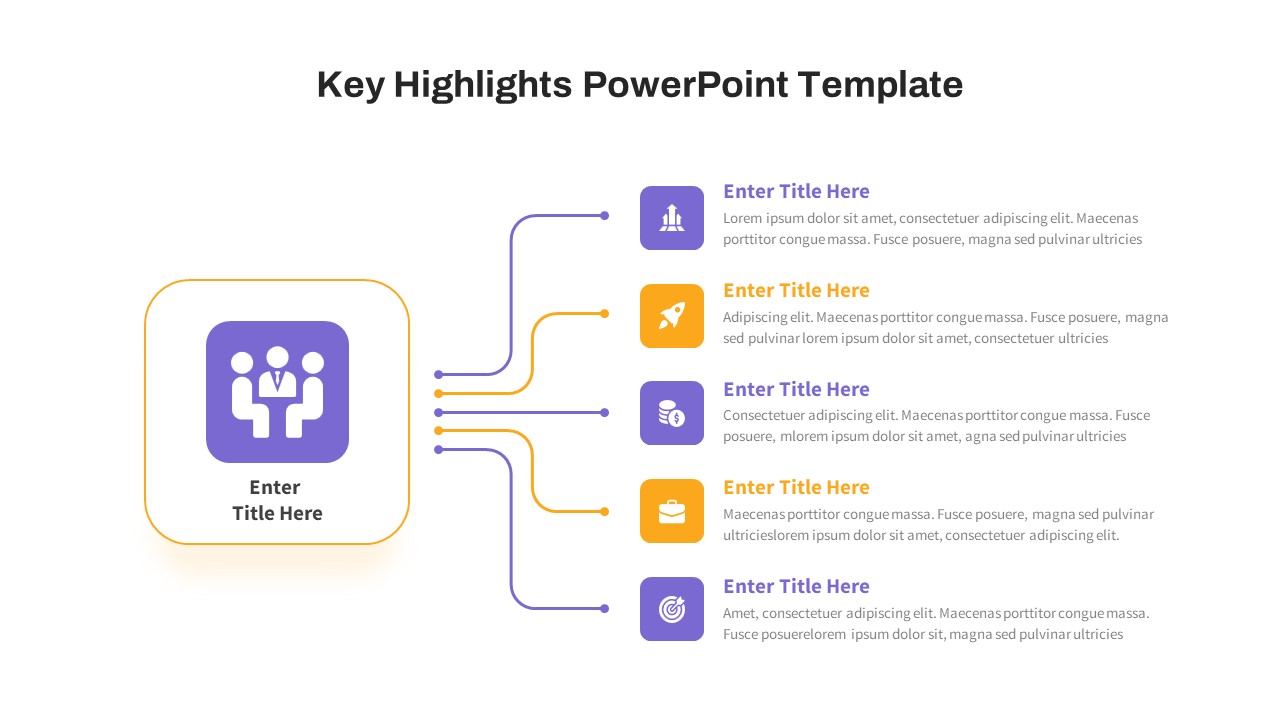
Free Key Highlights Business Summary Slide for PowerPoint & Google Slides
Accomplishment
Free
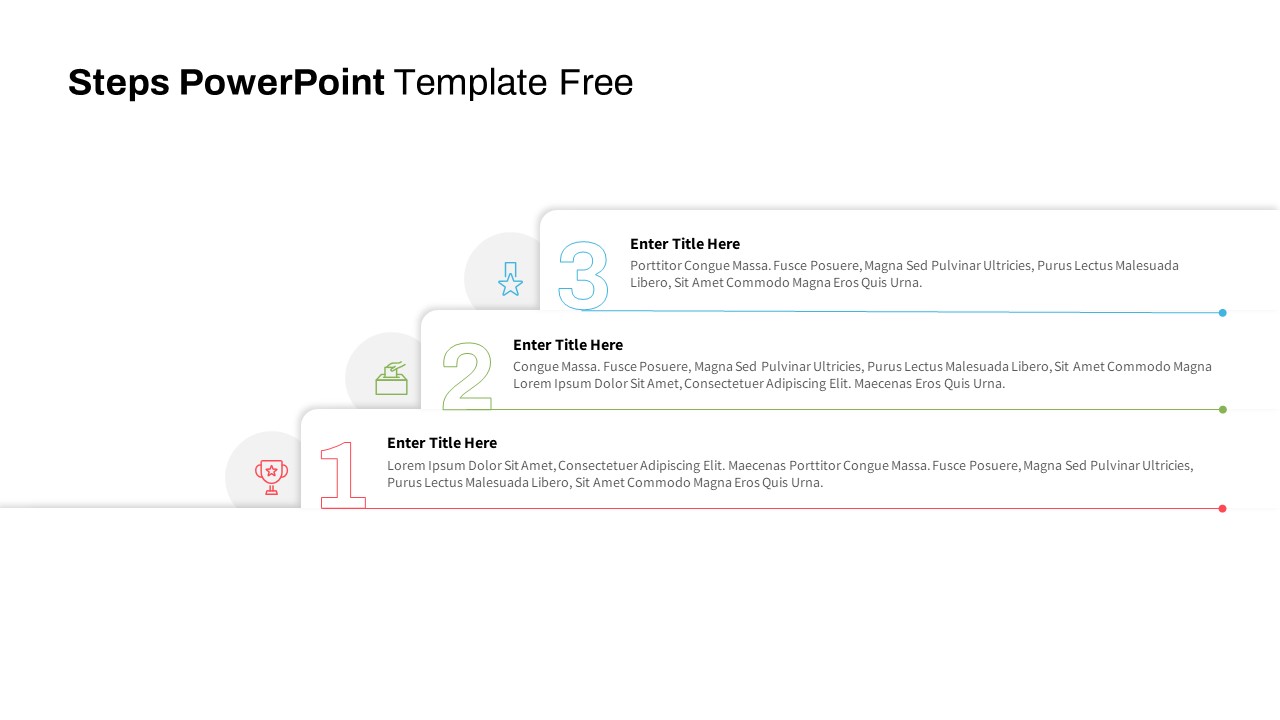
Free Linear Step Process Slide for PowerPoint & Google Slides
Process
Free
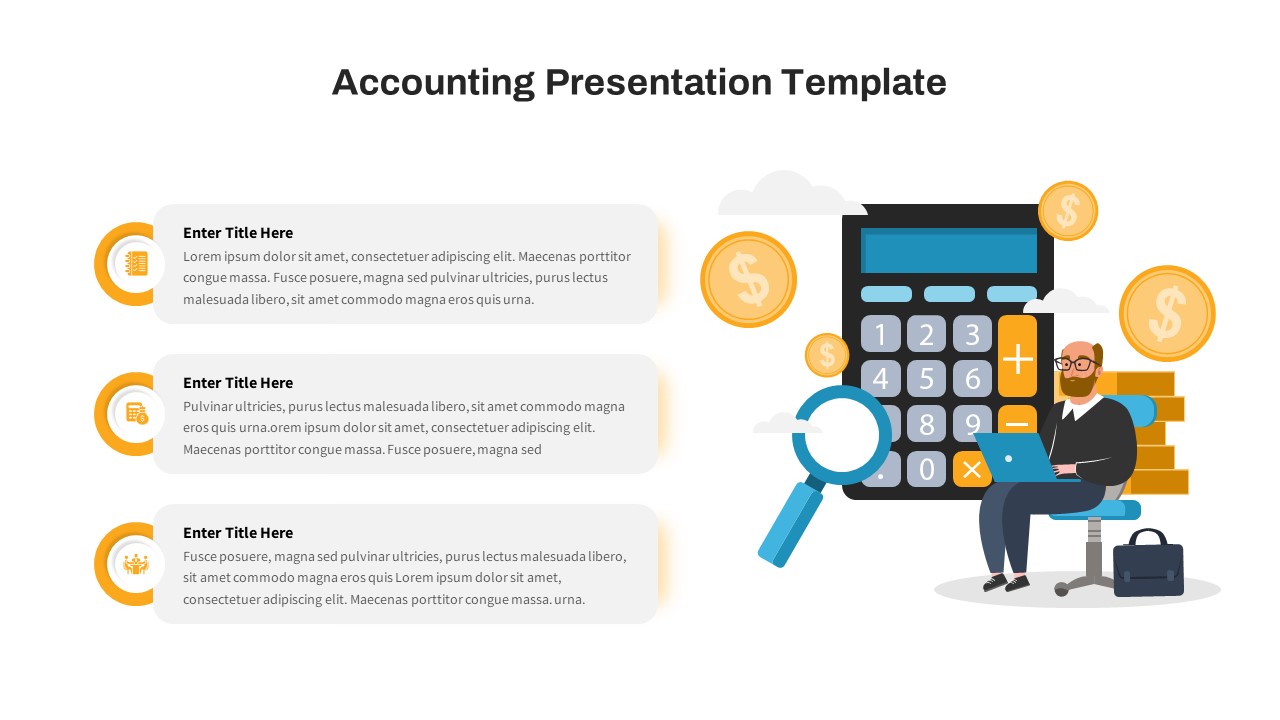
Free Financial Accounting Overview Slide for PowerPoint & Google Slides
Accounting
Free
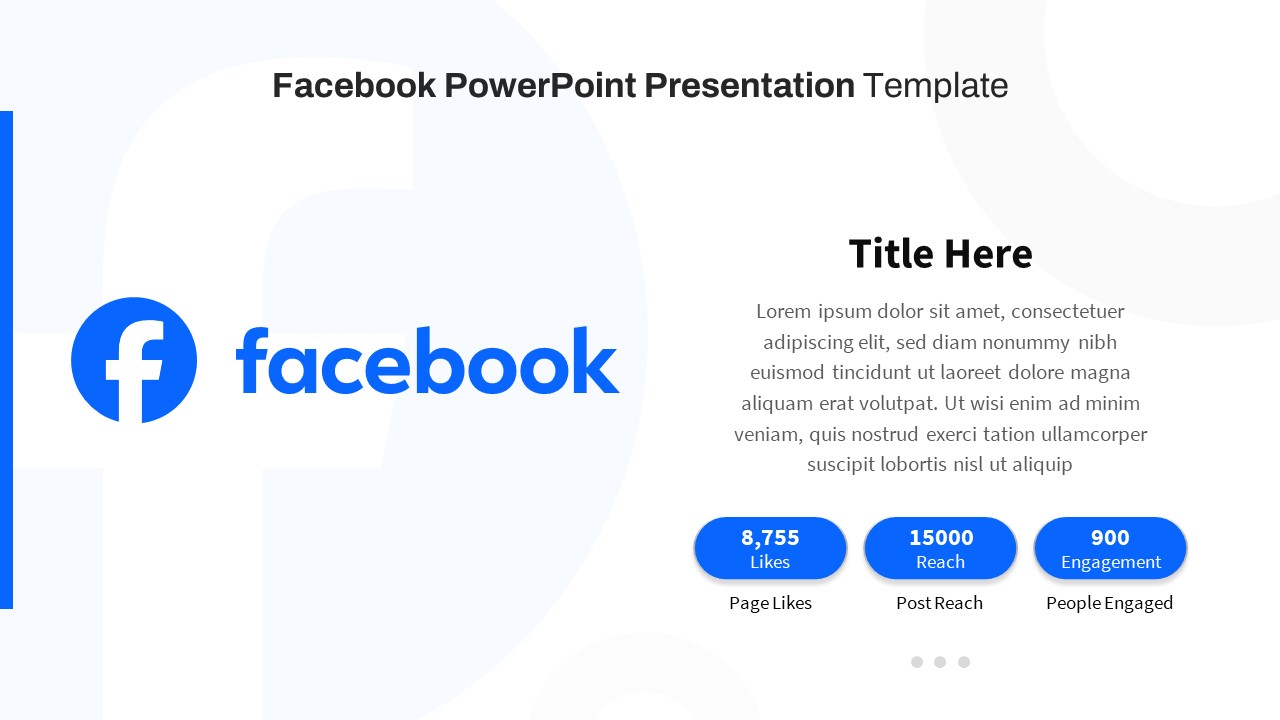
Free Facebook Page Analytics Slide for PowerPoint & Google Slides
Customer Experience
Free
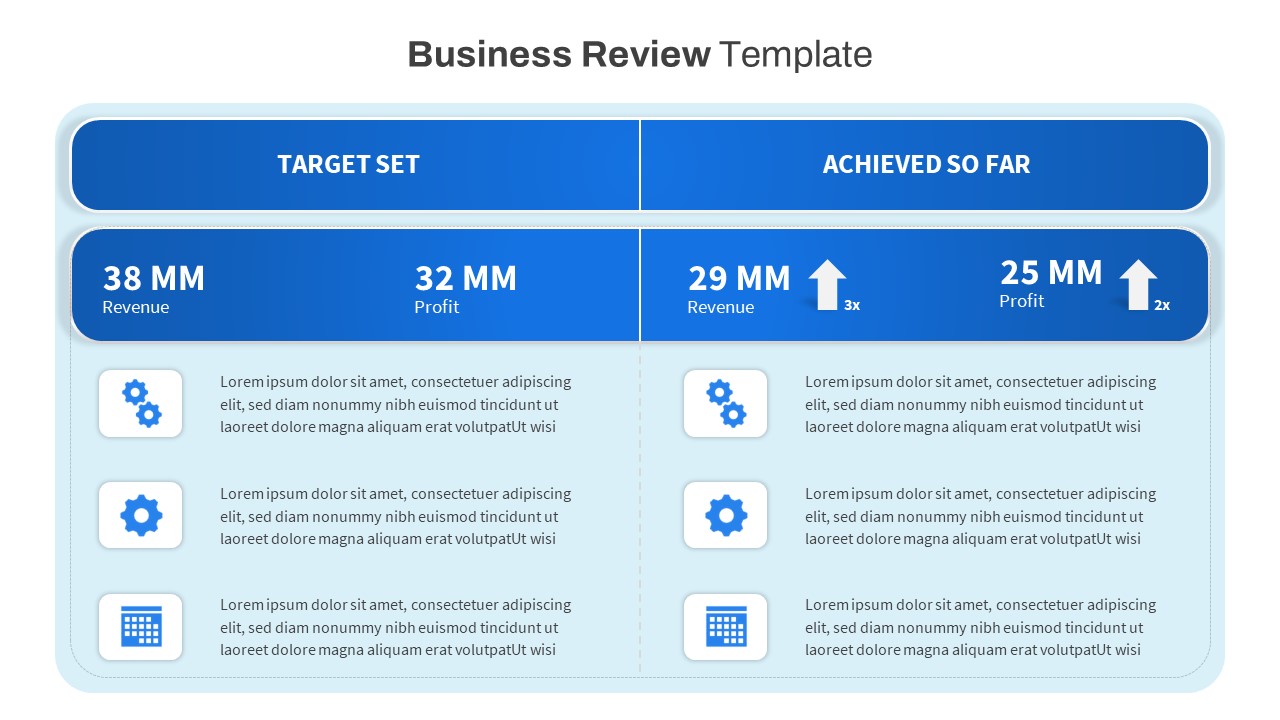
Free Business Review Comparison Slide for PowerPoint & Google Slides
Business Report
Free
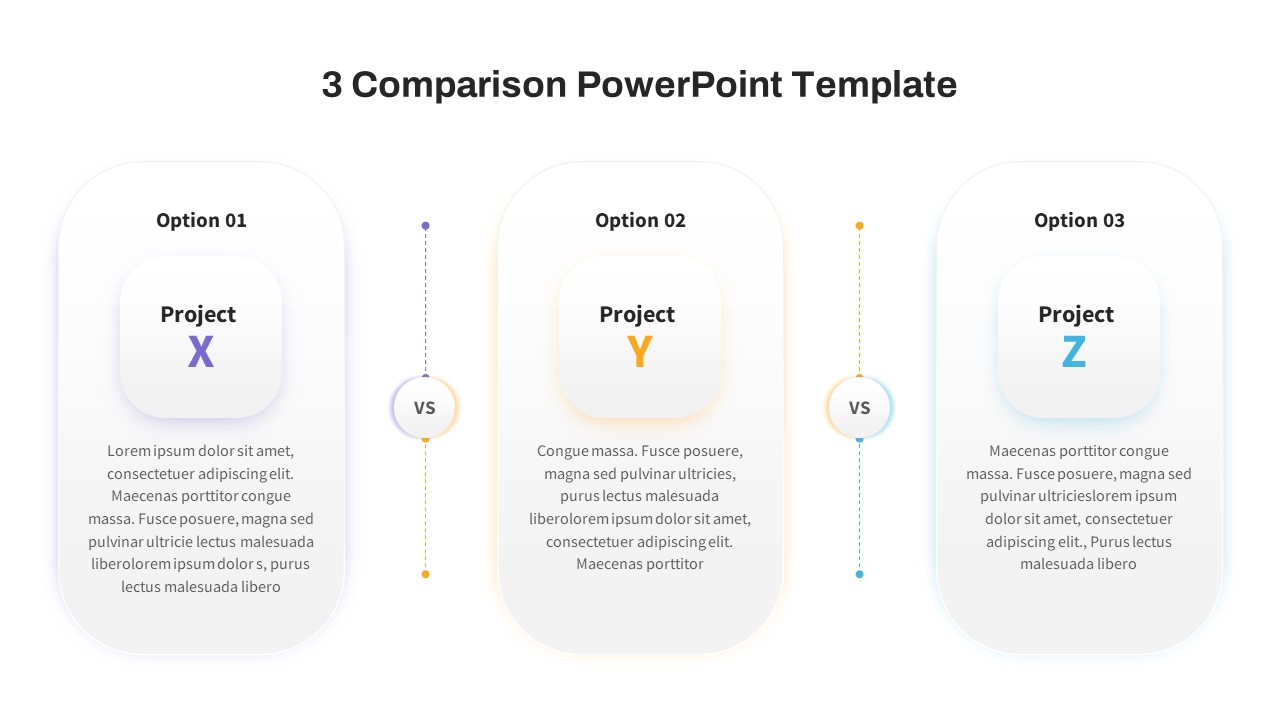
Free Three-Option Comparison Slide for PowerPoint & Google Slides
Comparison
Free
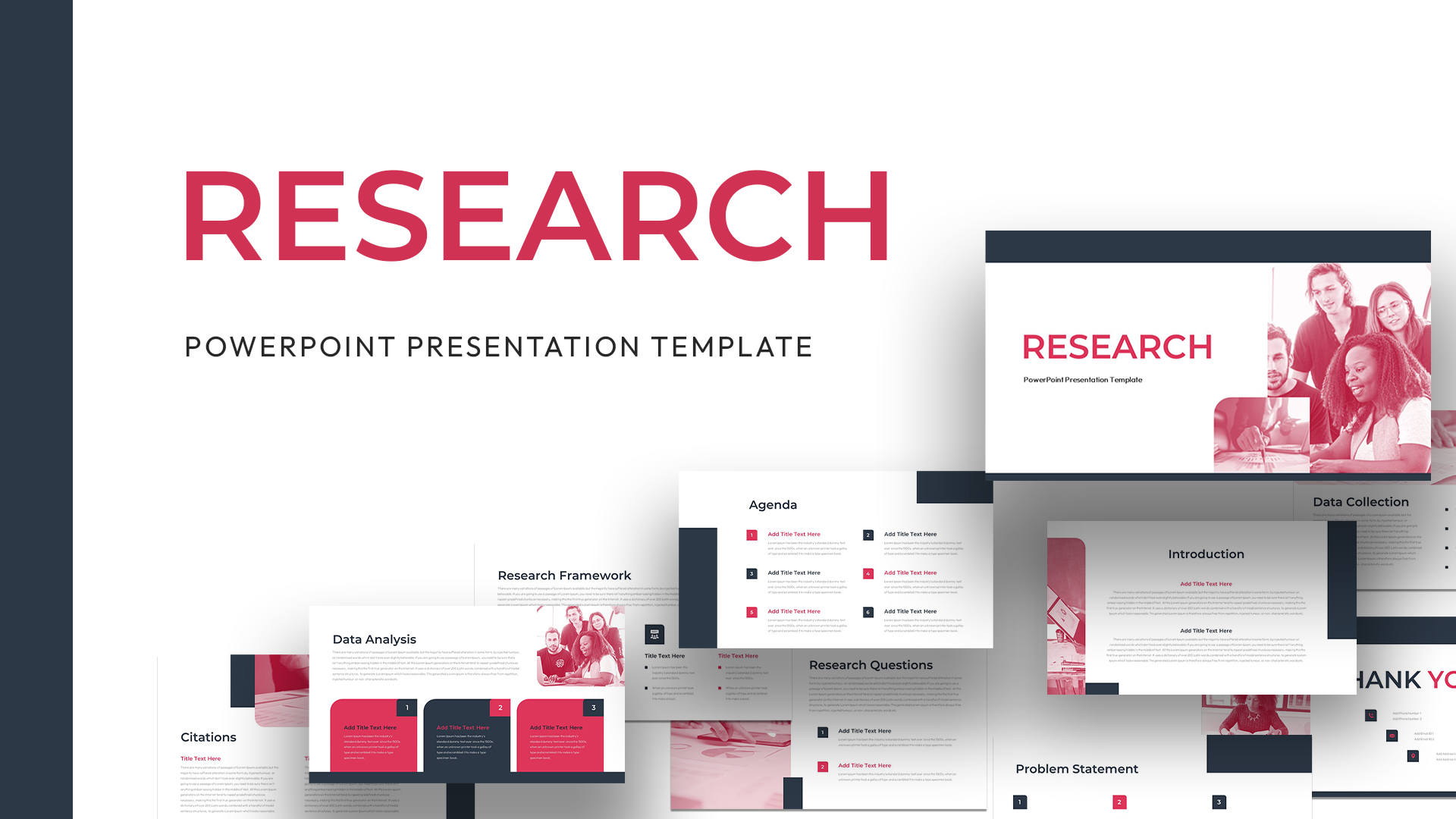
Free Research Presentation Slide Deck Template for PowerPoint & Google Slides
Decks
Free
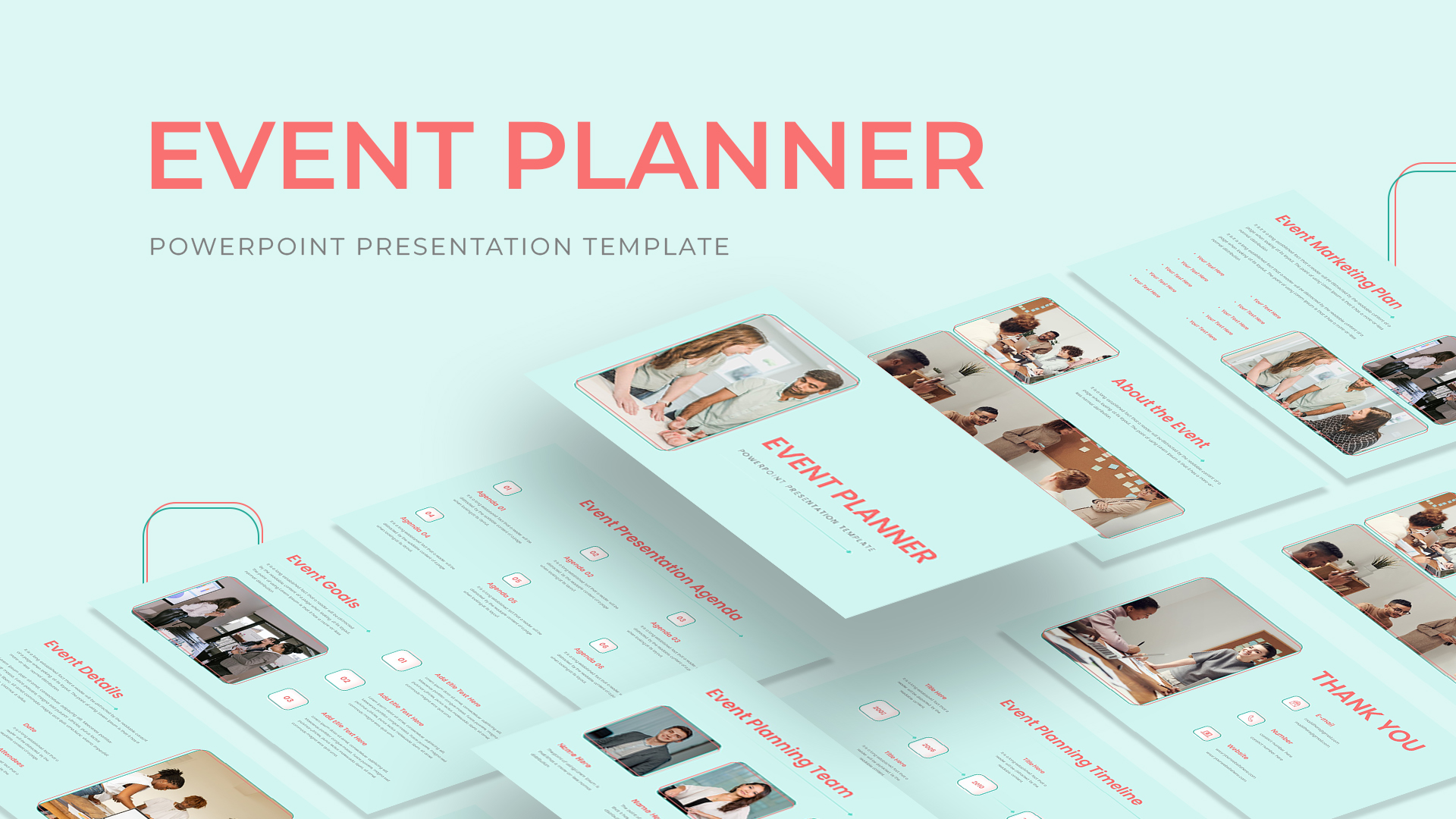
Free Professional Event Planner Slide Deck Template for PowerPoint & Google Slides
Business
Free
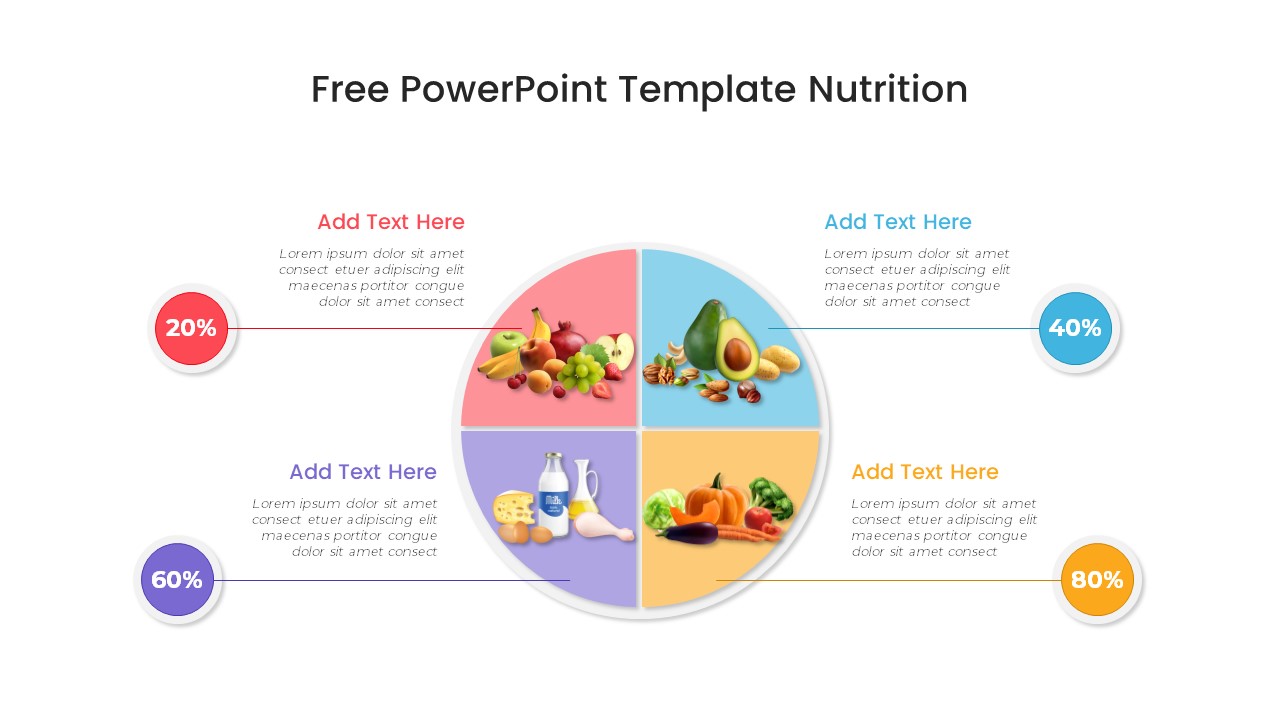
Free Nutrition Infographic Slide Template for PowerPoint & Google Slides
Health
Free
Free Thank You Slide Template for PowerPoint & Google Slides
Graphics
Free
Free Car Wash Center Service Features Slide Template for PowerPoint & Google Slides
Business Proposal
Free
Free Graduation Photo Collage Circle Slide Template for PowerPoint & Google Slides
Decks
Free
Free Goal Setting Target Infographic Slide Template for PowerPoint & Google Slides
Goals
Free
Free Meeting Agenda Slide Template for PowerPoint & Google Slides
Agenda
Free
Free Teacher Introduction Slide Template for PowerPoint & Google Slides
Our Team
Free
Free Business Model Canvas Diagram Slide Template for PowerPoint & Google Slides
Business Models
Free
Free Introduction Slide for PowerPoint & Google Slides
Free
Free
Free Online Shopping 3-Slide Infographic Template for PowerPoint & Google Slides
Digital Marketing
Free
Free Machine Learning Concept Slide Template for PowerPoint & Google Slides
Machine Learning
Free
Free New Year’s Resolution Slides Pack for PowerPoint & Google Slides 2023
Graphics
Free
Free Professional Gantt Chart Pack – 4 Slides Template for PowerPoint & Google Slides
Gantt Chart
Free
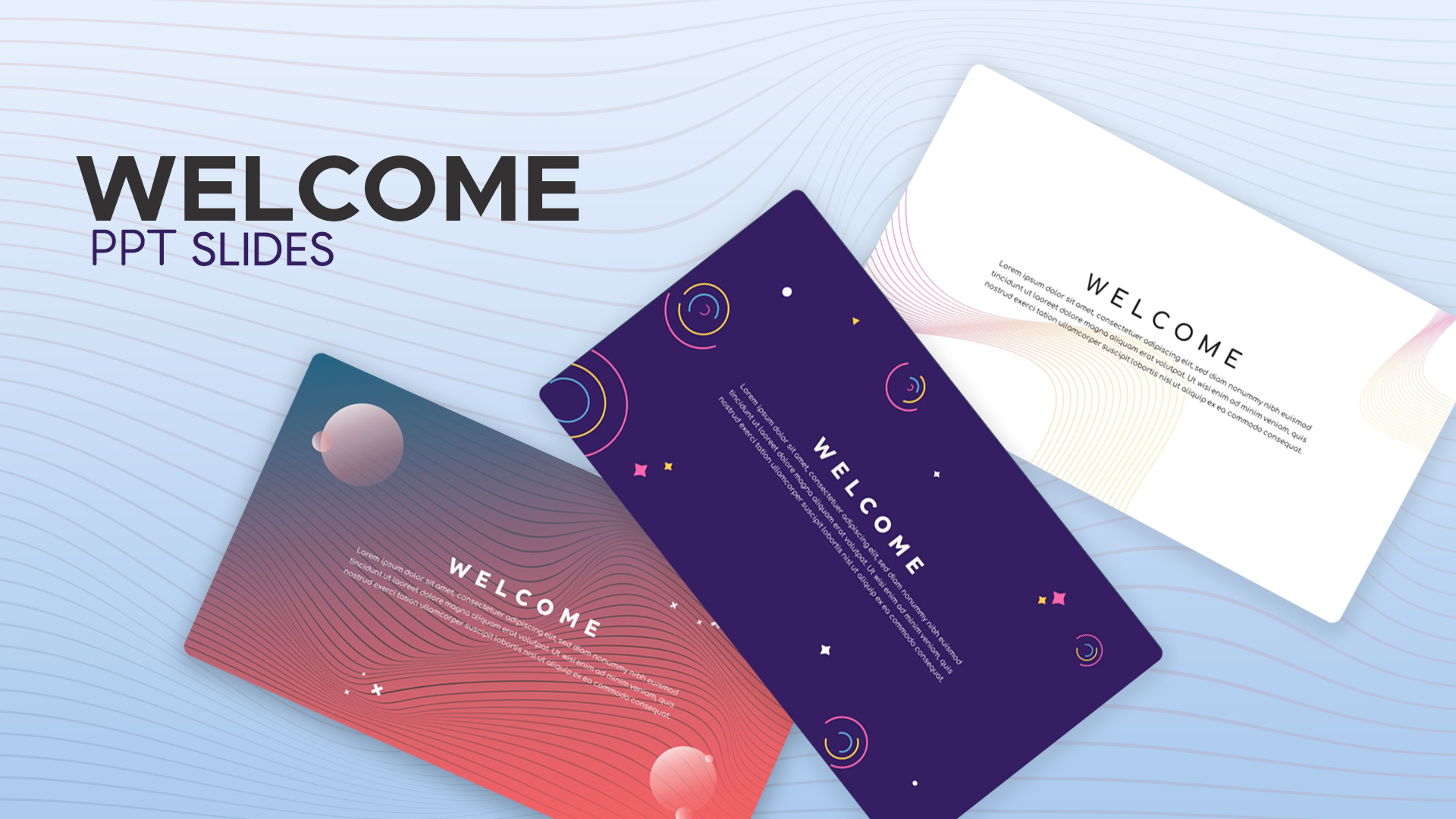
Free Modern Gradient Wave Welcome Slides Template for PowerPoint & Google Slides
Free
Free
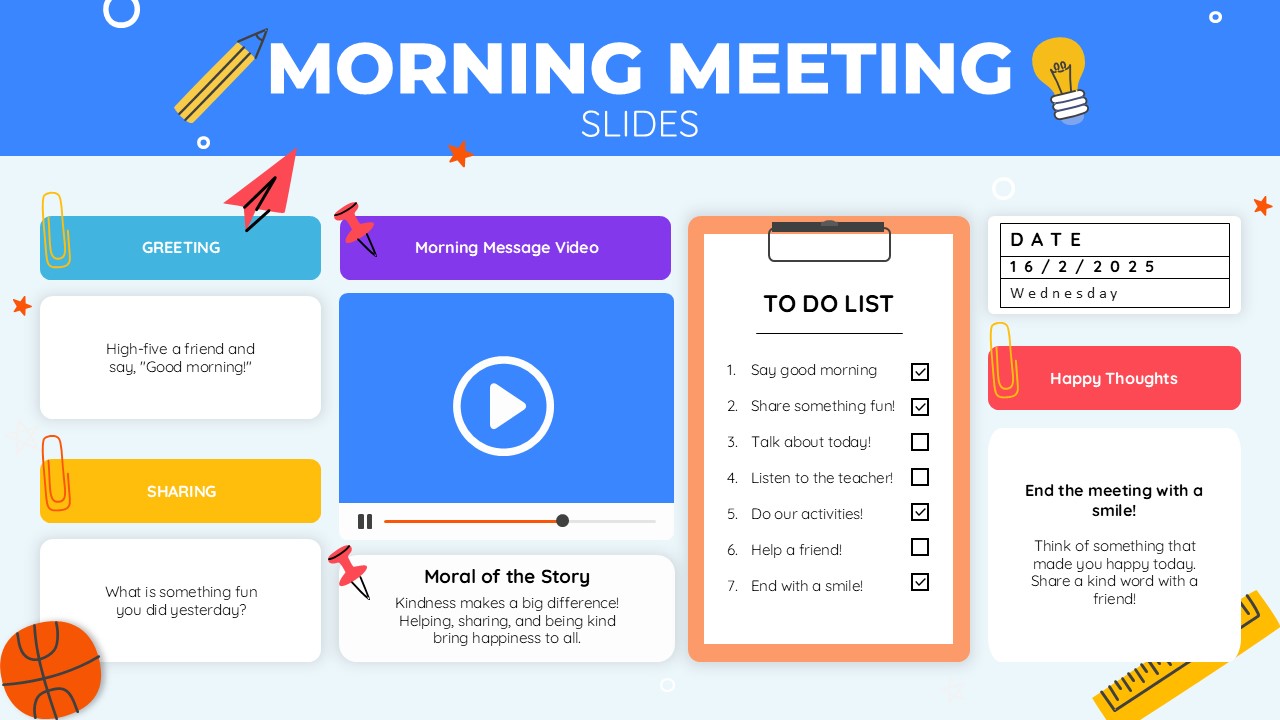
Free Colorful Morning Meeting Agenda Slides Template for PowerPoint & Google Slides
Agenda
Free
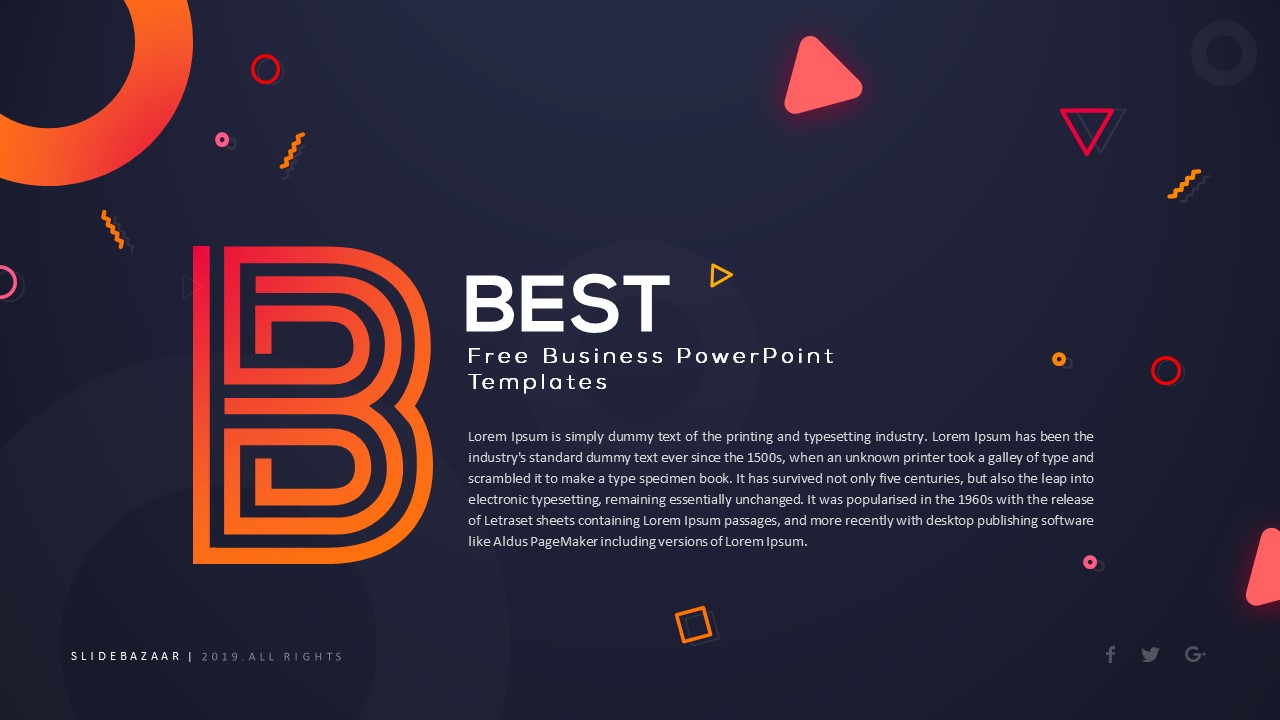
BEST Free Business PowerPoint Templates Collection Template for PowerPoint & Google Slides
Company Profile
Free
Free Garden Area PowerPoint Template for PowerPoint & Google Slides
Marketing
Free
Free Teacher’s Week Plan PowerPoint Template for PowerPoint & Google Slides
Decks
Free
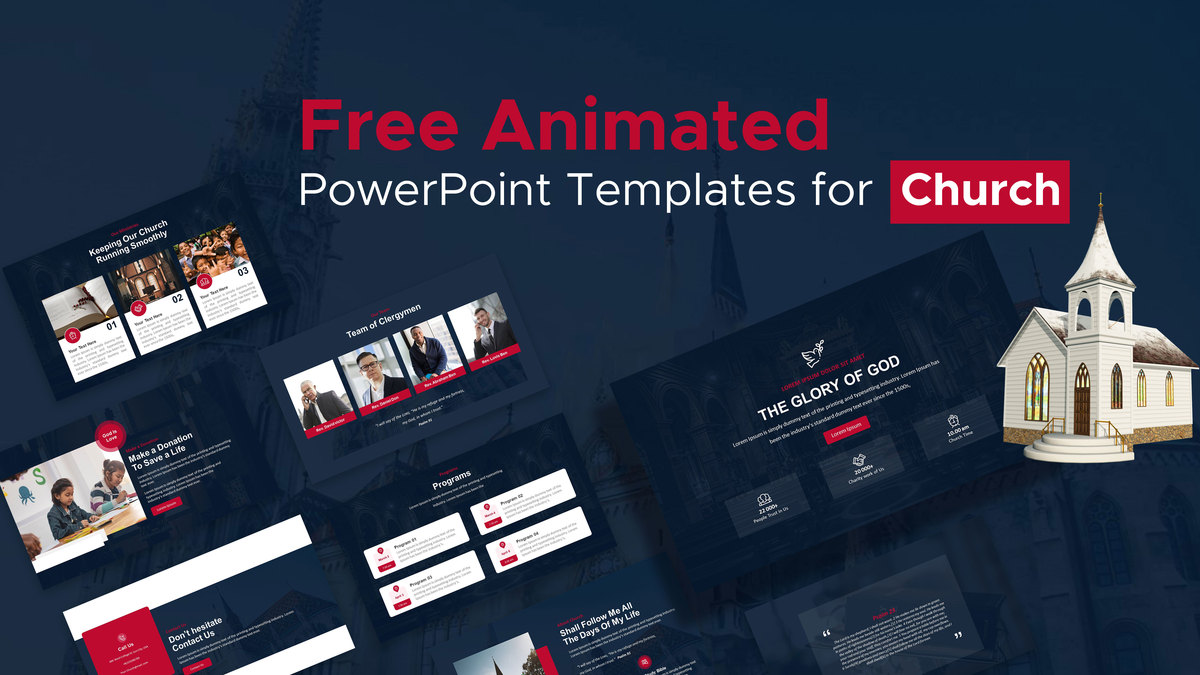
Free Animated Church PowerPoint Template for PowerPoint & Google Slides
Decks
Free
Free About Me PowerPoint Template for PowerPoint & Google Slides
Employee Performance
Free
Free KPI Dashboard PowerPoint Template for PowerPoint & Google Slides
Charts
Free
Free Case Study PowerPoint Template for PowerPoint & Google Slides
Infographics
Free
Free Monthly Report PowerPoint Template for PowerPoint & Google Slides
Business Report
Free