
How to Create a PowerPoint Template from Scratch: A Complete Guide
 |
November 12th, 2026


Creating professional presentations becomes much easier when you have a reusable design that keeps every slide consistent. Instead of choosing fonts, adjusting colors, positioning logos, and formatting layouts every time you start a presentation, you can create a PowerPoint template that handles these design decisions for you.
For students, educators, business owners, and corporate professionals, learning how to create a PowerPoint template can save time and help maintain a recognizable presentation style.
In this guide, you’ll learn how to create a PowerPoint template from scratch using Slide Master, customize layouts, add placeholders, choose professional design elements, and save your work as a reusable .potx file.
What Is a PowerPoint Template?
A PowerPoint template is a reusable presentation design (.potx) containing predefined colors, fonts, backgrounds, graphics, and slide layouts. It provides a consistent starting point for creating new presentations without designing every slide individually.
A template is different from a PowerPoint theme. A theme primarily controls colors, fonts, and visual effects, while a template also includes reusable slide layouts, placeholders, and sample content.
For example, a company presentation template might include:
- A branded opening and closing slide.
- Standard layouts for text, images, and charts.
- Company logos and footer elements.
- Consistent typography and color combinations.
- Dedicated layouts for timelines, comparisons, and reports.
How to Create a PowerPoint Template
Steps to create a PowerPoint template:
- Plan Your PowerPoint Template Design
- Choose Fonts and Colors
- Open PowerPoint Slide Master
- Customize Your Master Slide
- Create and Customize Slide Layouts
- Add Placeholders and Reusable Elements
- Save Your PowerPoint Template as a POTX File
Follow these steps to build a professional PowerPoint template that you can reuse across multiple presentations.
Step 1: Plan Your PowerPoint Template Design
Before opening PowerPoint, decide how your template should look and what types of presentations it will support.
Consider the following elements:
- Purpose: Decide if the template is for business reports, educational presentations, marketing proposals, or project updates.
- Audience: Choose a visual style appropriate for your viewers.
- Slide size: Select widescreen (16:9) for most modern presentations or another size if your requirements demand it.
- Layouts: Plan essential slides, including title, agenda, content, comparison, image, and conclusion layouts.
Planning these elements first prevents unnecessary redesign later.
Step 2: Choose Fonts and Colors
Your fonts and colors establish the visual identity of your presentation.
Choose two complementary fonts: one for headings and another for body text. Use readable fonts such as Aptos, Arial, or Calibri, and maintain consistent font sizes throughout your layouts.
For colors, select:
- One primary brand color.
- One secondary color.
- One accent color for important information.
- Neutral colors for backgrounds and text.
For example, a corporate template might combine navy blue, light gray, white, and a small amount of orange.
Avoid excessive colors, decorative fonts, and low-contrast combinations. Your slides should remain readable on large screens.
Step 3: Open PowerPoint Slide Master
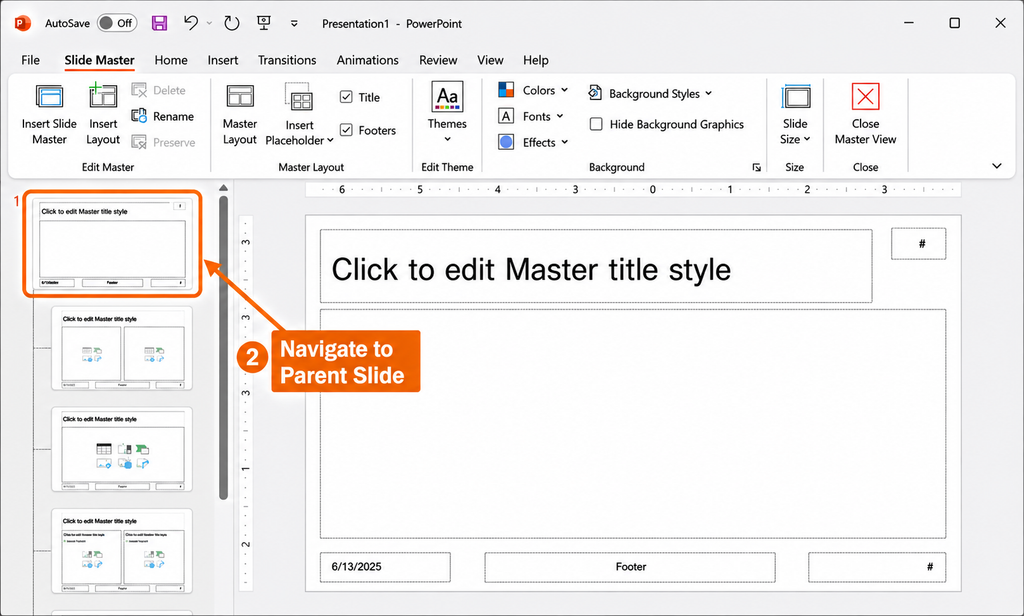
The PowerPoint Slide Master is the most important feature when creating a reusable template. It controls the overall appearance of your presentation, including shared backgrounds, fonts, logos, and other design elements.
To access it:
- Open a blank PowerPoint presentation.
- Select View from the ribbon.
- Click Slide Master.
- Locate the largest thumbnail at the top of the left panel.
The top thumbnail represents the main Slide Master. The smaller thumbnails underneath represent individual slide layouts.
Changes made to the master can automatically appear across its associated layouts, helping maintain consistent formatting.
Step 4: Customize Your Master Slide
Select the top master slide and start creating your presentation’s visual identity.
You can customize:
- Background colors or images.
- Default heading and body fonts.
- Company logos and brand graphics.
- Footer elements and slide numbers.
- Decorative lines, shapes, and design accents.
Use Background Styles to choose a suitable background or select Format Background for additional customization.
Keep permanent design elements in consistent positions. For example, place your company logo in the bottom-right corner and use the same heading alignment across your layouts.
Step 5: Create and Customize Slide Layouts
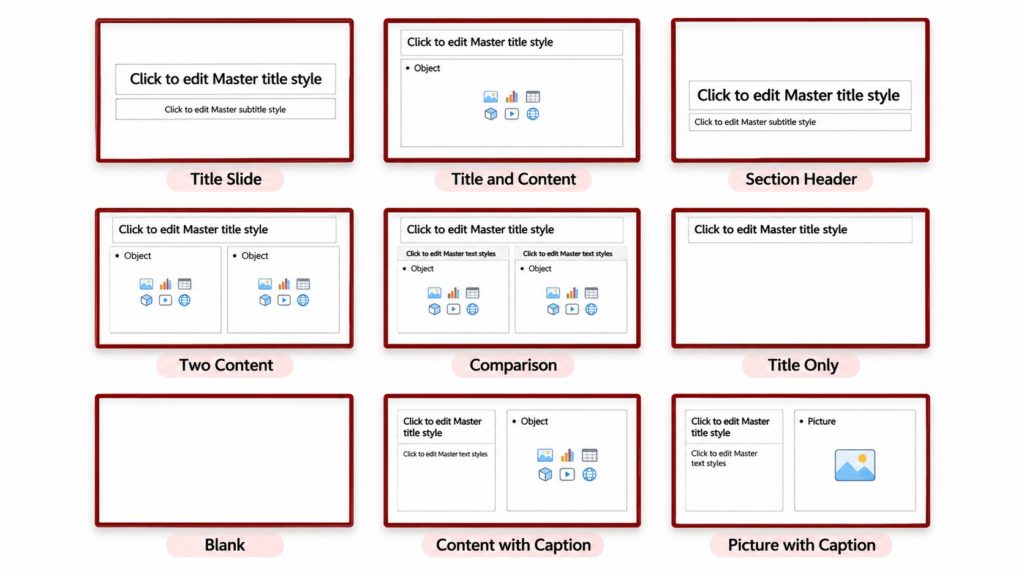
A professional PowerPoint template needs multiple layouts for different content requirements.
In Slide Master view, select Insert Layout to create a new layout or customize an existing one.
Consider creating these reusable PowerPoint slide layouts:
- Title slide for presentation openings.
- Section divider for introducing new topics.
- Title and content for regular information.
- Two-column layout for comparisons.
- Image-focused layout for visual storytelling.
- Chart and data layout for reports.
- Conclusion slide for final messages.
Right-click a layout and select Rename Layout to give it a descriptive name.
Creating different layouts gives users flexibility without sacrificing visual consistency.
Step 6: Add Placeholders and Reusable Elements
Placeholders are predefined containers that tell users where to insert content.
To add one:
- Select the required slide layout in Slide Master view.
- Click Insert Placeholder.
- Choose Text, Picture, Chart, Table, SmartArt, or another available type.
- Drag across the slide to define its position and size.
- Customize its formatting and prompt text.
For example, a business report layout might include a title placeholder, a chart placeholder, and a short description area.
You can also add reusable elements such as logos, icons, page numbers, and footer text.
Using actual placeholders instead of ordinary text boxes makes your template easier to edit and reuse.
Step 7: Save Your PowerPoint Template as a POTX File
Once your design is complete:
- Select Close Master View.
- Review your slide layouts.
- Select File > Save As or Save a Copy.
- Choose PowerPoint Template (*.potx) as the file type.
- Enter a descriptive file name.
- Click Save.
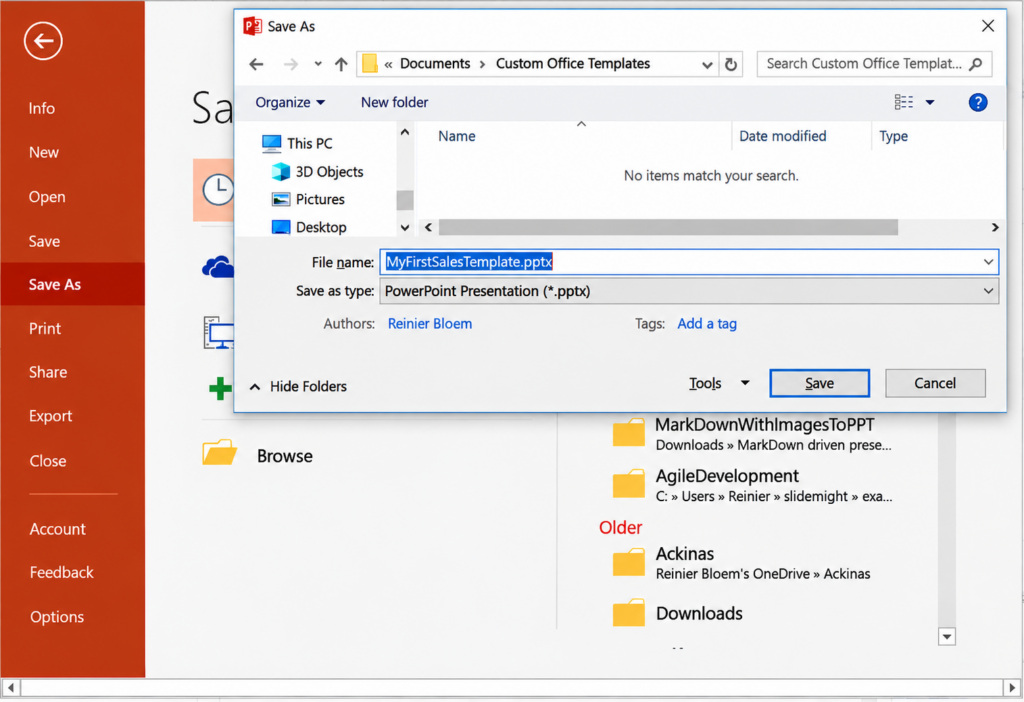
The .potx format allows you to reuse and share your presentation design without starting from an ordinary blank presentation.
Note: Creating PowerPoint templates using Slide Master requires the desktop version of PowerPoint. PowerPoint for the web does not support creating templates directly.
Creating a PowerPoint Template vs. Using an Existing Template
Creating a template from scratch gives you complete control over branding, layouts, and formatting. However, it requires time, design knowledge, and familiarity with PowerPoint features.
Using an existing editable PowerPoint template is a practical alternative when you need professional-looking slides quickly.
| Creating from scratch | Using an existing template |
| Complete design control | Ready-made designs |
| Requires more time | Saves design time |
| Ideal for custom branding | Ideal for quick projects |
| Requires design skills | Beginner-friendly |
If you regularly create presentations with unique branding requirements, building your own template is worthwhile. For occasional presentations, ready-made templates can be considerably more convenient.
Where to Find Professional Editable PowerPoint Templates
If designing every slide from scratch sounds difficult, SlideBazaar offers a convenient collection of presentation resources.
SlideBazaar’s library includes editable PowerPoint templates, Google Slides themes, business presentations, infographics, diagrams, and industry-specific designs.
Here are some useful offerings:
- Editable PowerPoint Templates: Explore ready-made presentation templates for business proposals, pitch decks, marketing presentations, reports, education, and more. Customize text, colors, graphics, and layouts to match your requirements.
- Google Slides Themes and Templates: Access presentation designs that can be edited in Google Slides, making them useful for browser-based presentation workflows.
- PowerPoint Add-in: SlideBazaar’s add-in brings presentation templates, themes, charts, graphs, diagrams, and formatting tools into your PowerPoint workflow. It also lets users save custom slides for reuse.
- AI Presentation Maker: SlideBazaar AI Presentation Maker helps generate structured presentations from a topic or prompt. It can help organize slide content and provide themes and editing options. Users can customize layouts, text, and visuals before exporting presentations in supported formats.
These tools complement one another: use AI to accelerate initial presentation creation, the PowerPoint add-in to access design resources within your workflow, and editable templates to establish a consistent visual identity.
Other platforms offer different approaches. SlideModel focuses on professional business diagrams, charts, and structured presentation frameworks. SlidesCarnival provides free presentation designs across educational, business, and creative categories. SlideUpLift offers editable presentation templates alongside its AI editing platform.
SlideBazaar is particularly worth exploring if you want presentation templates, Google Slides, a PowerPoint add-in, and AI presentation maker in one ecosystem.
Common Mistakes to Avoid When Creating PowerPoint Templates
Even a well-designed template can become difficult to use if basic design principles are overlooked.
Avoid these common mistakes:
- Too many fonts: Limit your template to two complementary font families.
- Inconsistent spacing: Maintain consistent margins, alignment, and spacing.
- Overcrowded layouts: Leave enough white space for comfortable reading.
- Missing placeholders: Use appropriate placeholders to simplify editing.
- Excessive decoration: Avoid unnecessary animations, shapes, and background effects.
- Ignoring compatibility: Test your template on the PowerPoint versions and devices your audience uses.
Most importantly, test every layout with realistic content before sharing your template.
Conclusion
Learning how to create a PowerPoint template gives you greater control over presentation design, improves consistency, and saves time when preparing future slides. By customizing Slide Master, creating reusable layouts, adding placeholders, and saving your work as a .potx file, you can build a professional presentation system suited to your needs.
You don’t always need to start from scratch. If you want professionally designed slides without investing hours in formatting, SlideBazaar is a best go to source for PowerPoint templates. Its editable PPT templates, Google Slides themes, PowerPoint add-in, and AI Presentation Maker offer practical ways to simplify presentation creation and produce polished results. If you want to further improve your presentation skills, explore this PowerPoint Essentials course, which covers slide design, productivity techniques, and ways to work more effectively with PowerPoint.
Frequently Asked Questions
Yes. PowerPoint provides built-in themes, layouts, and Slide Master tools that beginners can use to create professional-looking templates.
PPTX is the standard PowerPoint presentation format, while POTX is designed for reusable PowerPoint templates. Opening a POTX template creates a new presentation based on its design.
Yes. Open an existing template, customize its fonts, colors, layouts, graphics, and placeholders, then save your customized version as a new POTX file.
Many editable PowerPoint files can be uploaded and converted into Google Slides. However, some animations, fonts, and advanced formatting may require adjustments.
There is no fixed number. Start with six to eight useful layouts covering titles, content, images, comparisons, data, and conclusions. Add more only when necessary.
Related Articles
-
 October 4th, 2022
How to Embed Videos in PowerPoint
PowerPoint How To -
 May 21st, 2024
How to Use PowerPoint on an Android Smartphone – Basic Overview
Blog Post -
 July 13th, 2022
How to Compare and Combine Two Versions of a PowerPoint File?
PowerPoint How To