
25 Professional Google Slides Templates & Themes for Clear, Confident Presentations
 |
October 14th, 2026
|
October 14th, 2026



A professional Google Slides template provides a clear foundation for your presentation, allowing you to focus on what you want to communicate. Whether you are explaining a business plan, sharing project results, or preparing a pitch deck, the right layout helps your audience follow the information without working through crowded slides.
Good presentation design goes beyond attractive colors. It creates slides in a clear reading order, gives important ideas room to stand out, and makes charts, comparisons, and supporting details easier to understand. A polished presentation template should support your message while giving you enough flexibility to make the slides your own.
This collection brings together 25 best Google Slides themes & templates from SlideBazaar for you to explore. As you browse the designs and their download links, consider your content, audience, and presentation setting. The best choice is the one that helps you communicate clearly and fits the information you need to present.
What Makes a Google Slides Presentation Template Look Professional?
Professional Slides for Google Slide presentations usually share a few practical design qualities: readable typography, consistent spacing, a restrained color palette, and a clear visual hierarchy. These details help each slide feel connected to the next.
Start with readability. Titles should be easy to distinguish from body text, and labels should remain legible when the presentation is displayed on a larger screen. A design that looks elegant in a preview may become difficult to read if its text is too small or its contrast is weak.
Next, look at the slide layouts. A useful Google Slide presentation needs more than a strong cover. Depending on your topic, you may need section dividers, comparison layouts, timelines, charts, and a closing slide. Choosing layouts that match your content reduces the need to force every idea into the same format.
Finally, check how the design uses space. Minimalist slides can help important points stand out, but simplicity should still leave room for the information your audience needs.
Explore Professional Google Slides Templates
Browse the Google Slide templates and themes with creative slides below and compare their layouts with your presentation outline. Look beyond the opening slide: the most useful design will also support your main points, evidence, and closing message.
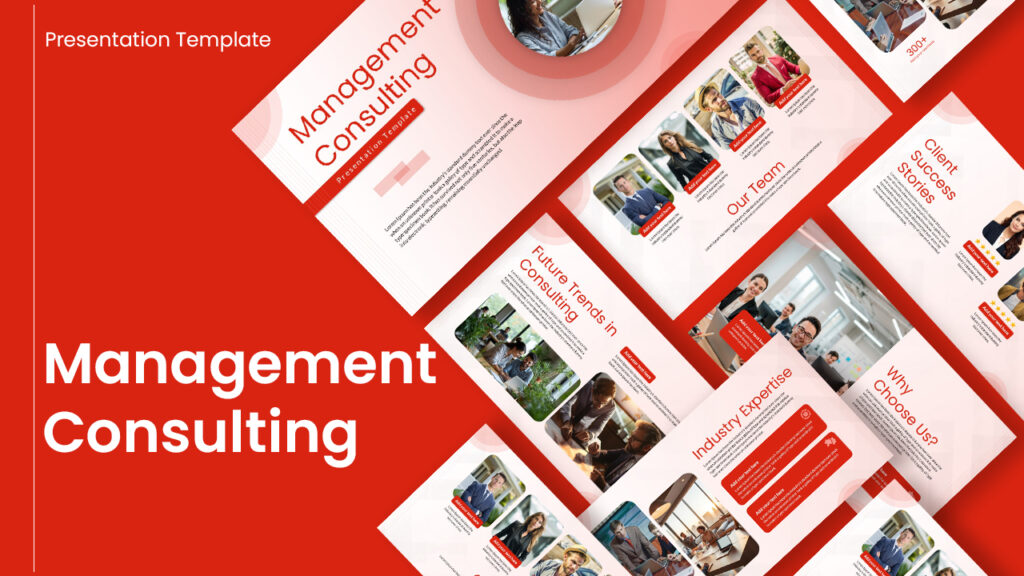
1. Management Consulting Presentation Template for Google Slides
2. Product Training Presentation Template for Google Slides

3. Modern Recruitment Strategies Google Slides Template

4. Logistics Company Profile Template for Google Slide Presentations

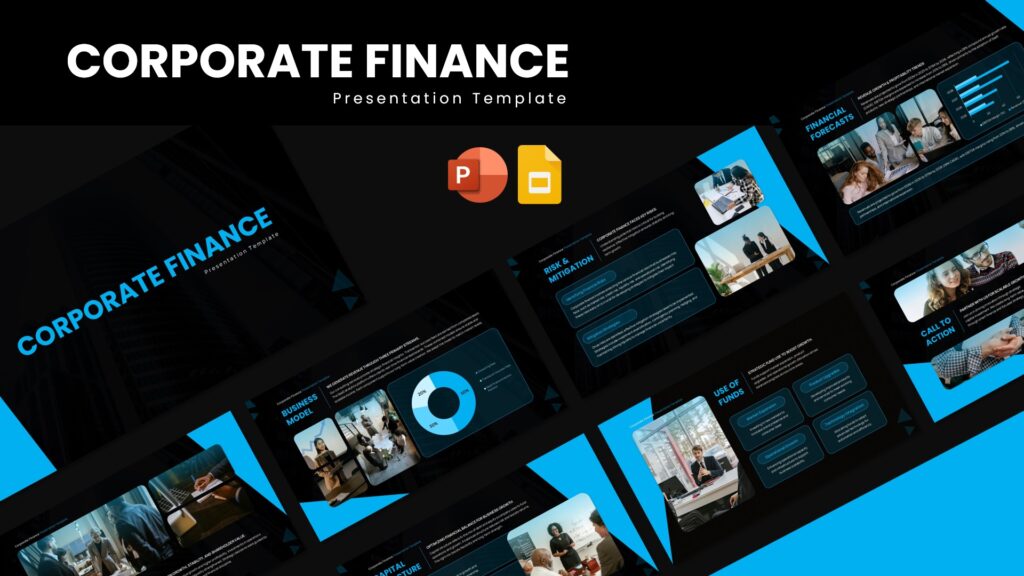
5. Corporate Finance Presentation Google Slides Template
6. Investment Proposal Google Slides Template

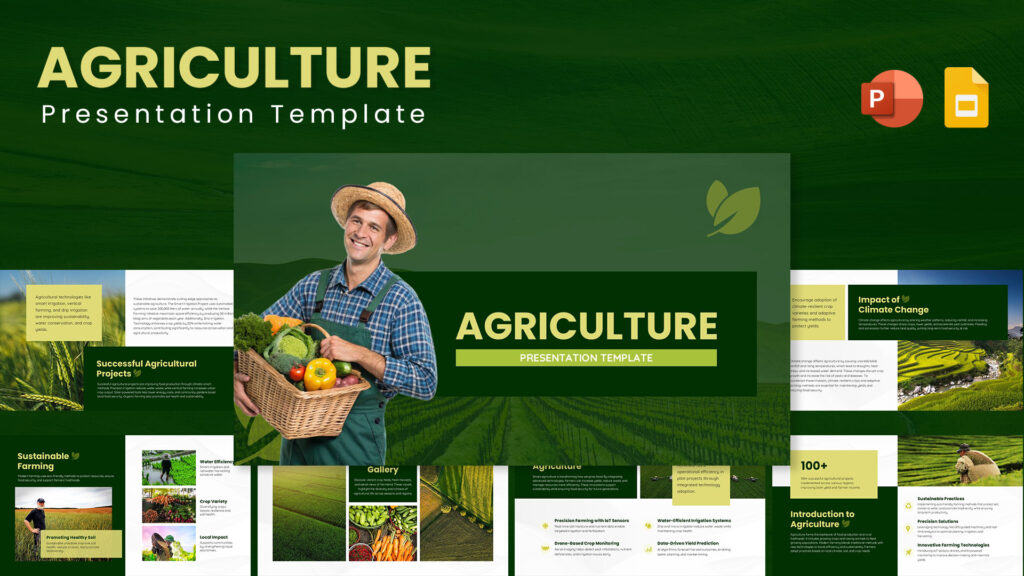
7. Agriculture Presentation Pitch Deck for Google Slides
8. Company Board Meeting Google Slides Presentation Template

9. Sales Pitch Presentation Google Slides Template
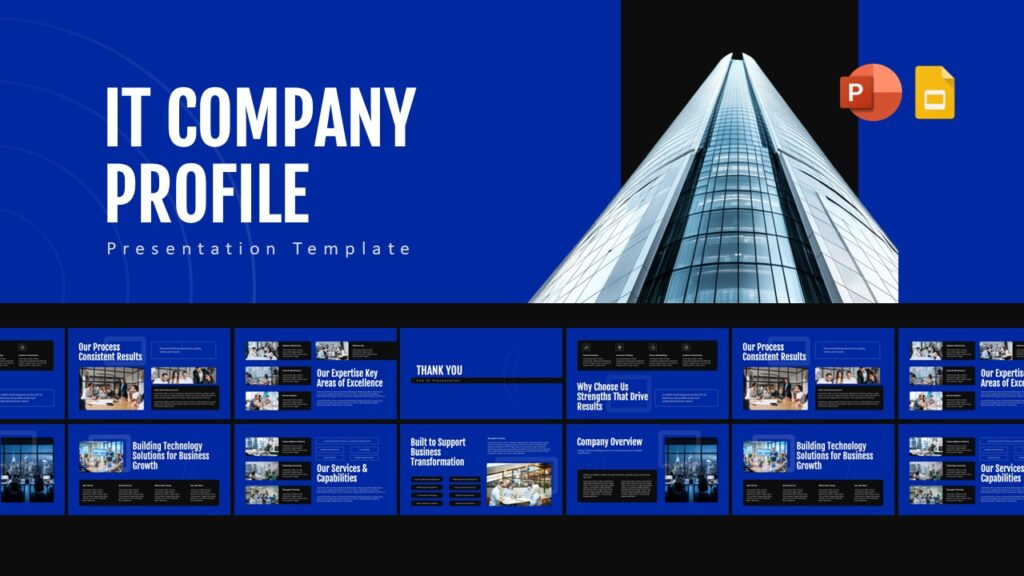
10. IT Company Profile Presentation Google Slides Template
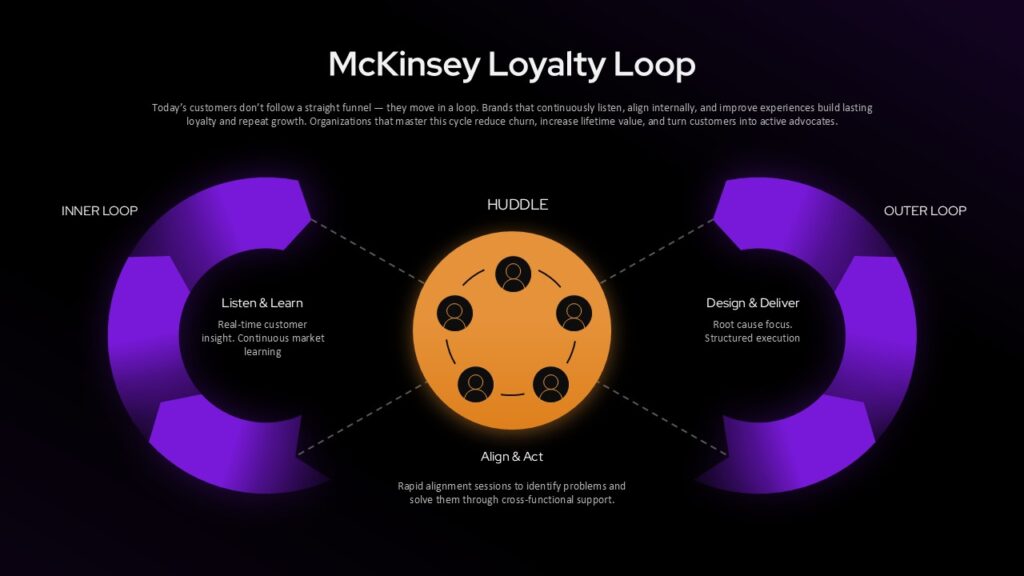
11. McKinsey Loyalty Loop Google Slides Template
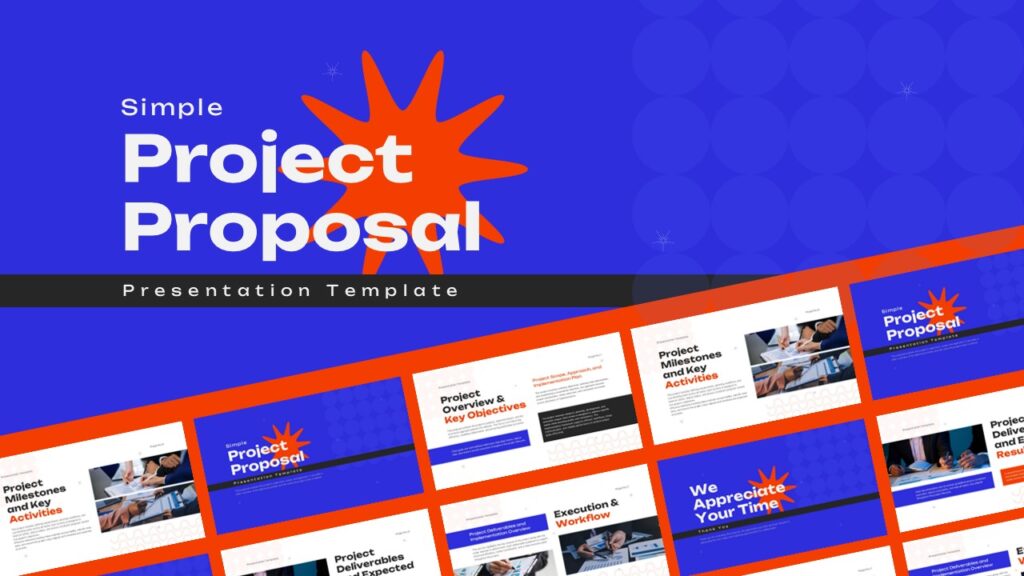
12. Simple Project Proposal Template for Google Slide Presentations
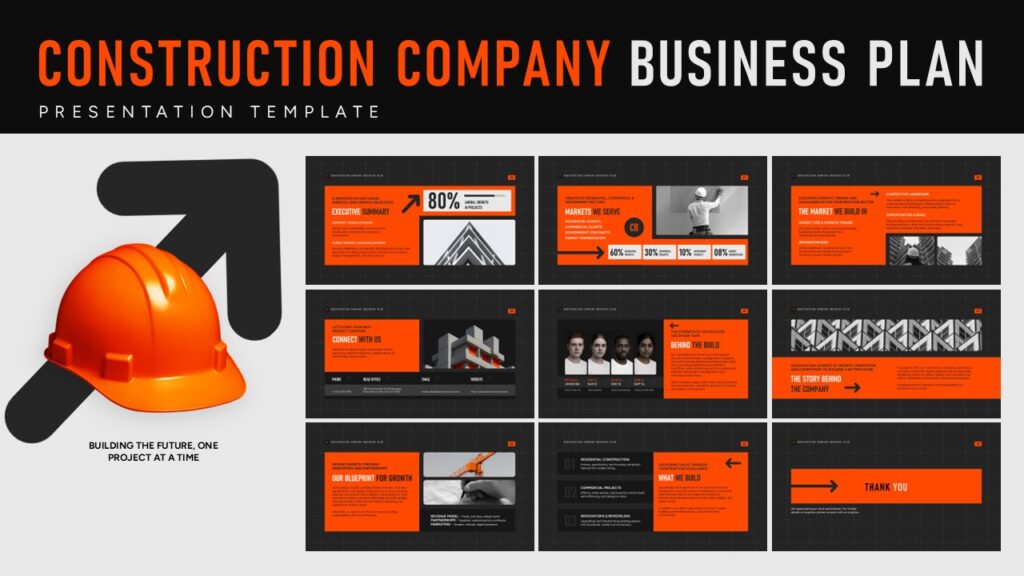
13. Construction Company Business Plan Google Slides Presentation Template
14. Restaurant Marketing Plan Google Slides Template

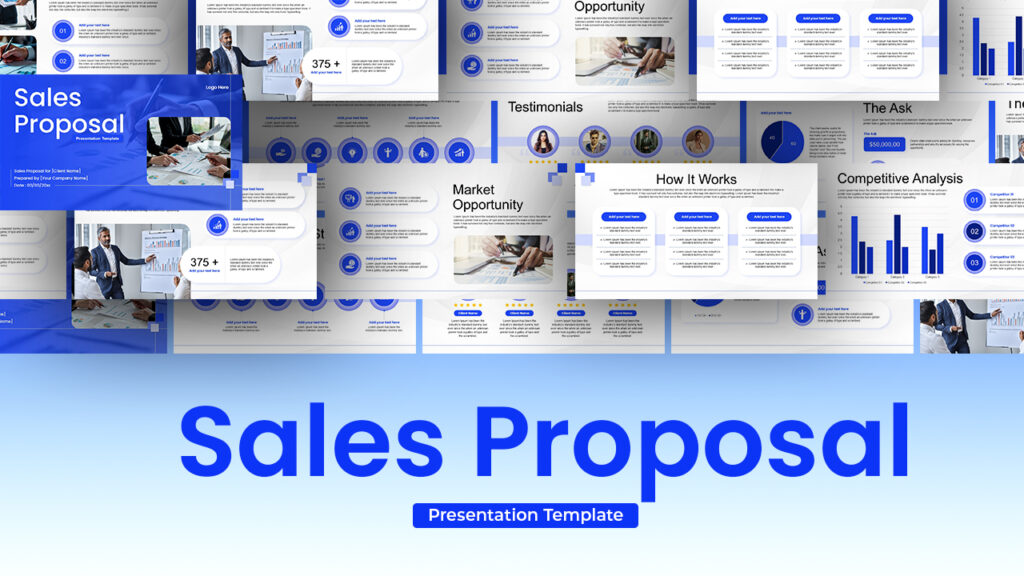
15. Sales Proposal Presentation Google Slides Template
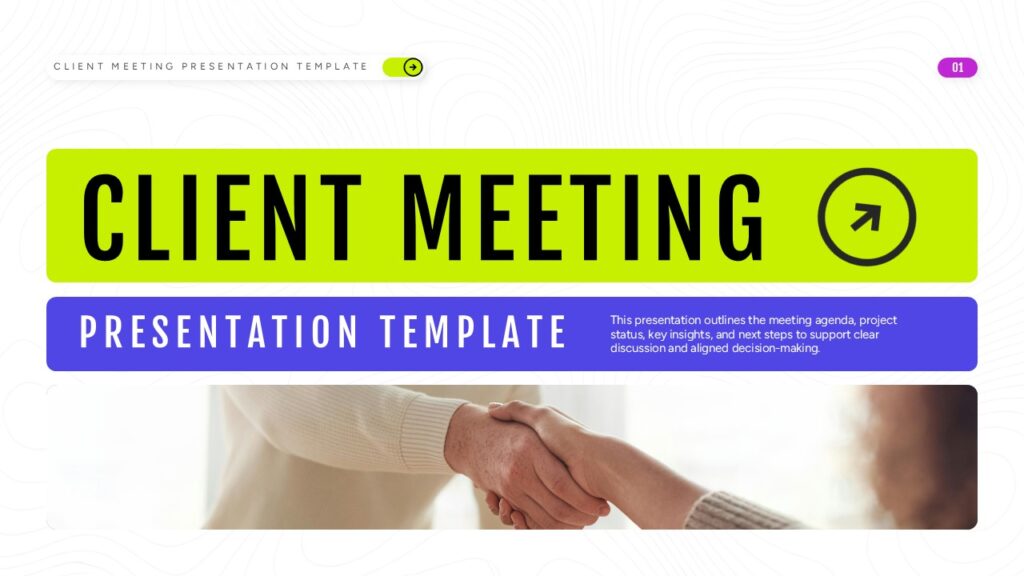
16. Modern Client Meeting Presentation Deck for Google Slides
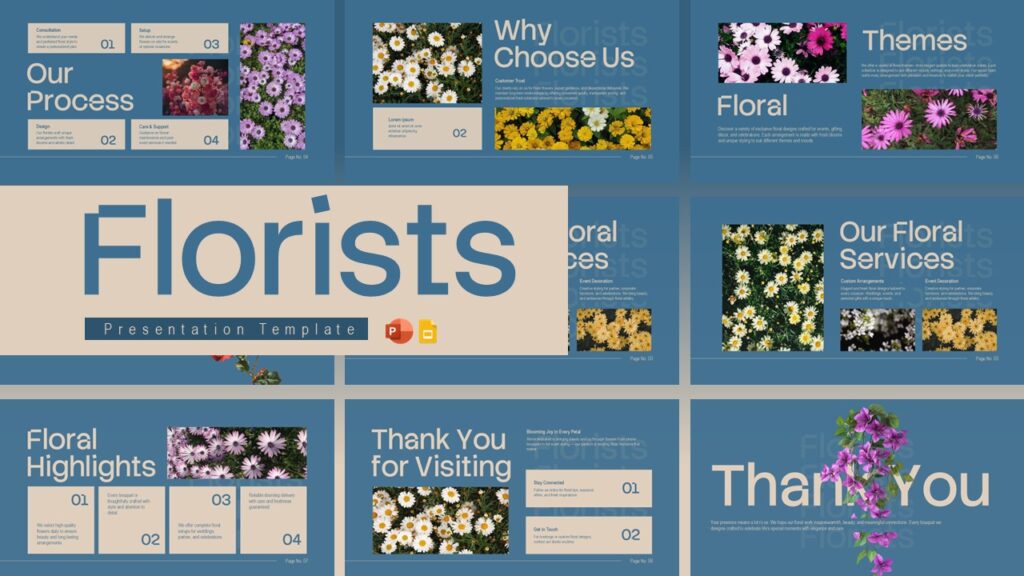
17. Florists Business Presentation Deck for Google Slides
18. Digital Marketing Company Profile Google Slides Template

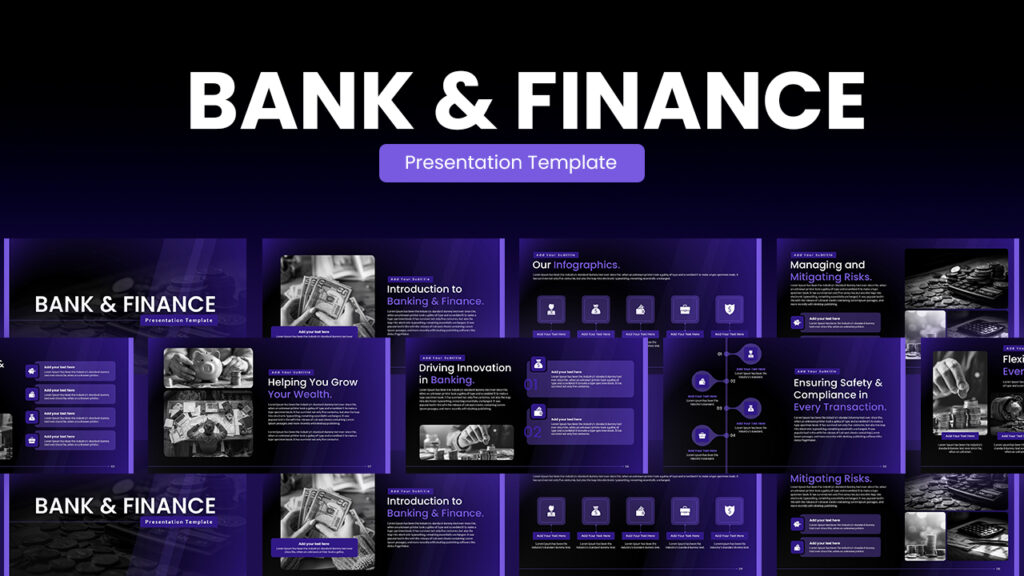
19. Bank & Finance Presentation Google Slides Template
20. Customer Profile Google Slides Template
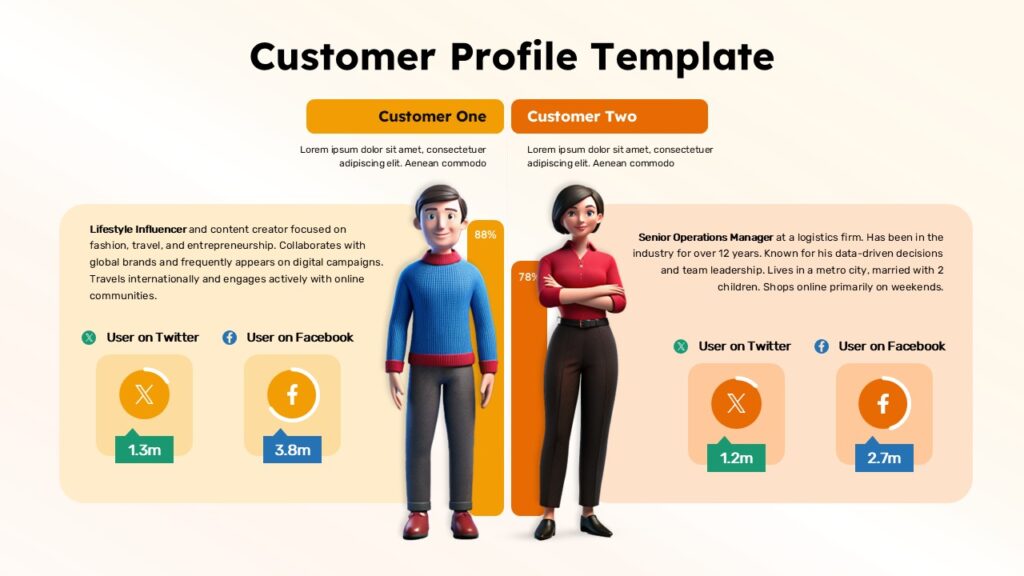
21. Machine Learning Workflow Google Slides Template

22. Civil Engineering Portfolio Google Slides Template

23. Partnership Proposal Deck for Google Slides
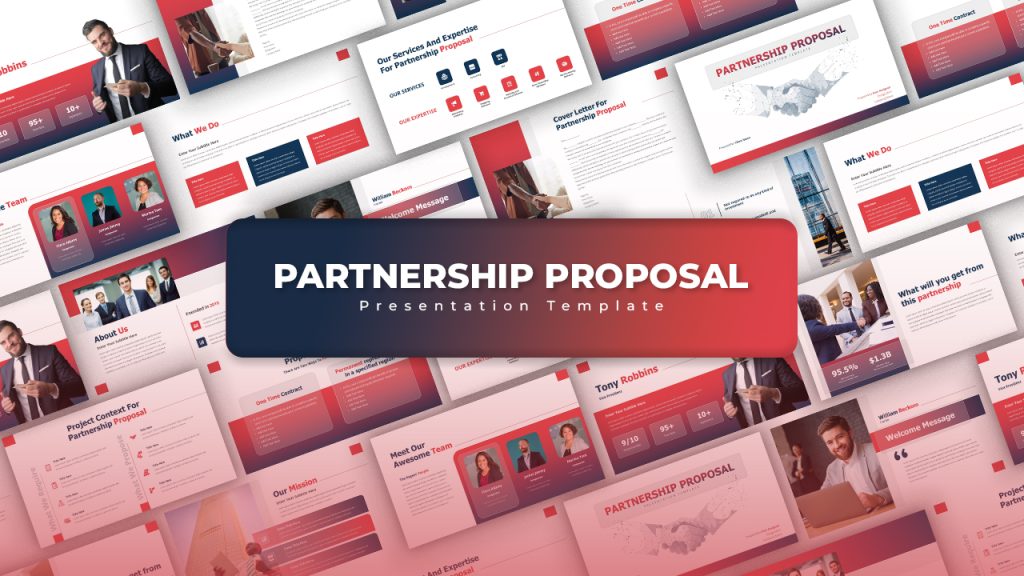
24. Simple Agenda Google Slides Template
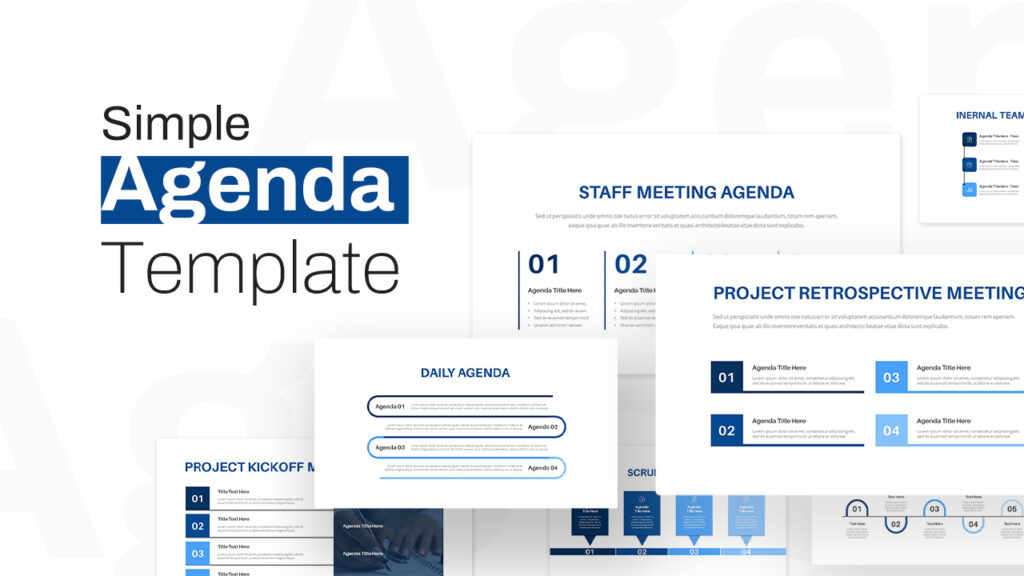
25. Animated Consulting Proposal Google Slides Template

How to Choose the Best Google Slides Template
Match the Template to Your Presentation Goal
Before choosing colors or imagery, decide what your presentation needs to achieve. Are you seeking approval, explaining a process, reporting progress, or introducing an idea?
A template for business presentation may need space for the problem, recommended solution, scope, and next steps. A sales presentation may benefit from layouts for customer needs, product benefits, and supporting evidence. A business Google Slides presentation may require a broader structure for strategy, operations, and financial information.
Choosing a template around that goal makes it easier to build a coherent presentation. Write a short outline first, then look for slide layouts that support it.
Choose a Great Google Slides Theme That Fits Your Audience
Your audience should influence the visual tone. A corporate presentation may call for understated colors and straightforward layouts. A creative proposal may allow more expressive typography, imagery, and color.
Neither approach is automatically more professional. What matters is whether the design fits the setting and keeps the message easy to follow.
When comparing Google Slides presentation themes, consider how the presentation will be viewed. Slides used during a live talk can be concise because you will explain the details. A pitch deck Google Slide presentation shared for independent reading may need additional context. Choose a design that accommodates the right amount of information.
Check Editability and Download Details
Before downloading, review the individual template’s description and file information. Confirm that it supports your intended Google Slides workflow and includes the layouts shown in the preview.
If a template is described as editable or fully editable, check which elements you can change. Text, shapes, charts, and images may have different editing requirements. A graphic that appears as one flattened image offers less flexibility than separate objects.
For free to use templates, review any stated usage or attribution requirements. If you are comparing Google Slides options with PowerPoint templates, confirm the available formats in which the template is designed rather than assuming both are included.
Customize Your Google Slides Presentation with Purpose
Apply Your Branding Consistently
Once you have chosen a template, adjust its colors, typography, and imagery to fit your organization. Use a consistent treatment for headings, body text, and supporting labels.
Branding should make the professional presentation recognizable without competing with the content. Keep logos proportionate, maintain readable color contrast, and avoid introducing a different visual style on every slide.
An elegant Google Slides template can lose its consistency through scattered edits. Make a few deliberate design choices, then apply them throughout the deck.
Give Each Slide One Main Message
A template provides structure, but your content determines whether the presentation is useful. Give each slide a clear purpose and write a title that communicates its main point.
Instead of placing a long paragraph into a text box, identify the essential information. Use a comparison to explain alternatives, a timeline to show sequence, or a chart to reveal a meaningful pattern.
Keep supporting details where they help the audience understand the point. If a slide becomes crowded, split the content across two slides rather than shrinking everything to fit.
Use Visuals That Explain the Content to Look More Professional
Images, icons, and diagrams work best when they clarify an idea. Choose slide designs that support the topic and remove decorative elements that distract from it.
For charts, include clear labels and enough context to interpret the numbers. For process diagrams, make the sequence easy to follow. Consistent visual choices help your unique slides look more professional design while making the information easier to understand.
Review the Presentation Before Sharing
Before presenting using Google Slides, check the entire pitch deck for consistent formatting, readable text, and accurate information. Review image cropping, chart labels, spacing, and any links you have included.
Rehearse with the finished slides to see whether the order supports your explanation. If you repeatedly need to jump backward or explain missing context, revise the sequence. A polished & minimal Google Slide design works best when the story is equally clear.
Find the Right Google Slides Template for Your Next Presentation
The best Google Slides templates support both your content and your audience. Start with your goal, choose layouts that fit your outline, and customize the design to make your presentation with consistent branding and purposeful visuals.
Explore this collection of professional templates for Google Slide with fully editable slides and follow the download link for the professional appearance that suits your needs. A carefully chosen Google Slides template can give you a useful foundation for presenting your ideas with clarity and confidence to take your presentation to the next level.
Related Articles
-
 November 14th, 2022
Usage of SmartArt in PowerPoint
Blog Post -
 September 17th, 2024
20+ Stunning Presentation Themes for 2026
Blog Post -
 August 27th, 2025
Securing Your Team’s Sensitive Presentations: Watermarking and Permission Control Guide
Blog Post